com.gitkraken/gk-cli
The GitKraken MCP Server for managing repos, PRs, issues across GitHub, GitLab, Bitbucket and more.
🚀 GitKraken CLI
gk is GitKraken on the command line. The core functionality is focused on "Work Items" which can be thought of as the feature or issue you are trying to tackle. This allows you to work with multiple repos at once and get the same UX as if you were in a monorepo. We also provide robust AI-powered commit messages and Pull Request generation. It also provides an MCP server that streamlines working with git and your Issue and git hosting providers.
GitKraken CLI is available on macOS, Windows, and Unix systems.

Table of Contents
MCP Server
The GitKraken MCP server is a local MCP server that is powerful and easy to use. It wraps git, GitHub, Jira MCP actions as well as provides tools to LLMs that work with GitKraken APIs and functionality. You can find specific installation instructions based on your chosen AI application in the Help Center.
If you want to read more about the MCP server, you can check out the introduction blog post
Documentation
gk help is going to be your best source for exploring the CLI. But also see the workflows below.
Welcome to GitKraken CLI, a premium CLI experience for managing multiple repositories with familiar GIT CLI commands

Usage:
  gk [flags]
  gk [command]

AUTHENTICATING
  auth         Authenticate with the GitKraken platform
  provider     Add or remove provider tokens

CORE COMMANDS
  graph        Display commit graph in current repository
  issue        Manage your issues
  organization Manage your Gitkraken organizations
  work         Interact with your work.
  workspace    Interact with your workspaces. Alias: 'ws'

Additional Commands:
  help         Help about any command
  setup        Display information about your current system configuration
  version      Print the version number of GK CLI

Flags:
  -h, --help   help for gk

Use "gk [command] --help" for more information about a command.
Workflows
Start with a single repo. You can add more later.
In general, your process will look like this:
# Authenticate
gk auth login

# Navigate to a git repo directory on your filesystem
cd ./path/to/repo

# Then create a Work Item and the current directory
# will be automatically added to the Work Item
gk work create "My new work item"

# Edit files...
# ...

# Commit your changes using AI
gk work commit --ai

# Push your changes
gk work push

# Create a Pull Request
gk work pr create --ai
Once you have familiarized yourself with using a single repo, try out creating work items and generating commits and PRs for multiple repos at a time by just adding multiple repos to a new Work Item.
# Add a repo to the current work item
gk work add ./path/to/repo # path could be as simple as "." if you are in the directory already
git Command Passthrough
You can also use gk to pass through any git command. eg:
gk status
gk remote -v
# etc
Installation
macOS
gk is available from Homebrew with the following command:
Homebrew:
brew install gitkraken-cli
Or download it from the releases page and add it to your binaries folder:
mv ~/Downloads/gk /usr/local/bin/gk
Unix / Ubuntu

gk is available as a downloadable binary from the releases page. Once you have it, add it to your binaries folder:
mv ~/Downloads/gk /usr/local/bin/gk
Or create a new directory, move the binary and add it to $PATH:
mkdir "$HOME/cli"
mv ~/Downloads/gk "$HOME/cli"
export PATH="$HOME/gk:$PATH"
You can also [download][releases page] your corresponding package (.deb, .rpm) and install it with:
sudo apt install ./gk.deb
or
sudo rpm -i ./gk.rpm
Windows
gk is available from [Winget][winget] with the following command:
winget install gitkraken.cli
⚙️ Configuration
Nerd Fonts
The GitKraken CLI supports Nerd Fonts to display icons for some commands. To ensure correct icon rendering, please obtain and install a Nerd Font available at https://www.nerdfonts.com/. After installation, set the selected Nerd Font as the default font for your terminal.
Troubleshooting
gk login freezes after authenticating in browser
This problem is due to the browser. Currently we know that Safari and Brave do not allow to respond to localhost through port 1314. To fix this, change your default browser or copy the URL before the redirect and open it in another browser.
gk from Oh-My-Zsh
Oh-My-Zsh has gitk aliased as gk and that can create some problems. To fix this, type in your terminal:
unalias gk
Manual macOS Installation
If you install the CLI manually from the releases page on macOS, you will likely run into a security error that looks like this:
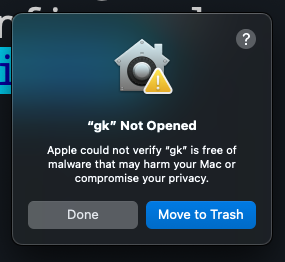
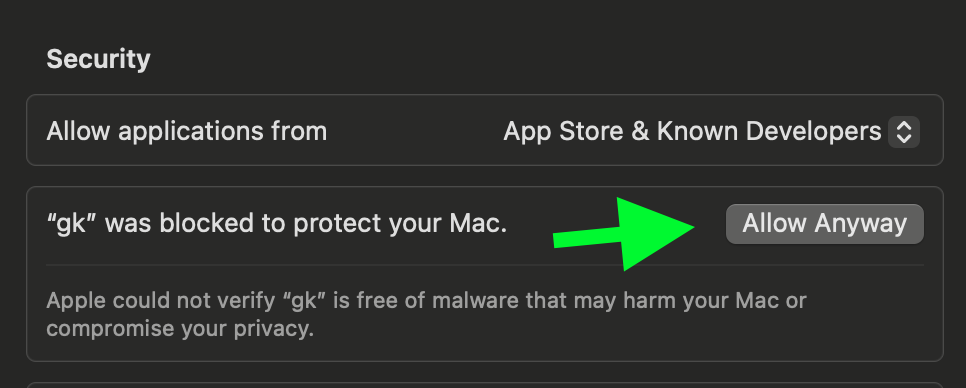
To fix this, go to Settings > Security & Privacy > General and click "Allow Anyway".
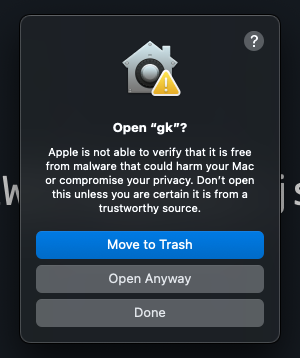
Try running gk setup again and then click "Open Anyway" to continue.
Installation
Source-derived launch command. Check the maintainer’s required arguments and credentials before running:
npx -y @gitkraken/gkSet up in your AI client
Merge this template into ~/Library/Application Support/Claude/claude_desktop_config.json. Keep existing servers. Add any arguments, credentials, and permissions required by the maintainer; this template has not been install-tested.
{
  "mcpServers": {
    "com-gitkraken-gk-cli": {
      "command": "npx",
      "args": [
        "-y",
        "@gitkraken/gk"
      ]
    }
  }
}
Restart Claude Desktop completely for changes to take effect. Confirm the server appears connected in the client’s tool list, then try a read-only example from its documentation.
Claude Desktop setup referencePackage
@gitkraken/gknpmCompatible MCP Clients
com.gitkraken/gk-cli works with any MCP-compatible client. Copy the config snippet from the Configuration section above and add it to the file shown for your client, then restart the application.
- Claude Desktop
~/Library/Application Support/Claude/claude_desktop_config.jsonRestart Claude Desktop completely for changes to take effect. - Cursor
~/.cursor/mcp.jsonRestart Cursor for changes to take effect. - VS Code
.vscode/mcp.jsonReload VS Code window for changes to take effect. - Windsurf
~/.codeium/windsurf/mcp_config.jsonRestart Windsurf for changes to take effect. - Claude Code
.mcp.jsonSave at the project root, then start Claude Code in that project and review the MCP server approval prompt. Keep real credentials out of shared files.