Robin: AI-Powered Dark Web OSINT
Dark web OSINT over Tor: search onion engines, scrape pages, report with your own model.




Robin: AI-Powered Dark Web OSINT Tool
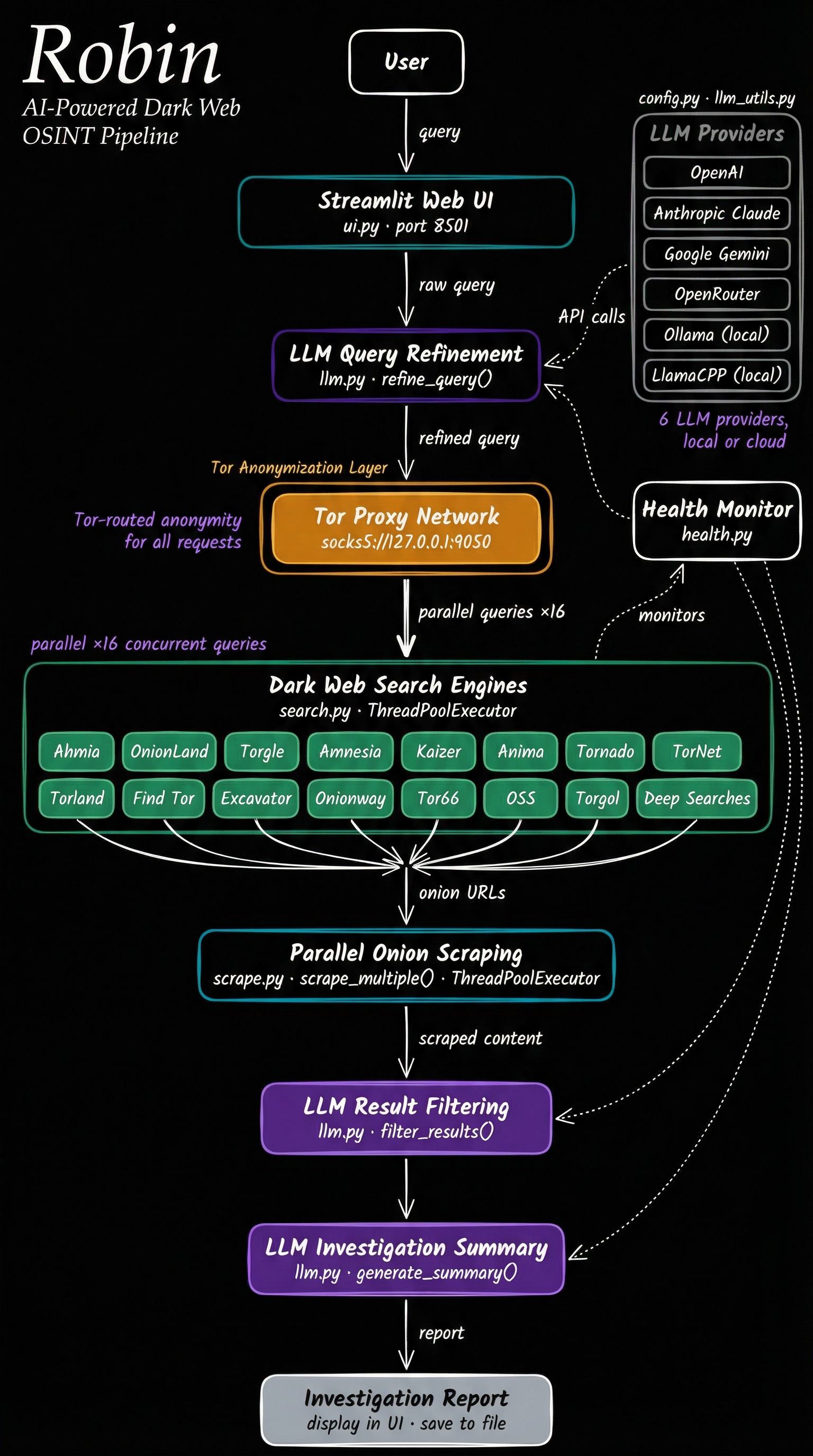
Robin is an AI-powered tool for conducting dark web OSINT investigations. It leverages LLMs to refine queries, filter search results from dark web search engines, and provide an investigation summary.
Installation • Robin as MCP • Troubleshooting • Contributing • Acknowledgements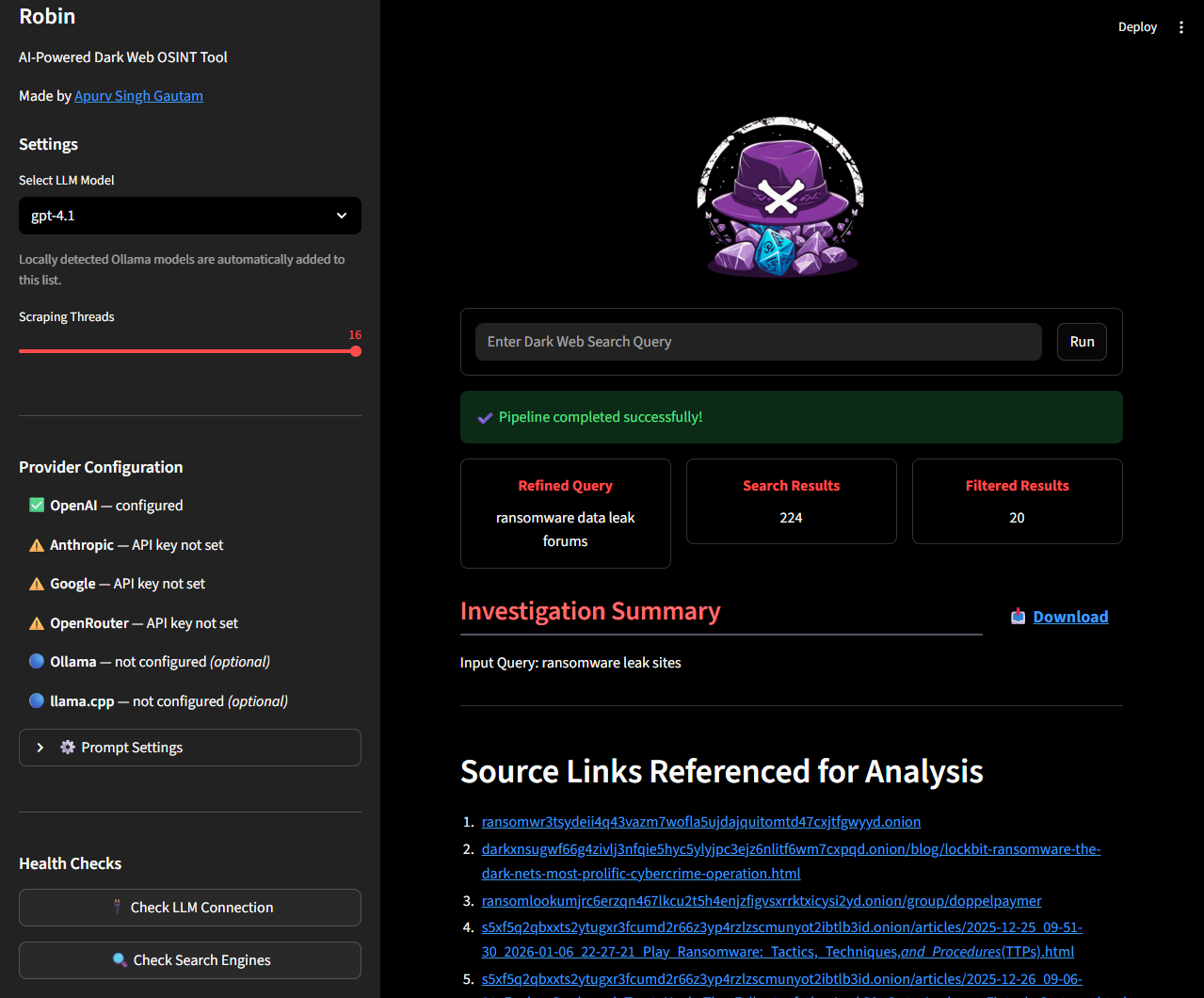
Architecture
Features
- 🤖 Multi-Model Support – OpenAI, Claude, Gemini, Mistral, OpenRouter, Ollama, or any OpenAI-compatible API (LM Studio, llama.cpp, Groq, etc.).
- 🌐 Web UI – Streamlit-based interface for interactive investigations.
- 🔌 MCP Support – Run Robin from any MCP-capable agent, using that agent's own model. See Robin as MCP.
- 💬 Conversational Follow-ups – Ask grounded follow-up questions about an investigation without re-running the search, answered from that investigation's own data.
- 🔀 One-Click Pivots – Suggested follow-up queries surfaced from the findings; click one to launch a fresh investigation.
- 🐳 Docker-Ready – Recommended Docker deployment for clean, isolated usage.
⚠️ Disclaimer
This tool is intended for educational and lawful investigative purposes only. Accessing or interacting with certain dark web content may be illegal depending on your jurisdiction. The author is not responsible for any misuse of this tool or the data gathered using it.
Use responsibly and at your own risk. Ensure you comply with all relevant laws and institutional policies before conducting OSINT investigations.
Additionally, Robin leverages third-party APIs (including LLMs). Be cautious when sending potentially sensitive queries, and review the terms of service for any API or model provider you use.
Installation
[!NOTE] The tool needs Tor to do the searches. You can install Tor using
apt install toron Linux/Windows(WSL) orbrew install toron Mac. Once installed, confirm if Tor is running in the background.
[!TIP] Provide your API key either in a
.envfile (copy.env.example) or as environment variables. One key is enough: Robin lists models for whichever providers it finds. Supported keys areOPENAI_API_KEY,ANTHROPIC_API_KEY,GOOGLE_API_KEY,MISTRAL_API_KEYandOPENROUTER_API_KEY.For Ollama, nothing goes in your
.env. Robin defaults tohttp://host.docker.internal:11434, which is what the recommended Docker install needs. Two things are still on you:
- Run the container with
--add-host=host.docker.internal:host-gateway(the README command already does).- Make Ollama listen on all interfaces, since it binds to
127.0.0.1by default and a container cannot reach that. If you start it yourself,OLLAMA_HOST=0.0.0.0 ollama serve &. If it runs under systemd,sudo systemctl edit ollama.service, add[Service]andEnvironment="OLLAMA_HOST=0.0.0.0", thensudo systemctl daemon-reload && sudo systemctl restart ollama.See TROUBLESHOOTING.md if it still doesn't appear.
For any other OpenAI-compatible provider (LM Studio, llama.cpp, Groq, etc.), use the 🔌 Custom API Provider expander in the sidebar — no
.envchanges required. Enter the base URL, an optional API key, and optionally a model name if the provider doesn't expose/v1/modelsfor auto-discovery.
Docker [Recommended]
- Pull the latest Robin docker image
docker pull apurvsg/robin:latest
- Create a
.envfile in the folder you run from, with your API key in it (see.env.example). Create it before the first run: if it does not exist, Docker mounts an empty folder in its place and Robin starts with no keys.
touch .env # then add your API key to it
- Run the docker image as:
docker run --rm \
   -v "$(pwd)/.env:/app/.env" \
   --add-host=host.docker.internal:host-gateway \
   -p 8501:8501 \
   apurvsg/robin:latest
[!TIP] To persist saved investigations across Docker restarts, mount a named volume or a local directory at
/app/investigations.A named volume works the same on every OS and needs no host path. It is also the volume the agent commands in Robin as MCP mount, so the UI shows the same reports your agent saved:
docker run --rm \
   -v "$(pwd)/.env:/app/.env" \
   -v robin-investigations:/app/investigations \
   --add-host=host.docker.internal:host-gateway \
   -p 8501:8501 \
   apurvsg/robin:latest
Or mount a local directory, if you want the JSON files on your own disk:
docker run --rm \
   -v "$(pwd)/.env:/app/.env" \
   -v "$(pwd)/investigations:/app/investigations" \
   --add-host=host.docker.internal:host-gateway \
   -p 8501:8501 \
   apurvsg/robin:latest
Investigations are saved to the
investigations/folder in your working directory and can be loaded from the Past Investigations panel in the sidebar.Create the folder yourself first (
mkdir -p investigations) so Docker does not create it as root. The container runs as UID 1000, and on Linux a folder owned by anyone else is read-only to it — Robin prints one warning and the save fails, though the investigation still runs. If you hit that, or your own UID isn't 1000, use the named volume above, or see Saved investigations fail with permission denied on Linux.
- Open your browser and navigate to
http://localhost:8501
Build it yourself
To run your own build instead of the published image, clone the repository and build it:
docker build -t robin .
Then use the same run commands with robin in place of apurvsg/robin:latest:
docker run --rm \
   -v "$(pwd)/.env:/app/.env" \
   --add-host=host.docker.internal:host-gateway \
   -p 8501:8501 \
   robin
docker run --rm \
   -v "$(pwd)/.env:/app/.env" \
   -v "$(pwd)/investigations:/app/investigations" \
   --add-host=host.docker.internal:host-gateway \
   -p 8501:8501 \
   robin
- Open your browser and navigate to
http://localhost:8501
Robin as MCP
Any LLM service that speaks MCP can run it, using its own model. The sections below are worked examples for the common hosts; a host that is not listed works the same way, with whatever wording it uses for "add an MCP server".
Claude Code
claude mcp add robin -- docker run -i --rm -v robin-investigations:/app/investigations apurvsg/robin mcp
Or check it into the project in .mcp.json. A Tor investigation takes minutes,
so raise the per-server timeout:
{
  "mcpServers": {
    "robin": {
      "command": "docker",
      "args": ["run", "-i", "--rm", "-v", "robin-investigations:/app/investigations", "apurvsg/robin", "mcp"],
      "timeout": 600000
    }
  }
}
Codex
codex mcp add robin -- docker run -i --rm -v robin-investigations:/app/investigations apurvsg/robin mcp
The ChatGPT desktop app shares this host: adding Robin under Settings → MCP servers there writes the same configuration, and its tools appear in Codex sessions rather than in an ordinary ChatGPT chat.
A Tor search usually takes a couple of minutes, which can outlast Codex's default
MCP tool timeout, so raise the limits in ~/.codex/config.toml:
[mcp_servers.robin]
command = "docker"
args = ["run", "-i", "--rm", "-v", "robin-investigations:/app/investigations", "apurvsg/robin", "mcp"]
tool_timeout_sec = 600
startup_timeout_sec = 60

# Only for non-interactive runs (`codex exec`): Codex declines MCP tool calls
# that would need approval, so pre-approve Robin's read-only tools.
default_tools_approval_mode = "approve"
Pull the image first (docker pull apurvsg/robin:latest) so the first start is
not also a download.
Claude Desktop
Add this to claude_desktop_config.json and restart the app:
{
  "mcpServers": {
    "robin": {
      "command": "docker",
      "args": ["run", "-i", "--rm", "-v", "robin-investigations:/app/investigations", "apurvsg/robin", "mcp"]
    }
  }
}
Hermes
In ~/.hermes/config.yaml:
mcp_servers:
  robin:
    command: docker
    args: [run, -i, --rm, -v, "robin-investigations:/app/investigations", apurvsg/robin, mcp]
    timeout: 600
OpenClaw
openclaw mcp add robin --command docker --arg run --arg -i --arg --rm --arg -v --arg robin-investigations:/app/investigations --arg apurvsg/robin --arg mcp
Or in the config, under mcp.servers:
{
  "mcp": {
    "servers": {
      "robin": {
        "transport": "stdio",
        "command": "docker",
        "args": ["run", "-i", "--rm", "-v", "robin-investigations:/app/investigations", "apurvsg/robin", "mcp"],
        "requestTimeoutMs": 600000
      }
    }
  }
}
ChatGPT
The desktop app's Settings → MCP servers configures the Codex host that the app, the Codex CLI and the IDE extension share, so add Robin there and it appears in Codex sessions: see Codex. An ordinary ChatGPT chat cannot run it, because chat reaches MCP servers through connectors that run in OpenAI's infrastructure rather than on your machine.
Security
- Nothing sends, executes, or runs a shell. The only writes are saved reports,
into
investigations/under a filename Robin picks; the agent never names a path. - Searches, page scrapes and search-engine health checks go through Tor, so the app you are using never fetches a dark web page itself. Model provider calls and the model list refresh go directly, not through Tor.
- Scraped text comes back inside untrusted-data delimiters, with control, zero-width and bidi characters stripped first, so your model reads it as evidence rather than as instructions.
Acknowledgements
- Idea inspiration from Thomas Roccia and his demo of Perplexity of the Dark Web.
- Tools inspiration from my OSINT Tools for the Dark Web repository.
- LLM Prompt inspiration from OSINT-Assistant repository.
- Logo Design by my friend Tanishq Rupaal
Installation
Source-derived launch command. Check the maintainer’s required arguments and credentials before running:
docker run -i --rm docker.io/apurvsg/robin:v3.1Set up in your AI client
Merge this template into ~/Library/Application Support/Claude/claude_desktop_config.json. Keep existing servers. Add any arguments, credentials, and permissions required by the maintainer; this template has not been install-tested.
{
  "mcpServers": {
    "io-github-apurvsinghgautam-robin": {
      "command": "docker",
      "args": [
        "run",
        "-i",
        "--rm",
        "docker.io/apurvsg/robin:v3.1"
      ]
    }
  }
}
Restart Claude Desktop completely for changes to take effect. Confirm the server appears connected in the client’s tool list, then try a read-only example from its documentation.
Claude Desktop setup referencePackage
docker.io/apurvsg/robin:v3.1dockerCompatible MCP Clients
Robin: AI-Powered Dark Web OSINT works with any MCP-compatible client. Copy the config snippet from the Configuration section above and add it to the file shown for your client, then restart the application.
- Claude Desktop
~/Library/Application Support/Claude/claude_desktop_config.jsonRestart Claude Desktop completely for changes to take effect. - Cursor
~/.cursor/mcp.jsonRestart Cursor for changes to take effect. - VS Code
.vscode/mcp.jsonReload VS Code window for changes to take effect. - Windsurf
~/.codeium/windsurf/mcp_config.jsonRestart Windsurf for changes to take effect. - Claude Code
.mcp.jsonSave at the project root, then start Claude Code in that project and review the MCP server approval prompt. Keep real credentials out of shared files.