Generate Tech Stack
Visual tech-stack inventory of any codebase: languages, frameworks, databases, AI SDKs, infra.
generate-tech-stack
Scan any project and generate a visual TECH_STACK.html page — light/dark theme, auto-adapting, zero config.
Works as a Claude Code skill, MCP server, or GitHub Copilot Extension.
Live demo → — generated from fastapi/full-stack-fastapi-template, unmodified.
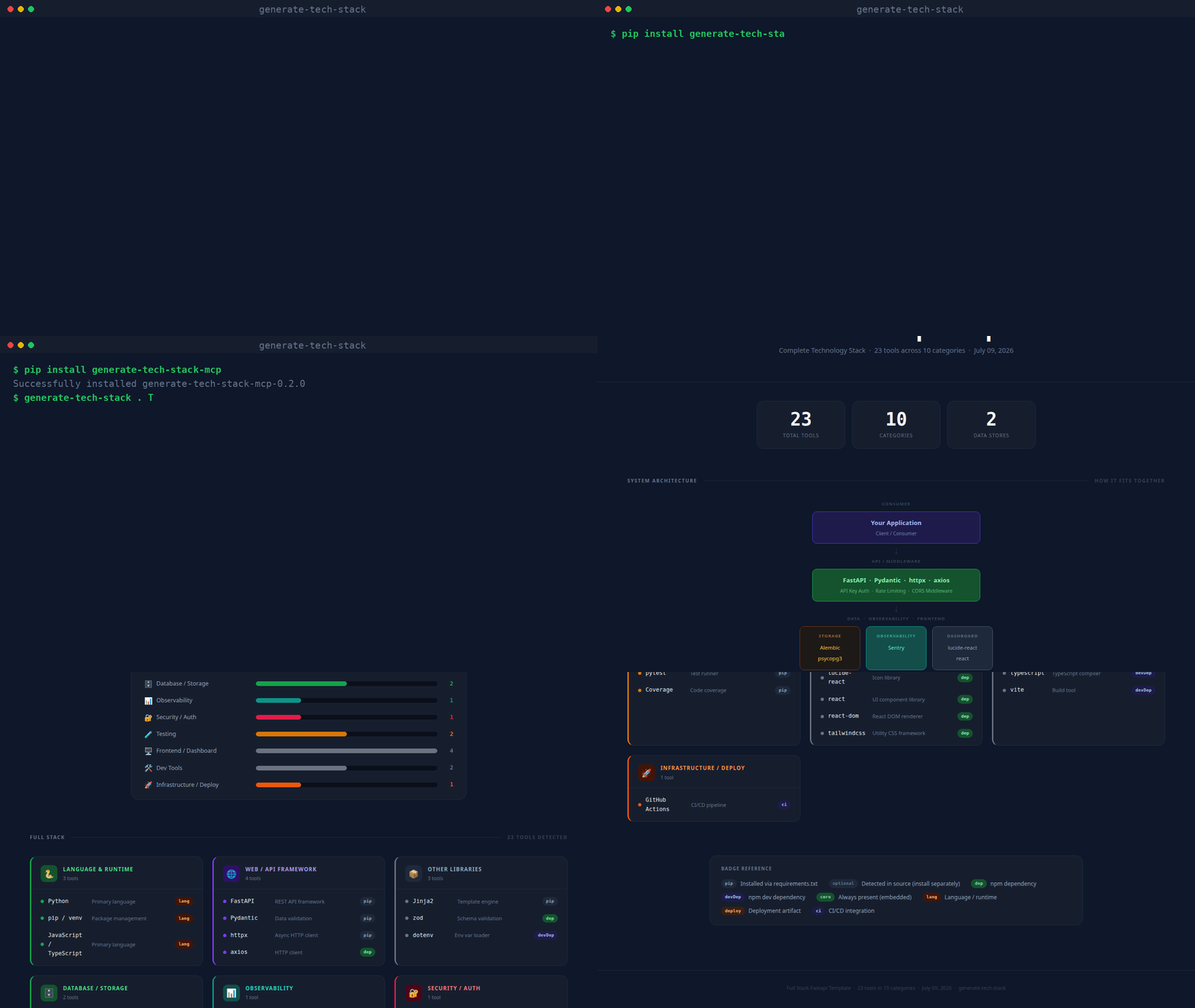
(real CLI output, unscripted — static screenshot if you'd rather not autoplay)
What it produces
Every generated page contains:
| Section | Description |
|---|---|
| Stat row | Total tools · Categories · AI Backends · Data Stores |
| Architecture diagram | Layered flow diagram (Consumer → API → AI/NLP → Data/Obs/Frontend) |
| Bar chart | Horizontal bars per category, colour-matched |
| Tool cards | One card per category; each tool shows a dot, name, description, and badge |
| Badge legend | Explains pip, dep, optional, core, deploy, ci, etc. |
| Footer | Project name · tool count · generation date |
| Guided tour | Spotlight walkthrough of every section, shown automatically the first time a report is opened; replay anytime with the ? button |
| Theme toggle | Sun/moon button next to the tour button switches between dark and light mode |
Repository layout
~/.claude/skills/generate-tech-stack/
├── SKILL.md                  ← Claude Code skill definition
├── INSTALL.md                ← detailed per-platform installation guide
├── README.md                 ← this file
├── scripts/
│   └── analyze.py            ← core scanner + HTML renderer (no dependencies)
├── mcp/
│   ├── server.py             ← MCP stdio server (pip install mcp)
│   └── requirements.txt
└── copilot/
    ├── index.js              ← GitHub Copilot Extension (Express)
    ├── package.json
    └── openai_function.json  ← OpenAI / Antigravity function definition
Usage
pip (CLI + MCP server)
pip install generate-tech-stack-mcp

generate-tech-stack . TECH_STACK.html    # CLI: scan and write the report
generate-tech-stack-mcp                   # stdio MCP server
With pip installed, any MCP host config reduces to:
{
  "mcpServers": {
    "generate-tech-stack": { "command": "generate-tech-stack-mcp" }
  }
}
Claude Code
/generate-tech-stack
Run it from any project directory. The skill calls scripts/analyze.py and opens the result in your browser.
MCP (Claude Desktop, VS Code, Cursor, Zed, Windsurf, Continue)
pip install mcp
Add to your host's MCP config (replace the path with your actual home directory):
{
  "mcpServers": {
    "generate-tech-stack": {
      "command": "python3",
      "args": ["/home/<you>/.claude/skills/generate-tech-stack/mcp/server.py"]
    }
  }
}
Then ask: generate my tech stack or /generate-tech-stack.
MCP tools exposed:
generate_tech_stack— scans a project, writesTECH_STACK.html, opens in browserlist_tech_stack— returns a JSON summary, no file written
GitHub Copilot Extension
cd copilot
npm install
npm start        # listens on port 3000
ngrok http 3000  # expose for GitHub to reach
Register a GitHub App with Copilot Extension enabled, set the Agent URL to https://your-url/agent, and install it on your account. Then in Copilot Chat:
@generate-tech-stack /generate-tech-stack
@generate-tech-stack /generate-tech-stack /path/to/project
Command line (standalone)
python3 ~/.claude/skills/generate-tech-stack/scripts/analyze.py /path/to/project
# output: /path/to/project/TECH_STACK.html

# custom output path:
python3 scripts/analyze.py . ~/Desktop/TECH_STACK.html
analyze.py has no third-party dependencies — just Python 3.8+.
What gets detected
| Source file | Detected tools |
|---|---|
requirements.txt / pyproject.toml | Python packages (web, DB, AI, testing, observability, security…) |
package.json | Node / npm packages (frameworks, frontend, DB drivers, tooling) |
go.mod | Go language |
Cargo.toml | Rust language |
pom.xml / build.gradle | Java / Kotlin |
Gemfile | Ruby |
composer.json | PHP |
**/*.py source | Optional/dynamic SDKs via importlib.find_spec() patterns |
docker-compose.yml / .env | PostgreSQL, Redis, MongoDB, SQLite connection strings |
Dockerfile | Docker |
docker-compose.yml | Docker Compose |
.github/workflows/ | GitHub Actions |
.gitlab-ci.yml | GitLab CI |
alembic.ini | Alembic migrations |
nginx.conf / Caddyfile | Reverse proxy |
tsconfig.json / src/**/*.ts | TypeScript |
Detected categories
| Category | Colour | Examples |
|---|---|---|
| Language & Runtime | Green | Python, Go, Rust, TypeScript |
| Web / API Framework | Purple | FastAPI, Express, Django, Next.js |
| Database / Storage | Green | SQLAlchemy, Prisma, Redis, ChromaDB |
| AI SDKs | Blue | OpenAI, Anthropic, LangChain, GuardrailsAI, NVIDIA NeMo, Presidio |
| NLP / ML | Teal | spaCy, Transformers, Sentence Transformers |
| Observability | Teal | Prometheus, OpenTelemetry, Sentry, Loguru |
| Testing | Yellow | pytest, Jest, Cypress, Playwright |
| Security / Auth | Rose | PyJWT, bcrypt, Authlib, Helmet |
| Infrastructure / Deploy | Orange | Docker, Kubernetes, Celery, Boto3 |
| Frontend / Dashboard | Gray | React, Vue, Tailwind, Recharts |
| Messaging / Comms | Blue | Kafka, RabbitMQ, Socket.io |
| Dev Tools | Gray | ESLint, Prettier, Vite, TypeScript |
Design
Dark by default with a light-mode toggle (top-right corner, no persistence — resets to dark on reload). Fonts: IBM Plex Sans (body) + JetBrains Mono (code/badges), loaded from Google Fonts. Vanilla JS powers the guided tour and theme toggle only — everything else is plain HTML + CSS. Self-contained single file, opens in any browser offline.
See also
- INSTALL.md — per-platform setup instructions
- SKILL.md — Claude Code skill specification
Installation
Source-derived launch command. Check the maintainer’s required arguments and credentials before running:
uvx generate-tech-stack-mcpSet up in your AI client
Merge this template into ~/Library/Application Support/Claude/claude_desktop_config.json. Keep existing servers. Add any arguments, credentials, and permissions required by the maintainer; this template has not been install-tested.
{
  "mcpServers": {
    "io-github-askuma-generate-tech-stack": {
      "command": "uvx",
      "args": [
        "generate-tech-stack-mcp"
      ]
    }
  }
}
Restart Claude Desktop completely for changes to take effect. Confirm the server appears connected in the client’s tool list, then try a read-only example from its documentation.
Claude Desktop setup referencePackage
generate-tech-stack-mcppypiCompatible MCP Clients
Generate Tech Stack works with any MCP-compatible client. Copy the config snippet from the Configuration section above and add it to the file shown for your client, then restart the application.
- Claude Desktop
~/Library/Application Support/Claude/claude_desktop_config.jsonRestart Claude Desktop completely for changes to take effect. - Cursor
~/.cursor/mcp.jsonRestart Cursor for changes to take effect. - VS Code
.vscode/mcp.jsonReload VS Code window for changes to take effect. - Windsurf
~/.codeium/windsurf/mcp_config.jsonRestart Windsurf for changes to take effect. - Claude Code
.mcp.jsonSave at the project root, then start Claude Code in that project and review the MCP server approval prompt. Keep real credentials out of shared files.