Gearcoleco MCP Server
MCP server for Gearcoleco ColecoVision emulator
Gearcoleco




Gearcoleco is a very accurate, cross-platform ColecoVision and Coleco ADAM emulator written in C++ that runs on Windows, macOS, Linux, BSD and RetroArch, with an embedded MCP server for AI debugging and development.
This is an open source project with its ongoing development made possible thanks to the support by these awesome backers. If you find it useful, please consider sponsoring.
Don't hesitate to report bugs or ask for new features by opening an issue.
Downloads
| Platform | Architecture | Download Link |
|---|---|---|
| Windows | Desktop x64 | Gearcoleco-1.7.1-desktop-windows-x64.zip |
| Desktop ARM64 | Gearcoleco-1.7.1-desktop-windows-arm64.zip | |
| macOS | Homebrew | brew install --cask drhelius/geardome/gearcoleco |
| Desktop Apple Silicon | Gearcoleco-1.7.1-desktop-macos-arm64.zip | |
| Desktop Intel | Gearcoleco-1.7.1-desktop-macos-intel.zip | |
| Linux | Ubuntu PPA | drhelius/ppa-geardome |
| Fedora RPM | drhelius/rpm-geardome | |
| Desktop Ubuntu 24.04 x64 | Gearcoleco-1.7.1-desktop-ubuntu24.04-x64.zip | |
| Desktop Ubuntu 22.04 x64 | Gearcoleco-1.7.1-desktop-ubuntu22.04-x64.zip | |
| Desktop Ubuntu 24.04 ARM64 | Gearcoleco-1.7.1-desktop-ubuntu24.04-arm64.zip | |
| MCPB | All platforms | MCP Readme |
| RetroArch | All platforms | Libretro core documentation |
| Dev Builds | All platforms | GitHub Actions |
Notes:
- Windows: May need Visual C++ Redistributable and OpenGL Compatibility Pack
- Homebrew: If Homebrew asks you to trust the third-party tap, run
brew trust --tap drhelius/geardome - Linux: May need
libsdl3
Features
- Very accurate Z80 core, TMS9918A VDP, SN76489 PSG and AY-3-8910 SGM emulation.
- Support for ColecoVision Super Game Module (SGM) and MegaCart ROMs.
- Coleco ADAM computer and cartridge boot modes, full keyboard, ADAMnet, printer, Digital Data Pack and floppy support.
- Optional F18A v1.9 emulation.
- Support for Super Action Controller (SAC), Wheel Controller and Roller Controller.
- Save states with preview and rewind support.
- Run-ahead support to reduce input latency.
- Compressed ROM support (ZIP).
- VGM recorder.
- Supported platforms (standalone): Windows, Linux, BSD and macOS.
- Supported platforms (libretro): Windows, Linux, macOS, Raspberry Pi, Android, iOS, tvOS, webOS, PlayStation Vita, PlayStation 3, Nintendo 3DS, Nintendo GameCube, Nintendo Wii, Nintendo WiiU, Nintendo Switch, Emscripten, Classic Mini systems (NES, SNES, C64, ...), OpenDingux, RetroFW and QNX.
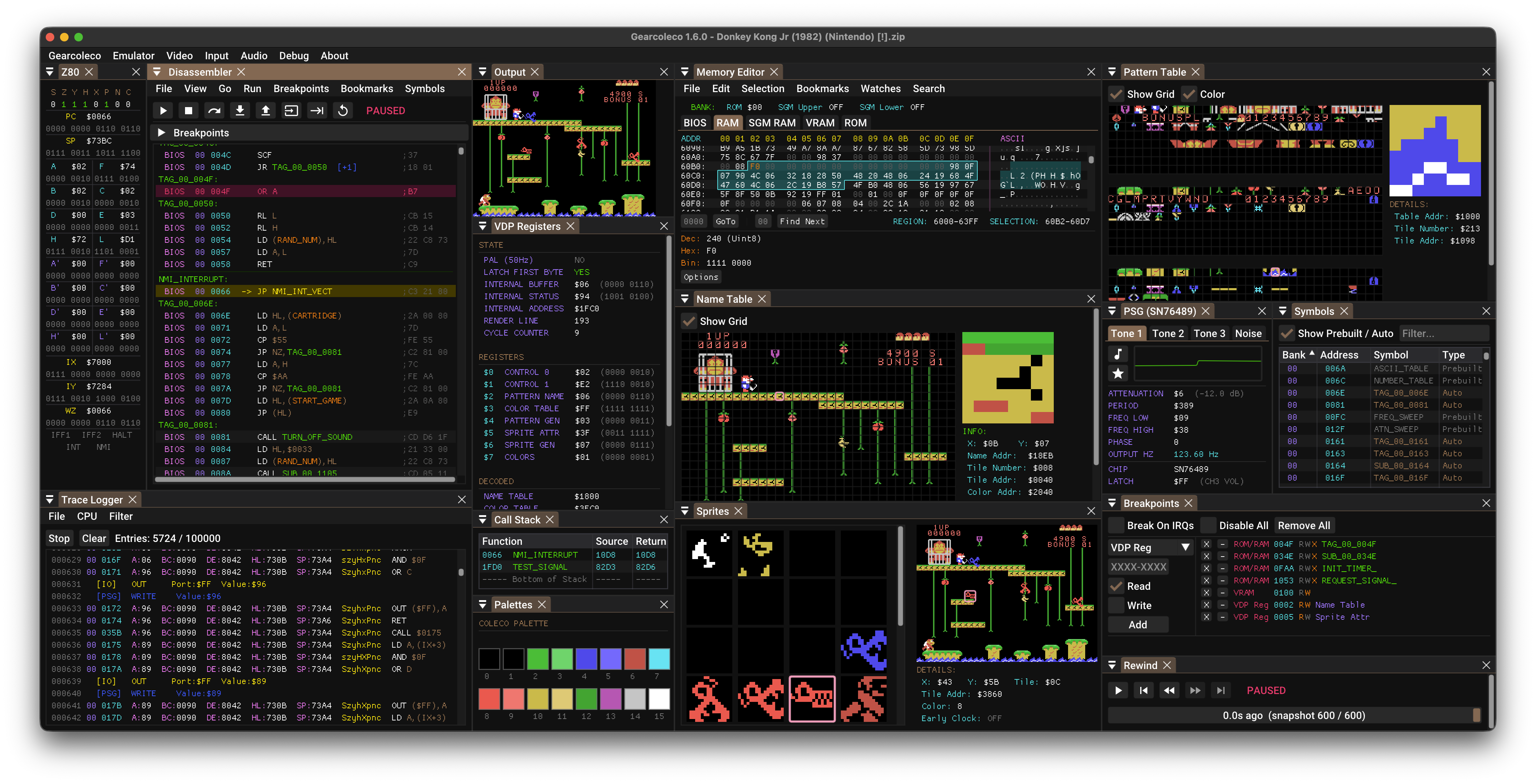
- Full debugger with just-in-time disassembler, CPU breakpoints, memory access breakpoints, code navigation (goto address, JP JR and CALL double clicking), debug symbols, automatic labels, memory editor, trace logger, IO inspector and VRAM viewer including registers, tiles, sprites and backgrounds.
- MCP server for AI-assisted debugging with GitHub Copilot, Claude, Codex and similar, exposing tools for execution control, memory inspection, hardware status, rewind and more.
- Windows, Linux and macOS Portable Mode.
- Programmable Shader Chain.
- Content loading from the command line by adding the cartridge, ADAM media or playlist path as an argument.
- Content loading using drag & drop.
- Support for modern game controllers through gamecontrollerdb.txt file located in the same directory as the application binary.
Tips
Basic Usage
- BIOS and ADAM Firmware: Firmware is not included. Select the ColecoVision BIOS (OS-7) under Emulator > BIOS; the original BIOS is recommended (CRC32
3aa93ef3; filenamescolecovision.rom,coleco.romoros7.u2). ADAM additionally needs ADAM > EOS ROM (eos.rom, 8192 bytes, common CRC3205a37a34) and ADAM > SmartWriter ROM (writer.rom,wp.romorwp_r80.rom, 32768 bytes, common CRC3258d86a2a). - ADAM Startup and Media: Insert images through the ADAM menu's disk or data pack submenus, then select Power On. Supported formats are 256 KiB
.ddp, 160/320 KiB.dsk, ZIP archives containing one valid ADAM image, and.m3uplaylists containing images of the same type. Each drive has its own recent images, playlist and write protection controls. Insert/eject affects only that drive; dropped images use an available matching drive or prompt for a destination. Gearcoleco > Open ROM... starts ColecoVision cartridges. - ADAM Power and Saves: Power Off saves modified media and keeps it inserted. Firmware changes apply at the next Power On; Computer Reset retains the current firmware and mounted media. Changes are stored as complete images under Save Files, leaving source files untouched. Drive menus also provide Save Changes and Save As; a failed save keeps the modified image mounted.
- ADAM Input: Type directly into ADAM; in debug mode, focus Output to type or a debugger tool to use its shortcuts. Configure special keys under ADAM > Keyboard (see defaults below);
F12toggles fullscreen. ADAM > Controller 1 / Controller 2 selects gamepad (default), keyboard or no hand controller per port. Bindings come from Input > Gamepads or Input > Keyboard Configuration; keys mapped to a hand controller do not type into ADAM. ADAM controller choices are saved separately from ColecoVision settings. - Spinners: Use Input > Spinners > Capture Mouse or the configured Capture Mouse shortcut. Disable spinners for software that does not use them.
- Rewind: Hold the configured rewind hotkey (
Backspaceby default) or a mapped gamepad shortcut to step backwards through recent gameplay. - Overscan: For a precise representation of the original image, select Overscan
Top+Bottomand Aspect RatioStandard (4:3 DAR)in the Video menu. - Mouse Cursor: Automatically hides when hovering over the main output window or when Main Menu is disabled.
- Portable Mode: Run with
--portable, or create an empty file namedportable.iniin the same directory as the application binary. On macOS, place the file next to the.appbundle.
Desktop ADAM Keyboard
Normal letters, digits, punctuation, Return, Escape, Backspace, Tab, Shift, Control, Caps Lock and arrow keys map directly. The dedicated ADAM keys use these defaults:
| Host key | ADAM key |
|---|---|
| F1-F6 | SmartKey I-VI |
| F7 / F8 | Undo / Wild Card |
| Home / Insert / Delete | ADAM Home / Insert / Delete |
| Page Up / Page Down | Move-Copy / Store-Fetch |
| End | Clear |
| Print Screen |
Saved keyboard mappings are preserved. Use ADAM > Keyboard > Restore Defaults to adopt this layout in an existing configuration.
When ADAM owns keyboard focus, overlapping emulator hotkeys are available from the menus so SmartKeys and editing keys reach the emulated keyboard. Leaving the window releases every held ADAM key.
ADAM keyboard input follows focus automatically. In normal use, type directly; in debug mode, focus Output to type into ADAM or focus a debugger tool to use its shortcuts. F12 remains the default fullscreen shortcut.
ADAM in Libretro
- Startup: Place OS-7, EOS and SmartWriter in the frontend system directory or its
gearcolecosubdirectory using the firmware names above. ADAM starts automatically for.ddp,.dsk, ADAM.zip,.m3uor no content; without bootable media it opens SmartWriter. Cartridges use ColecoVision unless Cartridge Hardware is set to ADAM. - Media and Saves: Media is write protected by default. Enable
Save-directory working copyto save complete modified images in the frontend save directory, leaving source files untouched. ADAM Disk Control Drive selects Disk 1/2 or Data Pack 1/2; Loaded media (default) targets the primary content drive. Each drive has its own image list. Swap through the frontend's eject, select and close sequence; other drives stay mounted. - Multiple Images: The optional ADAM subsystem (
adam) loads up to five slots before boot: Cartridge, Disk 1, Disk 2, Data Pack 1, Data Pack 2, in that order. All slots are optional and each drive supports playlists. Update older three-slot configurations to this layout; use normal content loading for a single image or playlist. - Keyboard: Bindings are fixed to the desktop defaults, including Escape for Escape/WP and Shift/Control as modifiers. In RetroArch, set Settings > Input > Auto Enable 'Game Focus' Mode to Detect, or toggle Game Focus with Scroll Lock before typing. Turn it off to use RetroArch shortcuts. Without Scroll Lock, assign Game Focus Toggle to F10; F9-F12 and Scroll Lock are unmapped in ADAM.
- Reset: Frontend Reset keeps the current boot mode. ADAM Computer Reset boots from mounted media without ejecting it; if the option does not return to Idle automatically, select Idle before requesting another reset.
Debugging Features
- Docking Windows: In debug mode, you can dock windows together by pressing SHIFT and dragging a window onto another.
- Multi-viewport: In Windows or macOS, you can enable "multi-viewport" in the debug menu. You must restart the emulator for the change to take effect. Once enabled, you can drag debugger windows outside the main window.
- Single Instance: You can enable "Single Instance" in the
Emulatormenu. When enabled, opening a ROM while another instance is running will send the ROM to the running instance instead of starting a new one. - Debug Symbols: The emulator automatically tries to load a symbol file when loading a ROM (.sym, .noi). For example, for
path_to_rom_file.romit tries to loadpath_to_rom_file.sym. You can also load a symbol file using the GUI or the CLI. It supports SDCC/NoICE (.noi), wla-dx and vasm/generic file formats. - Rewind Scrubbing: In debug mode, pause emulation and open the Rewind window to scrub through captured snapshots.
Command Line Usage
gearcoleco [options] [content_file] [symbol_file]

Arguments:
  [content_file]              Cartridge or ADAM media (.col, .cv, .rom, .bin, .ddp, .dsk, .zip, .m3u)
  [symbol_file]               Optional symbol file for debugging

Options:
  -f, --fullscreen            Start in fullscreen mode
  -w, --windowed              Start in windowed mode with menu visible
      --mcp-stdio             Auto-start MCP server with stdio transport
      --mcp-http              Auto-start MCP server with HTTP transport
      --mcp-router            Enable compact MCP tool routing
      --mcp-http-address A    HTTP bind address (default: 127.0.0.1)
      --mcp-http-port N       HTTP port for MCP server (default: 7777)
      --headless              Run without GUI (requires --mcp-stdio or --mcp-http)
      --portable              Store configuration and user data beside the application
  -v, --version               Display version information
  -h, --help                  Display this help message
MCP Server
Gearcoleco includes a Model Context Protocol (MCP) server that enables AI-assisted debugging through AI agents like GitHub Copilot, Claude, Codex and similar. The server provides tools for execution control, memory inspection, breakpoints, disassembly, hardware status, and more. STDIO and HTTP transports are supported, with STDIO preferred.
For complete setup instructions and tool documentation, see MCP_README.md.
Agent Skills
Gearcoleco provides Agent Skills that teach AI assistants how to effectively use the emulator for specific tasks:
- gearcoleco-debugging — Game debugging, code tracing, breakpoint management, hardware inspection, and reverse engineering.
- gearcoleco-romhacking — Cheat creation, memory searching, ROM data modification, text translation, and game patching.
Install with npx skills add drhelius/gearcoleco. See the skills README for details.
Build Instructions
Windows
- Install Microsoft Visual Studio Community 2026 or later.
- Download the latest SDL3 VC development libraries from SDL3 Releases (the file named
SDL3-devel-x.y.z-VC.zip). - Extract the archive and rename the resulting folder (e.g.
SDL3-x.y.z) toSDL3. - Place the
SDL3folder insideplatforms/windows/dependencies/so that the include path isplatforms/windows/dependencies/SDL3/include/SDL3/. - Open the Gearcoleco Visual Studio solution
platforms/windows/Gearcoleco.slnand build.
macOS
- Install Xcode and run
xcode-select --installin the terminal for the compiler to be available on the command line. - Run these commands to generate a Mac app bundle:
brew install sdl3
cd platforms/macos
make dist
Linux
- Ubuntu / Debian / Raspberry Pi (Raspbian):
If you are using Ubuntu 25.04 or later, you can install SDL3 directly. Use the following commands to build:
sudo apt install build-essential libsdl3-dev
cd platforms/linux
make
For older Ubuntu versions (22.04, 24.04), you need to build SDL3 from source first. Use the following commands to build both SDL3 and Gearcoleco:
sudo apt install build-essential cmake git curl jq pkg-config \
  libx11-dev libxext-dev libxrandr-dev libxcursor-dev libxfixes-dev \
  libxi-dev libxss-dev libxkbcommon-dev libwayland-dev libdecor-0-dev \
  libdrm-dev libgbm-dev libgl1-mesa-dev libegl1-mesa-dev libdbus-1-dev libudev-dev libxtst-dev
SDL3_TAG=$(curl -s https://api.github.com/repos/libsdl-org/SDL/releases/latest | jq -r '.tag_name')
git clone --depth 1 --branch "$SDL3_TAG" https://github.com/libsdl-org/SDL.git /tmp/SDL3
cmake -S /tmp/SDL3 -B /tmp/SDL3/build -DCMAKE_INSTALL_PREFIX=/usr -DSDL_TESTS=OFF -DSDL_EXAMPLES=OFF
cmake --build /tmp/SDL3/build -j$(nproc)
sudo cmake --install /tmp/SDL3/build
cd platforms/linux
make
- Fedora:
sudo dnf install @development-tools gcc-c++ SDL3-devel
cd platforms/linux
make
- Arch Linux:
sudo pacman -S base-devel sdl3
cd platforms/linux
make
BSD
- FreeBSD:
su root -c "pkg install -y git gmake pkgconf sdl3"
cd platforms/bsd
USE_CLANG=1 gmake
- NetBSD:
su root -c "pkgin install gmake pkgconf SDL3"
cd platforms/bsd
gmake
- OpenBSD
doas pkg_add gmake sdl3
cd platforms/bsd
LDFLAGS=-L/usr/X11R6/lib/ USE_CLANG=1 gmake
Libretro
- Ubuntu / Debian / Raspberry Pi (Raspbian):
sudo apt install build-essential
cd platforms/libretro
make
- Fedora:
sudo dnf install @development-tools gcc-c++
cd platforms/libretro
make
Screenshots


Contributors
Thank you to all the people who have already contributed to Gearcoleco!
License
Gearcoleco is licensed under the GNU General Public License v3.0 License, see LICENSE for more information.
Setup from the maintainer
This listing does not have a supported local package template. Use the maintainer’s documentation for its hosted endpoint, authentication, and client-specific setup. No install command has been inferred.
Package
https://github.com/drhelius/gearcoleco/releases/download/1.7.3/Gearcoleco-1.7.3-mcpb-macos-arm64.mcpbotherCompatible MCP Clients
Gearcoleco MCP Server works with any MCP-compatible client. Copy the config snippet from the Configuration section above and add it to the file shown for your client, then restart the application.
- Claude Desktop
~/Library/Application Support/Claude/claude_desktop_config.jsonRestart Claude Desktop completely for changes to take effect. - Cursor
~/.cursor/mcp.jsonRestart Cursor for changes to take effect. - VS Code
.vscode/mcp.jsonReload VS Code window for changes to take effect. - Windsurf
~/.codeium/windsurf/mcp_config.jsonRestart Windsurf for changes to take effect. - Claude Code
.mcp.jsonSave at the project root, then start Claude Code in that project and review the MCP server approval prompt. Keep real credentials out of shared files.