io.github.GLips/Figma-Context-MCP
Give your coding agent access to your Figma data. Implement designs in any framework in one-shot.
Framelink MCP for Figma
Give your coding agent access to your Figma data.
Implement designs in any framework in one-shot.
Give Cursor and other AI-powered coding tools access to your Figma files with this Model Context Protocol server.
When Cursor has access to Figma design data, it's way better at one-shotting designs accurately than alternative approaches like pasting screenshots.
See quickstart instructions →
Demo
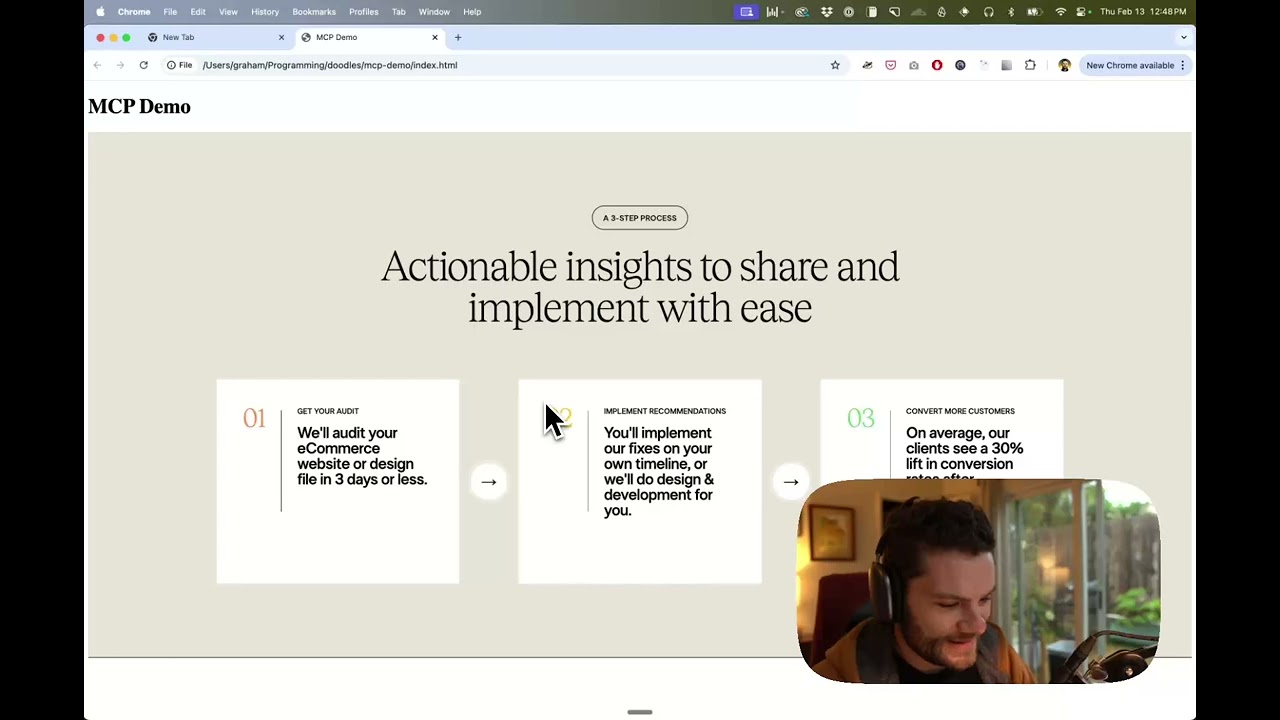
Watch a demo of building a UI in Cursor with Figma design data
How it works
- Open your IDE's chat (e.g. agent mode in Cursor).
- Paste a link to a Figma file, frame, or group.
- Ask Cursor to do something with the Figma file—e.g. implement the design.
- Cursor will fetch the relevant metadata from Figma and use it to write your code.
This MCP server is specifically designed for use with Cursor. Before responding with context from the Figma API, it simplifies and translates the response so only the most relevant layout and styling information is provided to the model.
Reducing the amount of context provided to the model helps make the AI more accurate and the responses more relevant.
Getting Started
Many code editors and other AI clients use a configuration file to manage MCP servers.
The figma-developer-mcp server can be configured by adding the following to your configuration file.
NOTE: You will need to create a Figma access token to use this server. Instructions on how to create a Figma API access token can be found here.
MacOS / Linux
{
  "mcpServers": {
    "Framelink MCP for Figma": {
      "command": "npx",
      "args": ["-y", "figma-developer-mcp", "--figma-api-key=YOUR-KEY", "--stdio"]
    }
  }
}
Windows
{
  "mcpServers": {
    "Framelink MCP for Figma": {
      "command": "cmd",
      "args": ["/c", "npx", "-y", "figma-developer-mcp", "--figma-api-key=YOUR-KEY", "--stdio"]
    }
  }
}
Or you can set FIGMA_API_KEY and PORT in the env field.
If you need more information on how to configure the Framelink MCP for Figma, see the Framelink docs.
Star History
Learn More
The Framelink MCP for Figma is simple but powerful. Get the most out of it by learning more at the Framelink site.
Installation
Source-derived launch command. Check the maintainer’s required arguments and credentials before running:
npx -y figma-developer-mcpSet up in your AI client
Merge this template into ~/Library/Application Support/Claude/claude_desktop_config.json. Keep existing servers. Add any arguments, credentials, and permissions required by the maintainer; this template has not been install-tested.
{
  "mcpServers": {
    "io-github-glips-figma-context-mcp": {
      "command": "npx",
      "args": [
        "-y",
        "figma-developer-mcp"
      ]
    }
  }
}
Restart Claude Desktop completely for changes to take effect. Confirm the server appears connected in the client’s tool list, then try a read-only example from its documentation.
Claude Desktop setup referencePackage
figma-developer-mcpnpmCompatible MCP Clients
io.github.GLips/Figma-Context-MCP works with any MCP-compatible client. Copy the config snippet from the Configuration section above and add it to the file shown for your client, then restart the application.
- Claude Desktop
~/Library/Application Support/Claude/claude_desktop_config.jsonRestart Claude Desktop completely for changes to take effect. - Cursor
~/.cursor/mcp.jsonRestart Cursor for changes to take effect. - VS Code
.vscode/mcp.jsonReload VS Code window for changes to take effect. - Windsurf
~/.codeium/windsurf/mcp_config.jsonRestart Windsurf for changes to take effect. - Claude Code
.mcp.jsonSave at the project root, then start Claude Code in that project and review the MCP server approval prompt. Keep real credentials out of shared files.