Visuals MCP
MCP server for interactive visualizations: tables, images, trees, lists, master-detail
MCP Visuals Server
An MCP (Model Context Protocol) server that provides interactive visualizations for AI agents. Display data in rich, interactive formats including tables with TanStack Table, charts with Recharts, image previews with metadata, master-detail views for browsing collections, tree views for hierarchical data, and customizable lists with drag-and-drop reordering.
Quick Install


Features
Table Visualization
- Interactive Table Display: Full-featured data table with TanStack Table v8
- Sorting: Click column headers to sort ascending/descending
- Filtering: Per-column text filters with apply button
- Pagination: Customizable page sizes (5, 10, 20, 50, 100 rows)
- Column Visibility: Toggle which columns are displayed
- Row Selection: Select individual rows or all rows
- Export: Copy as CSV/TSV or export to PDF
- Agent Integration: Table state (selections, filters, sorting) automatically sent back to the LLM via
updateModelContext - Theme Integration: Respects VS Code theme colors and fonts
- Responsive: Works on different screen sizes
- Generic Data Support: Accepts any column structure and data types
Chart Visualization
- Interactive Charts: Render line, bar, area, pie, scatter, and composed charts
- Multiple Charts Per View: Show several charts together in vertical, horizontal, or grid layouts
- Flexible Series Configuration: Configure named series, custom colors, stacked bars/areas, and mixed composed charts
- Rich Chart Features: Optional legends, tooltips, grid lines, and dual Y-axes
- Export Options: Copy chart payloads as JSON or CSV directly from the UI
- Agent Awareness: Active chart selection and hover state can be reported back to the host app
- Theme Integration: Respects VS Code theme colors and fonts
- Responsive: Adapts to narrow panels and wider layouts
Image Preview
- Rich Image Cards: Display images with title, caption, and metadata
- Metadata Display: Show filename, dimensions, and file size
- Flexible Sources: Support URLs and data URIs
- Local File Support: Automatically converts local file paths to data URIs
- Theme Integration: Respects VS Code theme colors and fonts
Master-Detail View
- Flexible Layout: Display a list of items with detailed content panel
- Multiple Content Types: Detail panel supports tables, images, or custom text/HTML
- Reusable Components: Leverages existing table and image visualizations
- Configurable Layout: Choose horizontal (side-by-side) or vertical (stacked) orientation
- State Management: Selection state automatically sent back to LLM
- Rich Master List: Display items with icons, labels, and descriptions
- Theme Integration: Consistent theming across all components
Tree View
- Hierarchical Data Display: Interactive tree structure for nested data
- Expand/Collapse: Click to expand or collapse nodes
- Node Selection: Select individual nodes to highlight them
- Metadata Support: Display optional metadata for each node
- Icons: Add custom icons/emojis to nodes
- Bulk Operations: Expand all or collapse all nodes at once
- Export Options: Copy tree to clipboard, export as HTML, or save as image (PNG)
- Agent Integration: Tree state (expanded nodes, selection) sent back to the LLM
- Theme Integration: Respects VS Code theme colors and fonts
- Use Cases: File systems, org charts, nested categories, JSON/XML structures
List Visualization
- Interactive Lists: Display any type of list with rich formatting
- Drag-and-Drop Reordering: Easily reorder items by dragging
- Checkboxes: Optional checkboxes for task lists and selections
- Image Thumbnails: Show images alongside list items
- Compact Mode: Toggle between comfortable and compact layouts
- Export Options: Copy as plain text, CSV, or JSON
- Individual Item Copy: Quick copy button for each item
- Subtext Support: Secondary text/description for each item
- Metadata: Attach custom metadata to items
- Theme Integration: Respects VS Code theme colors and fonts
Screenshots
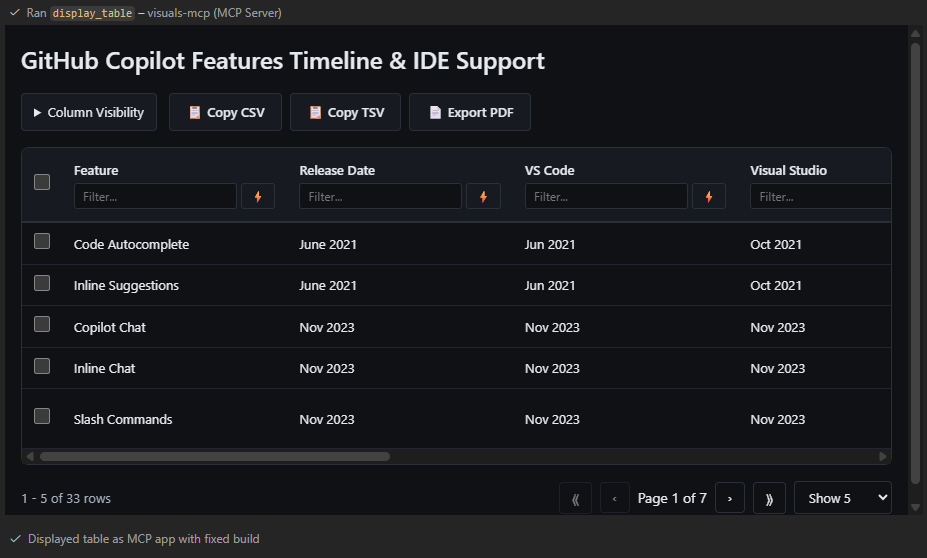
Interactive table with sorting, filtering, pagination, and row selection
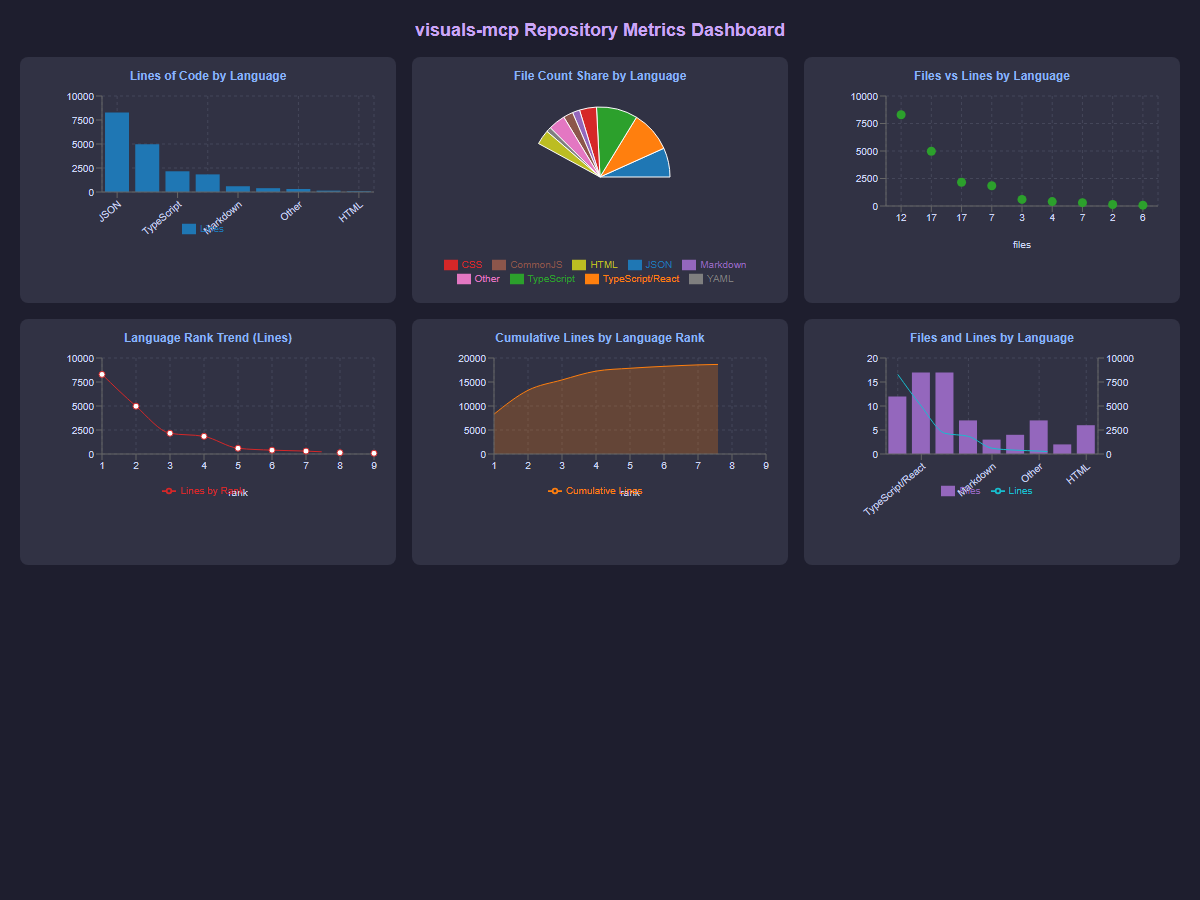
Interactive chart dashboard with multiple chart types and grid layout
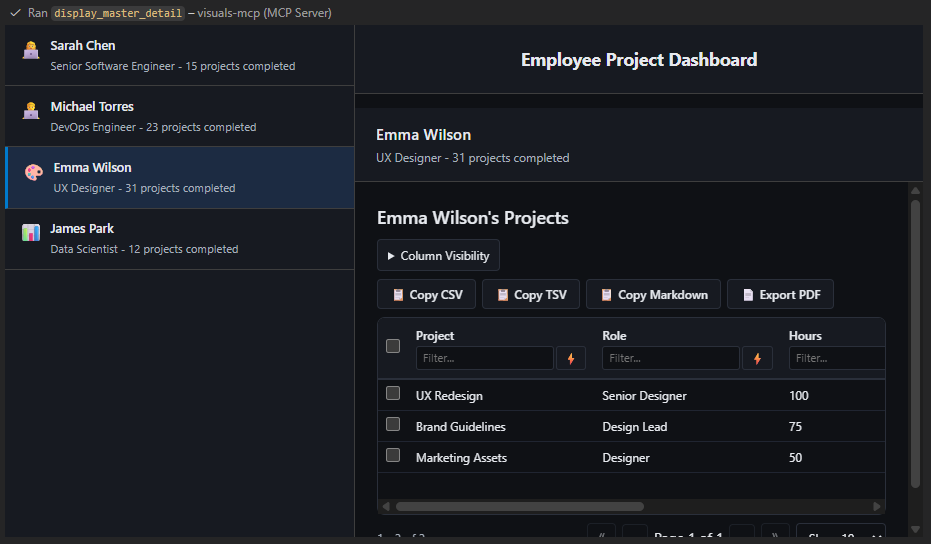
Master-detail view for browsing collections with tables, images, or custom content
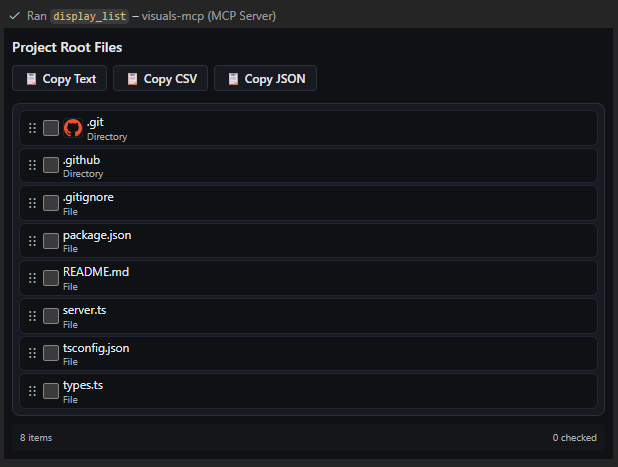
Interactive list with drag-and-drop reordering, checkboxes, and image thumbnails
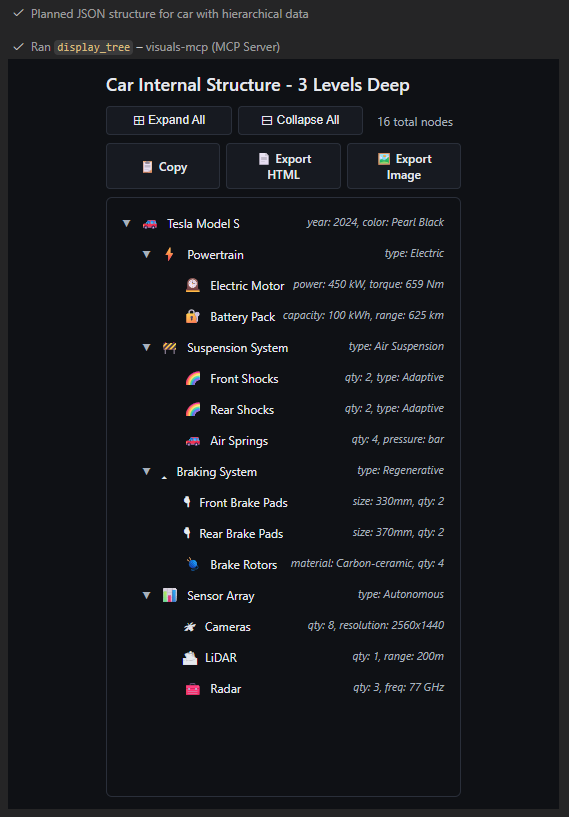
Interactive tree view with expand/collapse, node selection, and export options
Installation
VSCode Extension (Easiest)
Install directly from the VS Code Marketplace:
- Open VS Code
- Go to Extensions (Ctrl+Shift+X / Cmd+Shift+X)
- Search for "Visuals MCP"
- Click Install
The extension will automatically register the MCP server with VS Code and GitHub Copilot Chat.
npmjs (Recommended for other MCP Clients)
In VSCode github Copilot Chat
- click on the tools icon (Configure tools...)
- click on "Add MCP Server"
- click on "Install from npm"
- enter
@harrybin/visuals-mcp - press enter / click "Install"
Using command line:
npm install -g @harrybin/visuals-mcp
visuals-mcp
GitHub Packages
- Authenticate npm with GitHub Packages:
npm config set @harrybin:registry https://npm.pkg.github.com
npm config set //npm.pkg.github.com/:_authToken=YOUR_GITHUB_TOKEN
- Install and run:
npm install -g @harrybin/visuals-mcp
visuals-mcp
Local Development
# Install dependencies
npm install

# Build all UI bundles and the server
npm run build

# Optional: rebuild only the chart UI bundle
npm run build:charts

# Run the server
npm run serve
Chart Tool
Use display_chart to render one or more interactive charts in the MCP client.
Supported chart types:
linebarareapiescattercomposed
Repository Metrics Dashboard Example
Generate fresh metrics first:
npm run metrics:repo:write
This writes a snapshot to doc/repo-metrics.json.
Then render a dashboard that uses all chart types (line, bar, area, pie, scatter, composed):
For release-quality docs, always regenerate doc/repo-metrics.json right before updating README examples.
1. Configure MCP Server
For VS Code: This workspace includes MCP configuration in .vscode/settings.json.
To add globally, update your VS Code settings:
{
  "github.copilot.chat.mcpServers": {
    "visuals-mcp": {
			"type": "stdio",
			"command": "node",
			"args": [
				"dist/server.js"
			]
		}
  }
}
For Claude Desktop: See claude_desktop_config.json for example configuration.
License
MIT
Contributing
Contributions welcome! Please open an issue or PR.
Resources
Installation
Source-derived launch command. Check the maintainer’s required arguments and credentials before running:
npx -y @harrybin/visuals-mcpSet up in your AI client
Merge this template into ~/Library/Application Support/Claude/claude_desktop_config.json. Keep existing servers. Add any arguments, credentials, and permissions required by the maintainer; this template has not been install-tested.
{
  "mcpServers": {
    "io-github-harrybin-visuals-mcp": {
      "command": "npx",
      "args": [
        "-y",
        "@harrybin/visuals-mcp"
      ]
    }
  }
}
Restart Claude Desktop completely for changes to take effect. Confirm the server appears connected in the client’s tool list, then try a read-only example from its documentation.
Claude Desktop setup referencePackage
@harrybin/visuals-mcpnpmCompatible MCP Clients
Visuals MCP works with any MCP-compatible client. Copy the config snippet from the Configuration section above and add it to the file shown for your client, then restart the application.
- Claude Desktop
~/Library/Application Support/Claude/claude_desktop_config.jsonRestart Claude Desktop completely for changes to take effect. - Cursor
~/.cursor/mcp.jsonRestart Cursor for changes to take effect. - VS Code
.vscode/mcp.jsonReload VS Code window for changes to take effect. - Windsurf
~/.codeium/windsurf/mcp_config.jsonRestart Windsurf for changes to take effect. - Claude Code
.mcp.jsonSave at the project root, then start Claude Code in that project and review the MCP server approval prompt. Keep real credentials out of shared files.