Klass Personal OS
Mac app that runs Claude or Codex on a schedule against your mail, calendar, and files.
Klass Personal OS
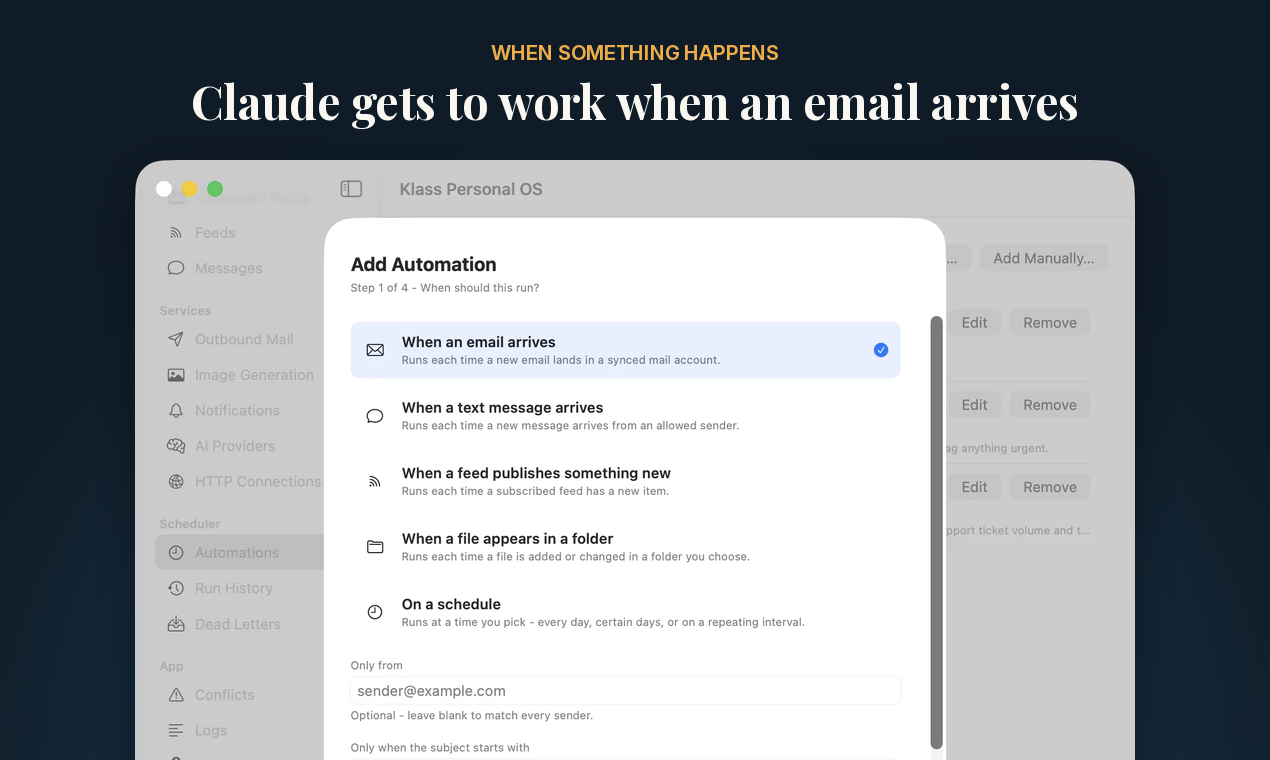
A native Mac app that runs Claude or Codex on a schedule, or the moment an email, text message, feed item, or file arrives, so the work happens whether or not a chat is open. Each assistant gets its own API key, scoped to the mail accounts, folders, calendars, and actions you choose.
Website and download: https://coreyklass.com/personal-os
mcp-name: io.github.KlassyCoder/klass-personal-os
What this repository is
This is the public distribution point for Klass Personal OS's MCP connector. The app itself is closed source and is downloaded from the website above. This repository holds:
- Releases: the Claude Desktop extension (
.mcpb), a small signed and notarized bridge that connects Claude Desktop to the app's local MCP server. server.json: the listing for the official MCP Registry.
The extension does nothing without the app. Install the app first.
Getting started
- Download Klass Personal OS from https://coreyklass.com/personal-os and drag it to Applications. It needs macOS 14 Sonoma or later. No account, Node, or Python is required.
- Connect your mail, calendar, and the folders it may use in the app's settings window.
- Connect an AI client:
- Claude Desktop: the app's Claude Desktop settings have an Install Extension button. You can also download the
.mcpbfrom this repository's Releases and open it. Claude Desktop asks for an API key (issue one under API Keys in the app) and the app's MCP port. - Claude Code and other MCP clients: issue a key under API Keys and use Copy Claude Config to get a config to paste.
- Codex: the app's Codex settings have a Copy Manual MCP Template button.
- Claude Desktop: the app's Claude Desktop settings have an Install Extension button. You can also download the
Automations run the Claude Code or Codex CLI already installed on your Mac, with its own sign-in.
Security model
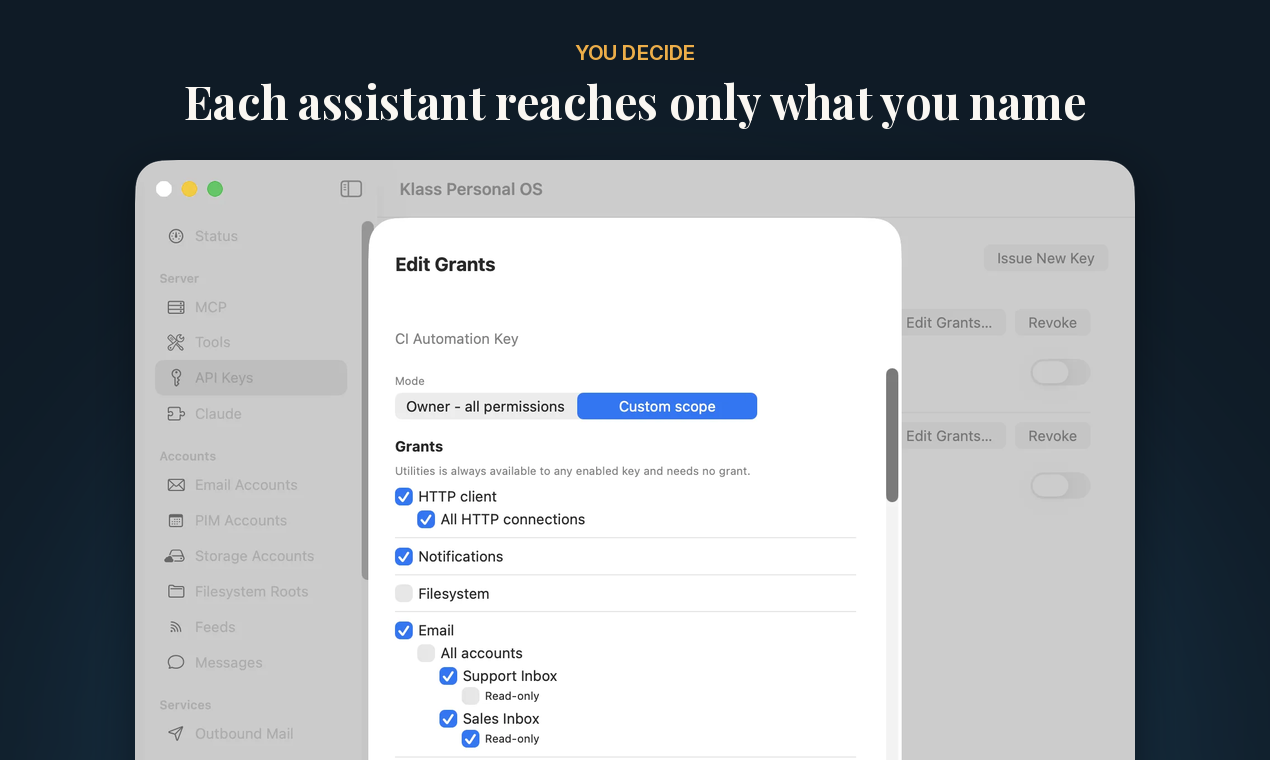
- Each assistant gets its own key, limited to the accounts, folders, and actions you name. Revoking one key never touches the others.
- Writing to mail, permanent deletes, and remote commands are each off until you turn them on, and an outbound mail account can hold every send for your approval.
- Synced mail and calendar data stay on your Mac, and passwords stay in the macOS Keychain.
- The MCP server listens only on your Mac unless you change that setting.
- No telemetry or analytics. The only call the app makes on its own is a once-daily update check you can turn off.
- The App Sandbox is off, because a sandboxed app can't launch the Claude or Codex CLI, and launching them on a schedule is the point of the app.
Full details: https://coreyklass.com/personal-os/security.html
Pricing
The free tier works against your real accounts, includes three automations, and has no time limit. Pro is a one-time license that raises the limits and adds a few tools. See https://coreyklass.com/personal-os for current pricing.
Support
Email info@coreyklass.com. Release notes: https://coreyklass.com/personal-os/release-notes.html
Copyright Klass Concepts LLC. All rights reserved.
Setup from the maintainer
This listing does not have a supported local package template. Use the maintainer’s documentation for its hosted endpoint, authentication, and client-specific setup. No install command has been inferred.
Package
https://github.com/KlassyCoder/klass-personal-os-mcp/releases/download/v1.2.0/klass-personal-os-mcp-1.2.0.mcpbotherCompatible MCP Clients
Klass Personal OS works with any MCP-compatible client. Copy the config snippet from the Configuration section above and add it to the file shown for your client, then restart the application.
- Claude Desktop
~/Library/Application Support/Claude/claude_desktop_config.jsonRestart Claude Desktop completely for changes to take effect. - Cursor
~/.cursor/mcp.jsonRestart Cursor for changes to take effect. - VS Code
.vscode/mcp.jsonReload VS Code window for changes to take effect. - Windsurf
~/.codeium/windsurf/mcp_config.jsonRestart Windsurf for changes to take effect. - Claude Code
.mcp.jsonSave at the project root, then start Claude Code in that project and review the MCP server approval prompt. Keep real credentials out of shared files.