PFC - ITASCA Discrete Element Simulation
Give AI agents full access to ITASCA PFC - documentation, simulation, and plot capture.
pfc-mcp


MCP server that gives AI agents full access to ITASCA PFC - browse documentation, run simulations, capture plots, all through natural conversation.
Built on the Model Context Protocol, pfc-mcp turns any MCP-compatible AI client (Claude Code, Codex CLI, Gemini CLI, OpenCode, toyoura-nagisa, etc.) into a PFC co-pilot that can look up commands, execute scripts, monitor long-running simulations, and capture visualizations.
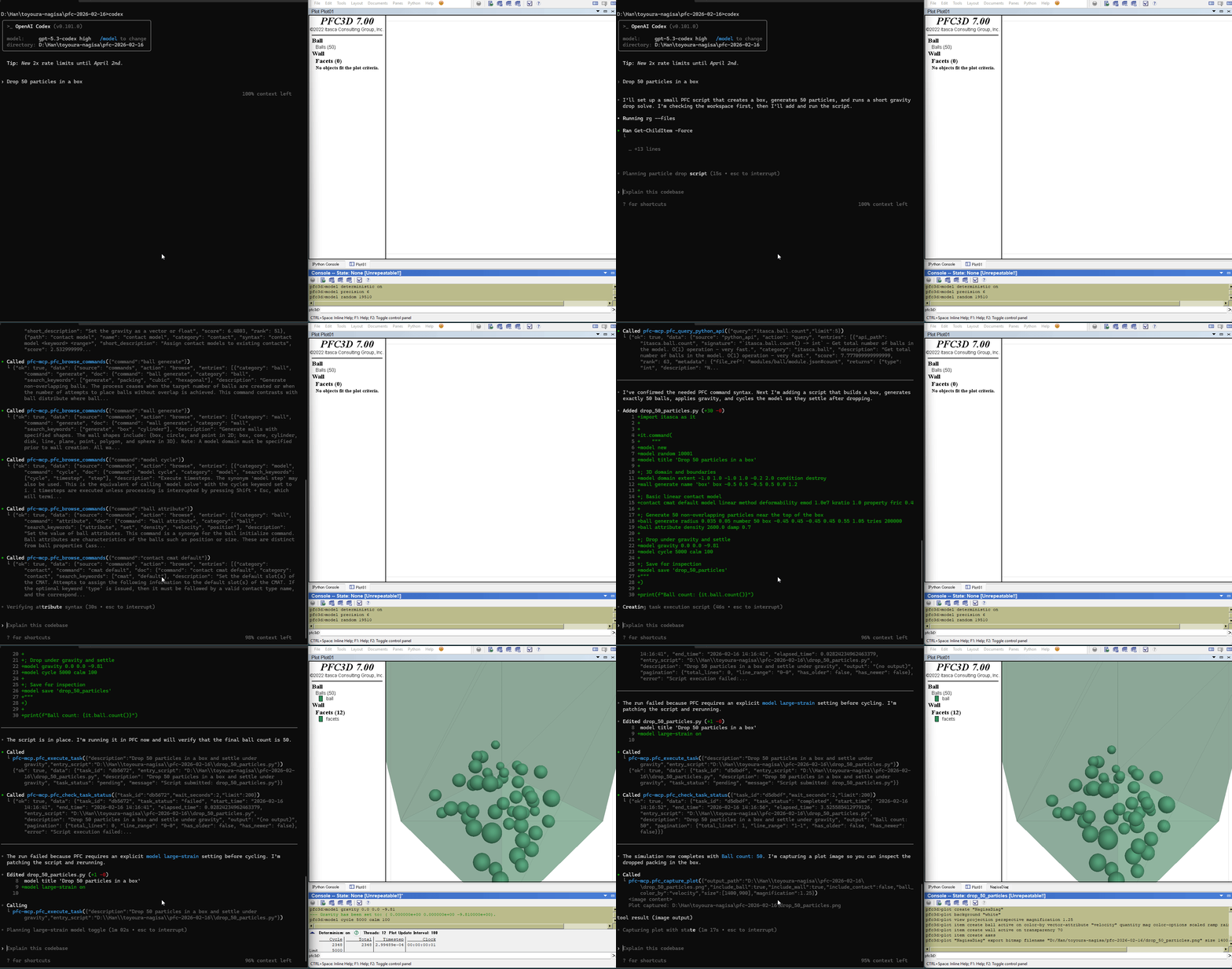
Tools (10)
Documentation (5) - no bridge required
- Browse PFC command tree, Python SDK reference, and reference docs (contact models, range elements)
- Search commands and Python APIs by keyword (BM25 ranked)
Execution (5) - requires bridge in a running PFC process
- Submit Python scripts and poll status/output in real time
- List and manage tasks across sessions
- Interrupt running simulations
- Capture PFC plot images with configurable camera, coloring, and cut planes
Quick Start
Prerequisites
- ITASCA PFC 7.0 installed (
pfc2d700_gui.exeorpfc3d700_gui.exe) - uv installed (for
uvx)
Agentic Setup (Recommended)
Copy this to your AI agent and let it self-configure:
Fetch and follow this bootstrap guide end-to-end:
https://raw.githubusercontent.com/yusong652/pfc-mcp/main/docs/agentic/pfc-mcp-bootstrap.md
Manual Setup
1. Register the MCP server in your client config:
{
  "mcpServers": {
    "pfc-mcp": {
      "command": "uvx",
      "args": ["pfc-mcp"]
    }
  }
}
2. Install dependency:
import pip
pip.main(["install", "--user", "-U", "pfc-mcp-bridge"])
Start Bridge & Verify
import pfc_mcp_bridge
pfc_mcp_bridge.start()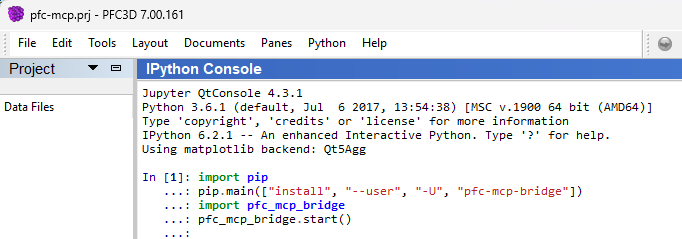
Verify - reconnect your MCP client and ask the agent to call pfc_list_tasks to verify the full MCP + bridge connection.
Design Highlights
- Documentation as a boundary map - browse and search tools let agents discover what PFC can do, reducing hallucinated commands
- Task queue with live status - scripts are queued and executed sequentially; agents can poll output and status in real time
- Callback-based control - gracefully interrupt long-running
cycle()calls, and capture plots mid-simulation without pausing it
Runtime Model
| Component | PyPI | Python | Role |
|---|---|---|---|
| pfc-mcp | | >= 3.10 | MCP server (documentation + execution client) |
| pfc-mcp-bridge |  | >= 3.6 | WebSocket bridge inside PFC process (GUI or console) |
Documentation tools work standalone. Execution tools require a running bridge.
Troubleshooting
| Symptom | Fix |
|---|---|
uvx not found | Install uv or switch client MCP config to command: "uv" with args: ["tool", "run", "pfc-mcp"] |
| Bridge won't start | In PFC Python/IPython console, install/upgrade pfc-mcp-bridge with import pip; pip.main(["install", "--user", "-U", "pfc-mcp-bridge"]) |
| Tasks not processing / cannot connect | If execution tools return ok=false, error.code=bridge_unavailable, and error.details.reason=cannot connect to bridge service, start bridge in PFC (pfc_mcp_bridge.start()) and ensure PFC_MCP_BRIDGE_URL matches the active bridge URL |
pfc_capture_plot unsupported | Plot capture requires PFC GUI; console mode does not support it |
| Bridge on custom port | Set MCP server env PFC_MCP_BRIDGE_URL=ws://localhost:<bridge-port> (for example ws://localhost:9002) |
| Connection failed | Check bridge is running, target port is available, see .pfc-bridge/bridge.log |
Development
uv sync --group dev    # Install with dev dependencies
uv run pytest          # Run tests
uv run pfc-mcp         # Run server locally
License
MIT - see LICENSE.