SaC — Software as Content
Give your AI agent the ability to respond with live, interactive apps that evolve.



AI agents can reason, code, and call APIs — but when they need to communicate back to you, all they have is text. SaC (Software as Content) is the missing interaction layer: your agent responds with a live, persistent, interactive app that evolves as the conversation continues. Not a screenshot, not a markdown wall — a real UI you click, explore, and shape together with your agent.
Quickstart
1. Install
pip install sac-sdk
2. Run
sac serve
First time? It'll ask for your API key and save it. Then open http://localhost:18420, type "3-day Tokyo trip planner with budget", and watch a live React app stream in. Click buttons. Ask it to evolve. This is SaC running a built-in agent loop — no external agent needed.
Connect to your agent
SaC plugs into the agent you already use — through MCP, Skill, or code.
Claude Code (MCP)
pip install sac-sdk
sac setup claude-code        # registers SaC as an MCP server
Restart Claude Code. Then try:
"Help me understand this codebase using a visualized and interactive app using SaC MCP."
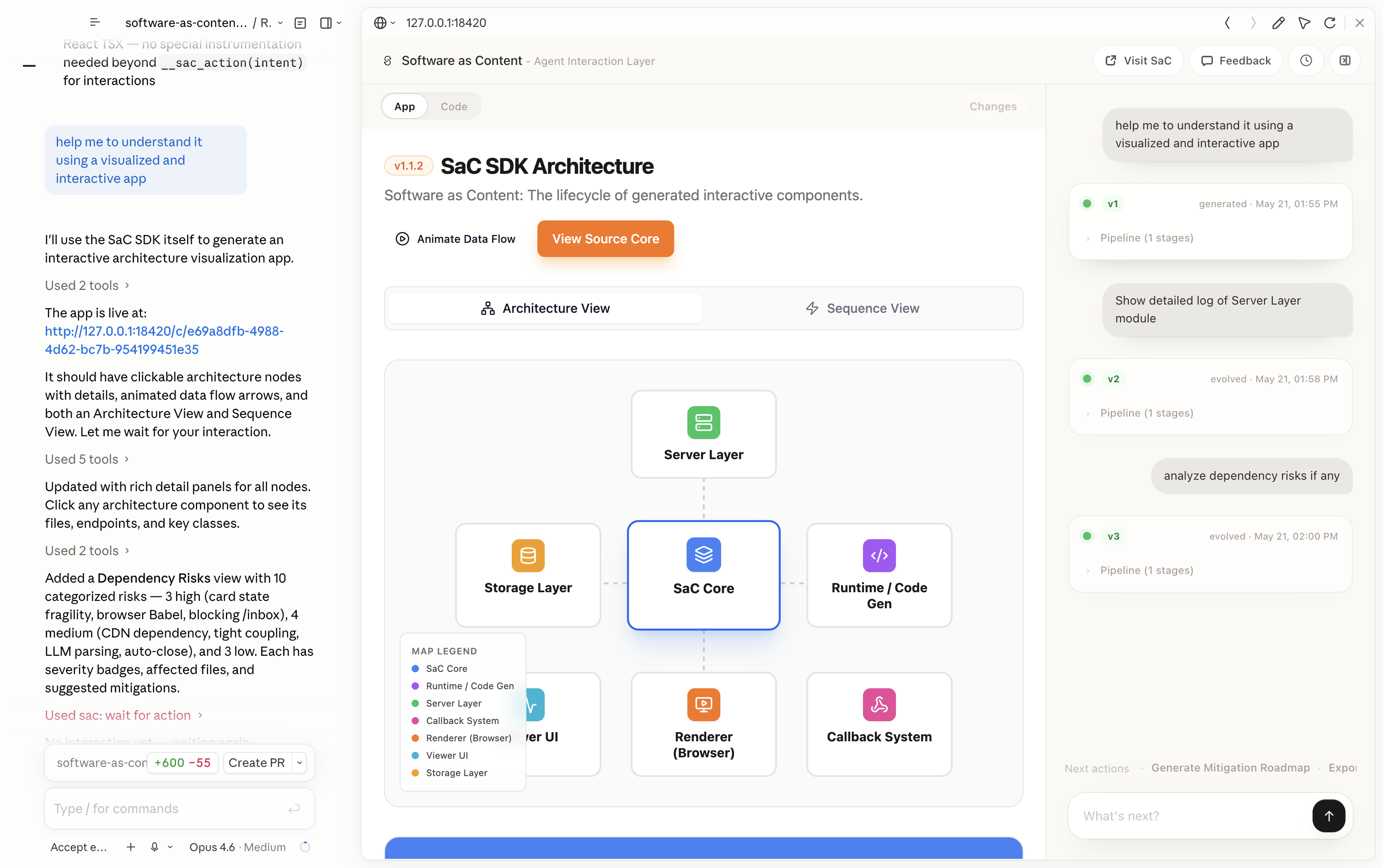
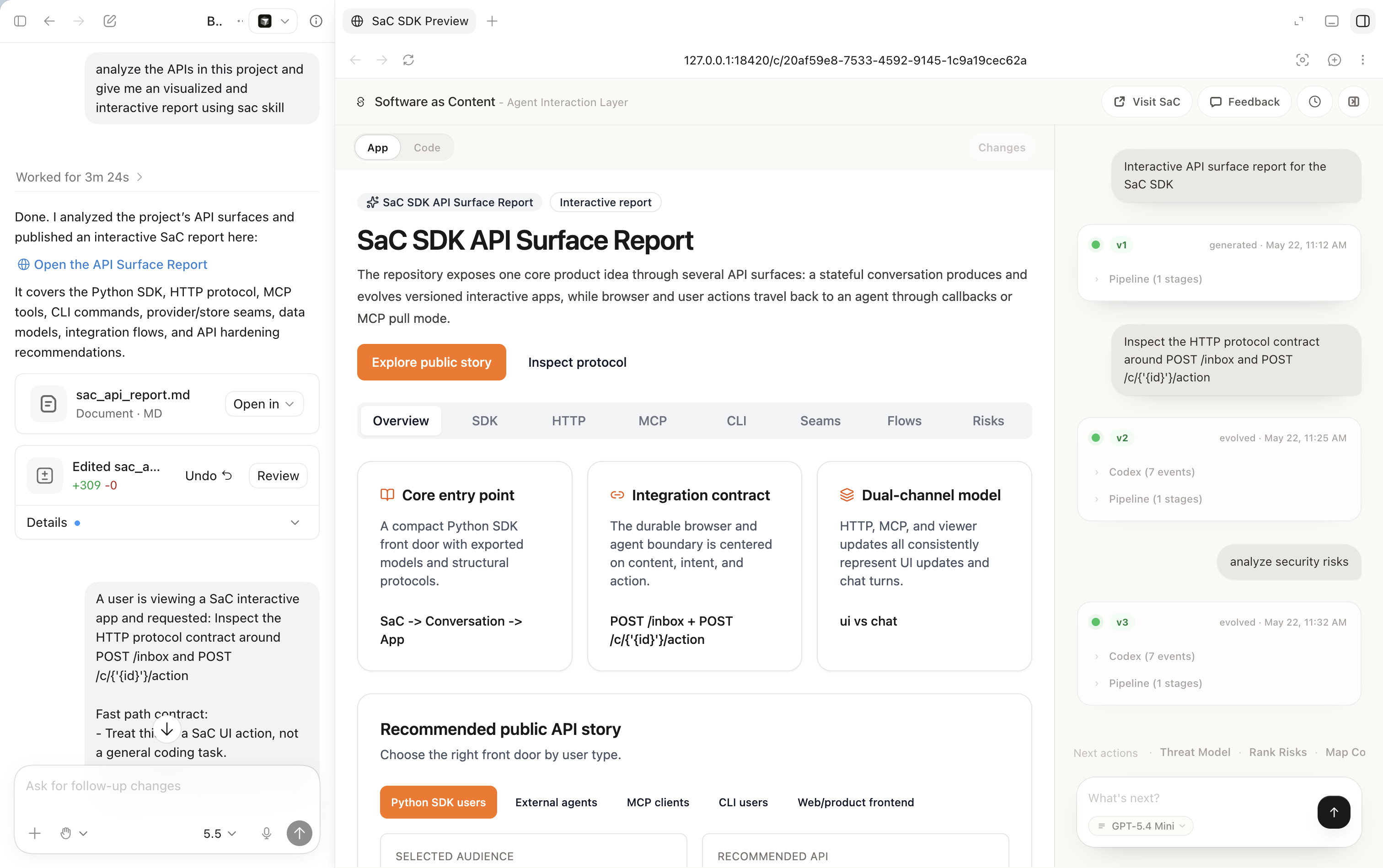
Codex (Skill)
pip install sac-sdk
sac setup codex              # installs the SaC skill
sac serve                    # keep running in a terminal
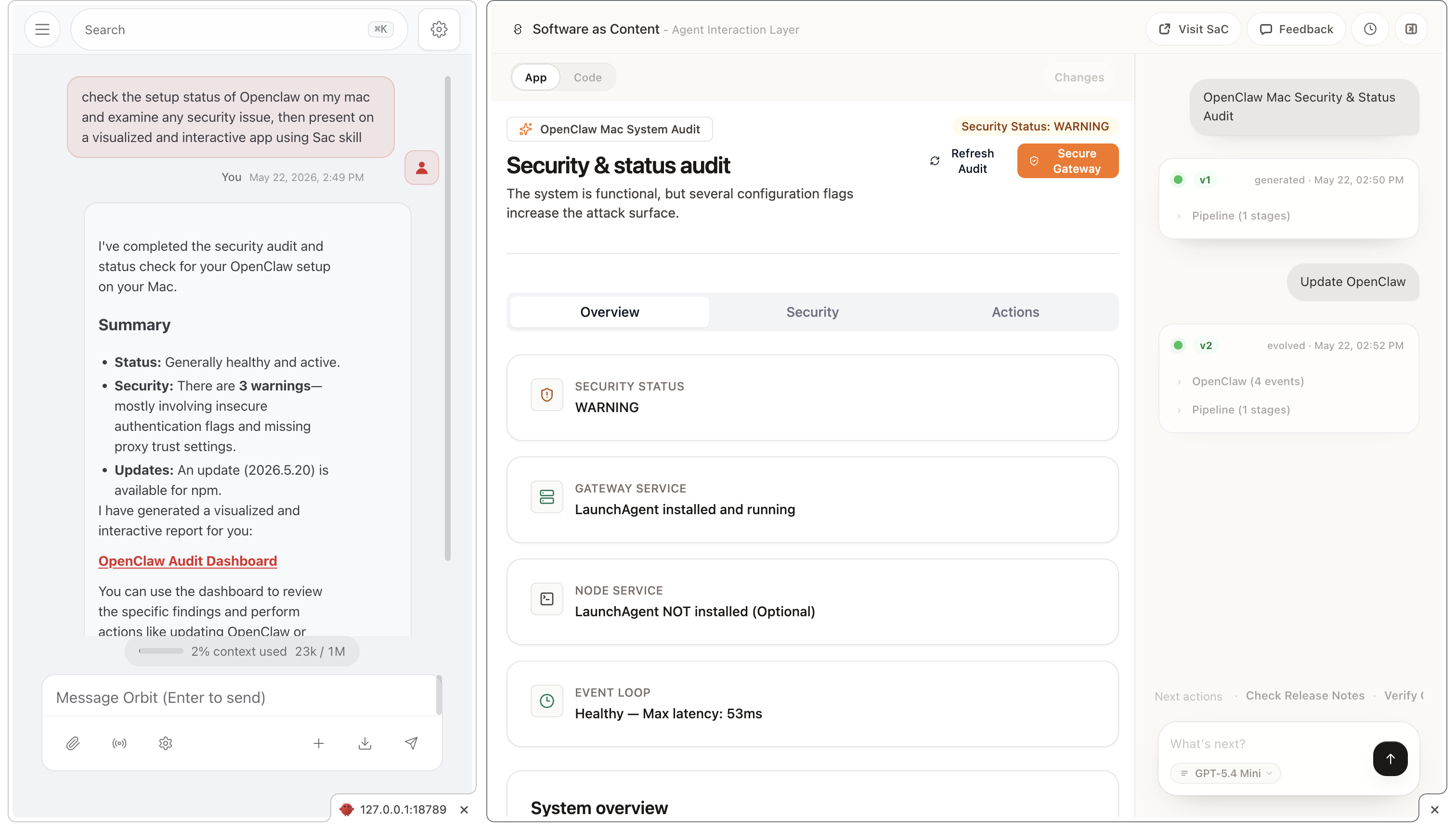
OpenClaw (Skill)
pip install sac-sdk
sac setup openclaw           # installs the SaC skill
sac serve                    # keep running in a terminal
Python (build your own agent)
from sac import SaC

sac = SaC()
conv = sac.conversation()
app = await conv.generate("3-day Tokyo itinerary")
print(app.url)   # user opens this
# app.code contains the generated TSX
How it works
Your agent ──▶ SaC ──▶ User sees a live app at a URL
                   ◀── User clicks a button / types a message
Your agent ──▶ SaC ──▶ Same URL, app evolves in place
                   ◀── ...
One URL, one conversation. The agent doesn't generate a new page every turn — it evolves the existing app. Users keep their context; the agent keeps its state.
Two channels, one loop: every response is either a UI update (the app evolves) or a chat reply (a text bubble). Users can click buttons in the app OR type in the chat — both go back to the agent through the same callback.
When to use SaC
SaC is for tasks where exploration and interaction matter more than a final answer.
Good fit: trip planning, data analysis dashboards, comparison shopping, project planning, research, financial reviews, decision aids, internal tools
Not the right tool for: simple Q&A, one-shot automations ("set an alarm"), conversations that are purely text
Customize
Every layer is pluggable:
from sac import SaC, FileStore

sac = SaC(
    llm=YourLLMProvider(...),       # any class implementing LLMProvider
    search=YourSearchProvider(...), # any class implementing SearchProvider
    store=FileStore(".sac"),
)
Prompts live in src/sac/runtime/prompts/ and
the default design system is in src/sac/renderer/design-systems/default/.
Architecture
src/sac/
├── sac.py / conversation.py    Entry + Conversation primitive
├── runtime/                    Generate + Evolve pipeline, prompts, providers
├── server/
│   ├── http/                   FastAPI + SSE streaming + viewer
│   └── mcp/                    MCP stdio server (Claude Code integration)
└── renderer/                   iframe sandbox + design system
Project status
v0.1.2 — alpha. The core protocol (generate → evolve → callback loop) is stable and runs in production at sac.dynsoft.ai. The SDK surface is being polished toward v1.0.
Contributing
Issues and PRs welcome. Highest-leverage contributions right now:
- Prompt improvements in
src/sac/runtime/prompts/ - Design system contributions in
src/sac/renderer/design-systems/
For local dev: pip install -e .
Citation
@article{xie2026sac,
  title  = {Software as Content: Dynamic Applications as the Human-Agent Interaction Layer},
  author = {Xie, Mulong},
  year   = {2026},
  url    = {https://arxiv.org/abs/2603.21334}
}
License
Apache-2.0 · © 2026 Mulong Xie / Dynsoft Lab
Built by Dynsoft Lab. Questions: mulong@mulongxie.me
Installation
Source-derived launch command. Check the maintainer’s required arguments and credentials before running:
uvx sac-sdkSet up in your AI client
Merge this template into ~/Library/Application Support/Claude/claude_desktop_config.json. Keep existing servers. Add any arguments, credentials, and permissions required by the maintainer; this template has not been install-tested.
{
  "mcpServers": {
    "ai-dynsoft-sac": {
      "command": "uvx",
      "args": [
        "sac-sdk"
      ]
    }
  }
}
Restart Claude Desktop completely for changes to take effect. Confirm the server appears connected in the client’s tool list, then try a read-only example from its documentation.
Claude Desktop setup referencePackage
sac-sdkpypiCompatible MCP Clients
SaC — Software as Content works with any MCP-compatible client. Copy the config snippet from the Configuration section above and add it to the file shown for your client, then restart the application.
- Claude Desktop
~/Library/Application Support/Claude/claude_desktop_config.jsonRestart Claude Desktop completely for changes to take effect. - Cursor
~/.cursor/mcp.jsonRestart Cursor for changes to take effect. - VS Code
.vscode/mcp.jsonReload VS Code window for changes to take effect. - Windsurf
~/.codeium/windsurf/mcp_config.jsonRestart Windsurf for changes to take effect. - Claude Code
.mcp.jsonSave at the project root, then start Claude Code in that project and review the MCP server approval prompt. Keep real credentials out of shared files.