io.github.ayush-s-tomar/portfolio-mcp-server
MCP server exposing Ayush Tomar's AI portfolio -- ask what he built or his flagship project.
Portfolio MCP Server
An MCP server that turns my AI project portfolio into something you can query, not just read.
Point any MCP client (Claude Desktop, Cursor, custom agents) at it and ask "What has Ayush built with LangGraph?" or "What's his flagship project?" — it answers from live structured data, not a static PDF.


TL;DR
- 📦 Published, not just built — live on PyPI and the official MCP registry;
pip install portfolio-mcp-servergets it running in any MCP client in under a minute, no repo clone required. - 🔧 5 real tools — list, detail-lookup, stack search, flagship pick, and resume summary, all backed by structured data instead of a static README scroll.
- ✅ CI-tested on every push — lint, type-check, and a real stdio smoke test that calls all 5 tools and validates the JSON schema of each response.
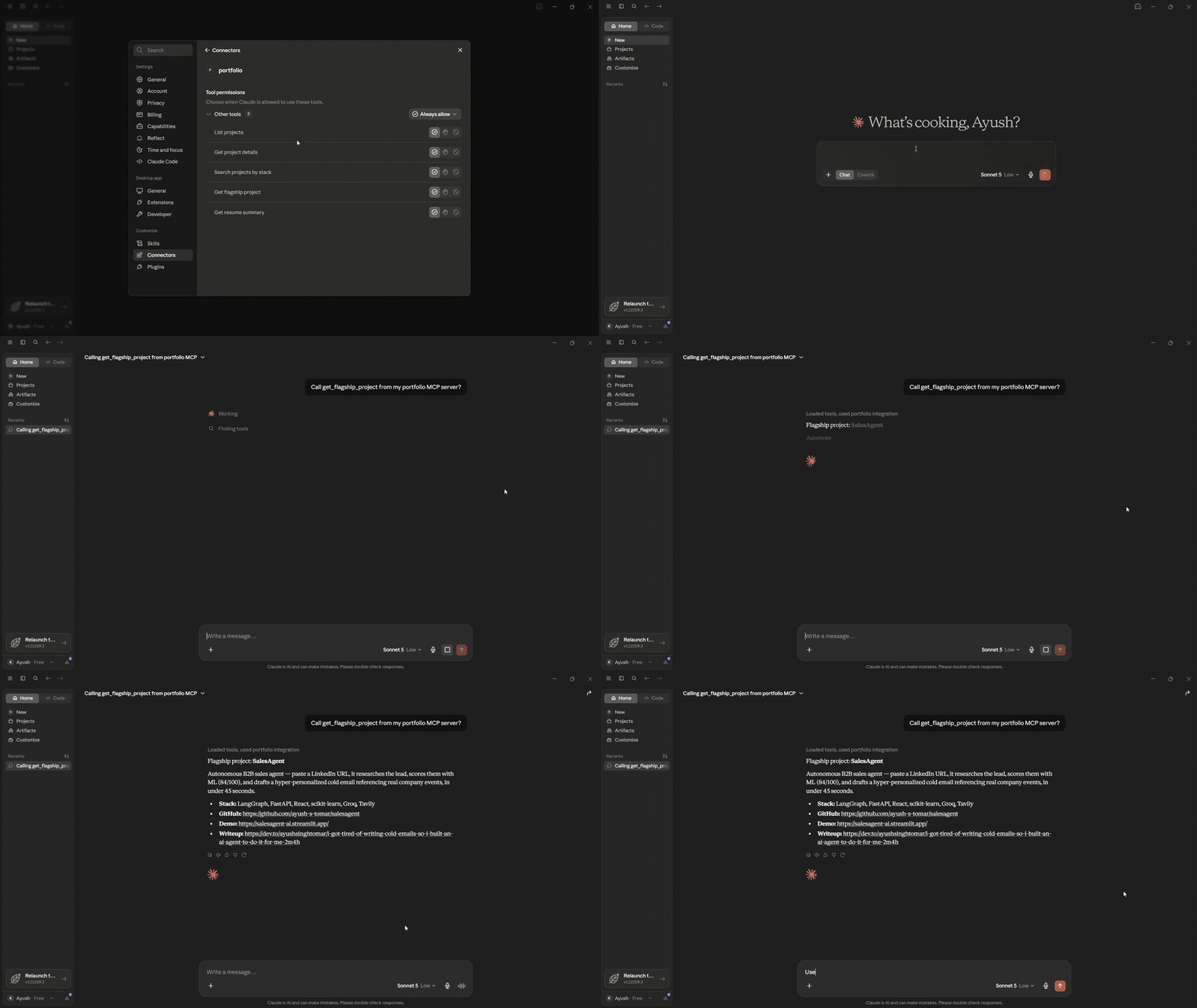
Table of contents
- Why this exists
- Demo
- Tools exposed
- Quickstart
- Connect to Claude Desktop
- Stack
- Testing & CI
- Project structure
- Roadmap
- License
- Author
Why this exists
Most AI-developer portfolios are a list of links. This is a working MCP server — the same protocol agentic products use to connect to tools — built around my own portfolio. It's both a real implementation of the spec and an answer to "show me you've actually built with MCP," not just talked about it.
Demo
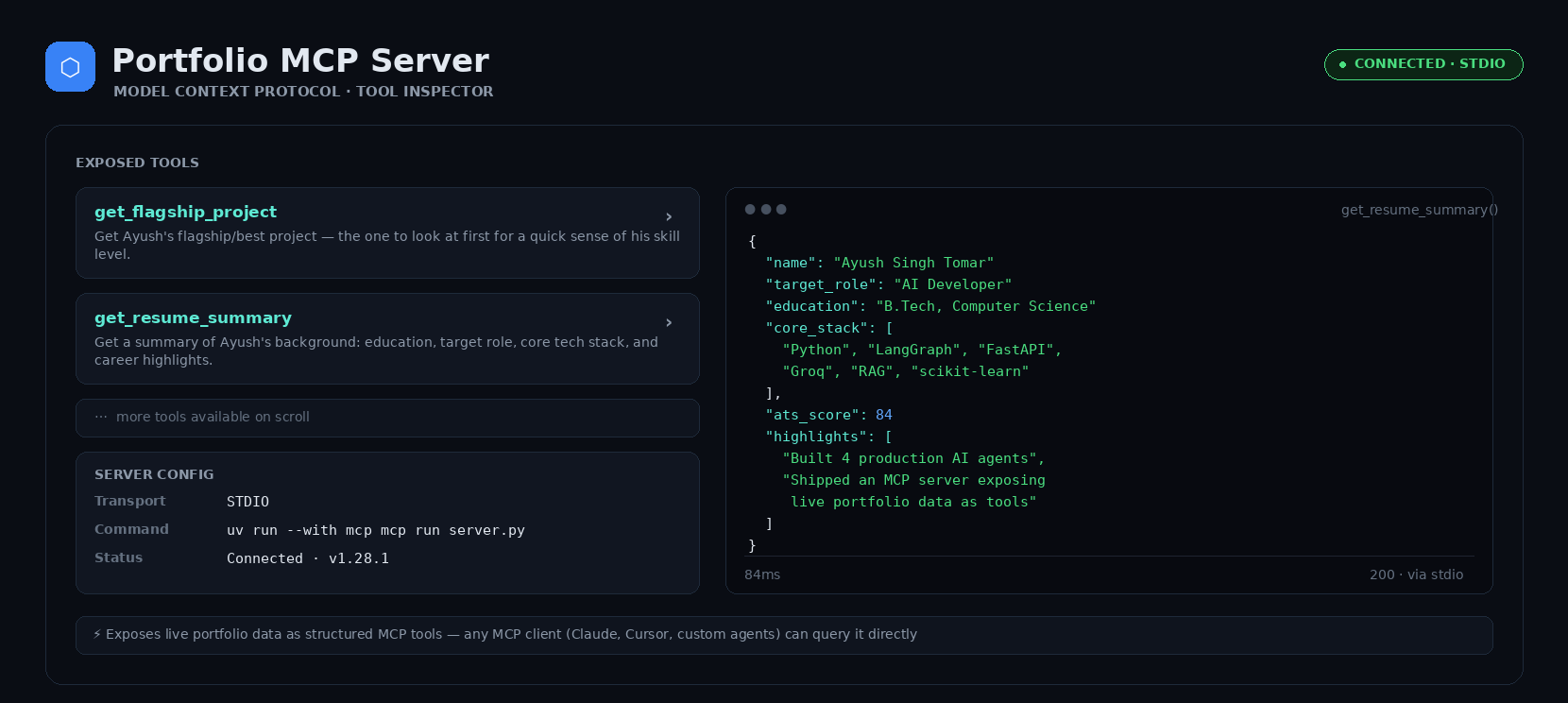
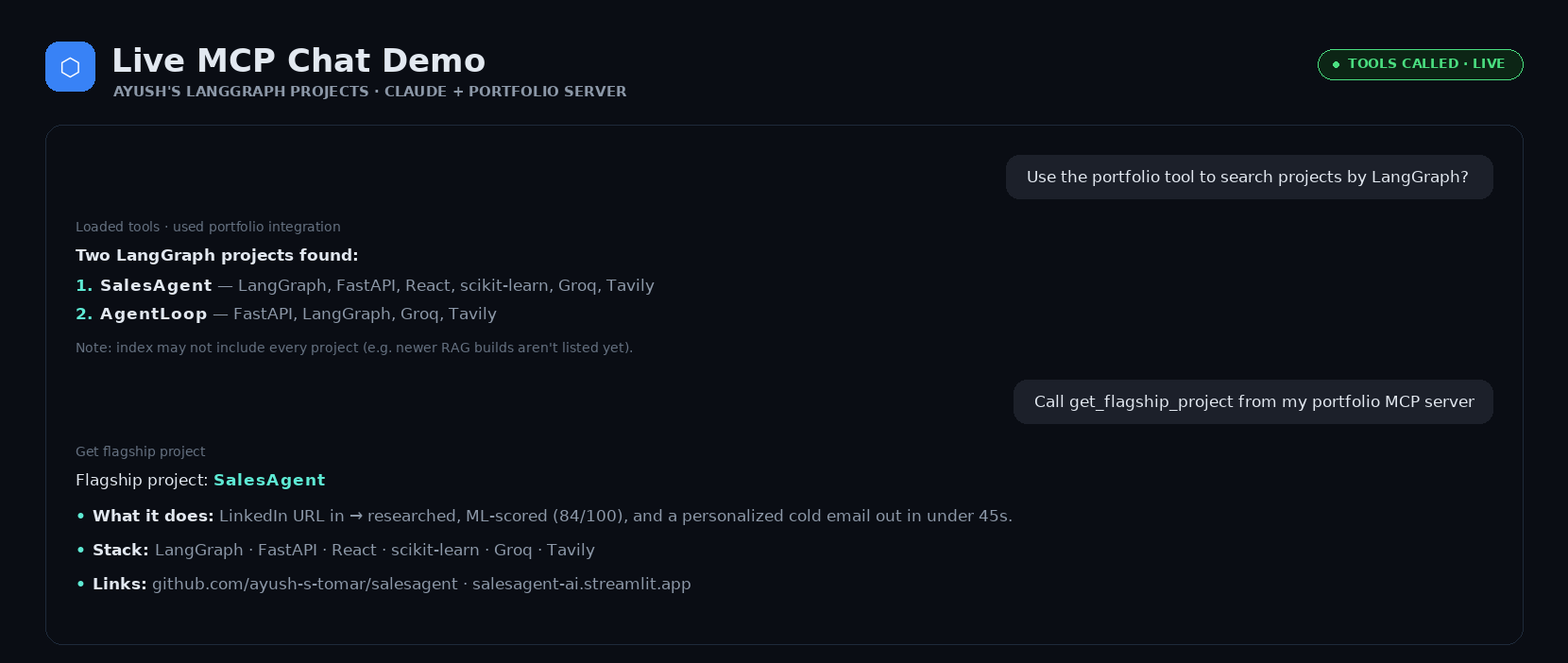
| MCP Inspector — tool discovery | Live chat demo |
|---|---|
 |  |
🎥 Full video walkthrough
https://github.com/user-attachments/assets/4c1b844a-087f-48a6-b156-bdef27282acc
Setup → tool calls → live answers, end to end.
Tools exposed
| Tool | Description |
|---|---|
list_projects | Short summary of all 9 projects |
get_project_details(project_name) | Full details for one project |
search_projects_by_stack(technology) | Find projects using a given technology |
get_flagship_project | The single best project to look at first |
get_resume_summary | Background, target role, and core stack |
Quickstart
Option A — install from PyPI (fastest):
pip install portfolio-mcp-server
Option B — clone and run from source (for local edits/testing):
git clone https://github.com/ayush-s-tomar/portfolio-mcp-server.git
cd portfolio-mcp-server

python -m venv venv
source venv/bin/activate        # Windows: venv\Scripts\activate

pip install -r requirements.txt
Test it interactively with the MCP Inspector before wiring it into a client:
mcp dev server.py
This opens a browser UI where you can call each tool manually and inspect raw request/response payloads.
Connect to Claude Desktop
Open your Claude Desktop config file:
| OS | Path |
|---|---|
| macOS | ~/Library/Application Support/Claude/claude_desktop_config.json |
| Windows | %APPDATA%\Claude\claude_desktop_config.json |
If the file already has an mcpServers key with other servers in it, add
the "portfolio" entry inside the existing object rather than overwriting
the file.
If you installed via PyPI (Option A above):
{
  "mcpServers": {
    "portfolio": {
      "command": "portfolio-mcp-server"
    }
  }
}
If you're running from a cloned source checkout (Option B above): use the absolute path to server.py on your machine:
{
  "mcpServers": {
    "portfolio": {
      "command": "python",
      "args": ["/absolute/path/to/portfolio-mcp-server/server.py"]
    }
  }
}
Restart Claude Desktop, then ask it something like:
"What projects has Ayush built with FastAPI?"
Claude will call search_projects_by_stack and answer from the live data.
Stack
- Python 3.10+
- MCP Python SDK (
FastMCP) - stdio transport
- Packaged for PyPI and registered on the official MCP server registry (
io.github.ayush-s-tomar/portfolio-mcp-server)
Testing & CI
Every push and pull request runs through GitHub Actions:
- Lint —
ruff check . - Type check —
mypy server.py - Smoke test — spins up the server and calls each of the 5 tools over stdio to confirm they return valid, schema-matching JSON
See .github/workflows/ci.yml. Run the same
checks locally before opening a PR:
pip install -r requirements-dev.txt
ruff check .
mypy server.py
pytest
Project structure
portfolio-mcp-server/ ├── server.py # FastMCP server + tool definitions ├── data/ │ └── projects.json # Project data the tools read from ├── tests/ │ └── test_tools.py # Smoke tests for each tool ├── requirements.txt ├── requirements-dev.txt ├── pyproject.toml # PyPI packaging config ├── server.json # MCP registry manifest └── .github/workflows/ci.yml
Roadmap
- Publish to PyPI as an installable package
- Publish to the official MCP server registry
-
search_projects_by_stack— support matching on multiple technologies at once - Add an HTTP/SSE transport option alongside stdio for remote clients
- Cache resume/project data with a lightweight refresh endpoint instead of static JSON
License
Released under the MIT License.
Author
Ayush Tomar — GitHub
If this was useful as a reference for building your own MCP server, a ⭐ on the repo is appreciated.
mcp-name: io.github.ayush-s-tomar/portfolio-mcp-server
Installation
Source-derived launch command. Check the maintainer’s required arguments and credentials before running:
uvx portfolio-mcp-serverSet up in your AI client
Merge this template into ~/Library/Application Support/Claude/claude_desktop_config.json. Keep existing servers. Add any arguments, credentials, and permissions required by the maintainer; this template has not been install-tested.
{
  "mcpServers": {
    "io-github-ayush-s-tomar-portfolio-mcp-server": {
      "command": "uvx",
      "args": [
        "portfolio-mcp-server"
      ]
    }
  }
}
Restart Claude Desktop completely for changes to take effect. Confirm the server appears connected in the client’s tool list, then try a read-only example from its documentation.
Claude Desktop setup referencePackage
portfolio-mcp-serverpypiCompatible MCP Clients
io.github.ayush-s-tomar/portfolio-mcp-server works with any MCP-compatible client. Copy the config snippet from the Configuration section above and add it to the file shown for your client, then restart the application.
- Claude Desktop
~/Library/Application Support/Claude/claude_desktop_config.jsonRestart Claude Desktop completely for changes to take effect. - Cursor
~/.cursor/mcp.jsonRestart Cursor for changes to take effect. - VS Code
.vscode/mcp.jsonReload VS Code window for changes to take effect. - Windsurf
~/.codeium/windsurf/mcp_config.jsonRestart Windsurf for changes to take effect. - Claude Code
.mcp.jsonSave at the project root, then start Claude Code in that project and review the MCP server approval prompt. Keep real credentials out of shared files.