io.github.chenxiaofie/memory-mcp
情景+实体记忆 MCP 服务,为 Claude Code 提供持久化记忆能力
Memory MCP Service



A persistent memory MCP service for Claude Code. Automatically saves conversations and retrieves relevant history across sessions.
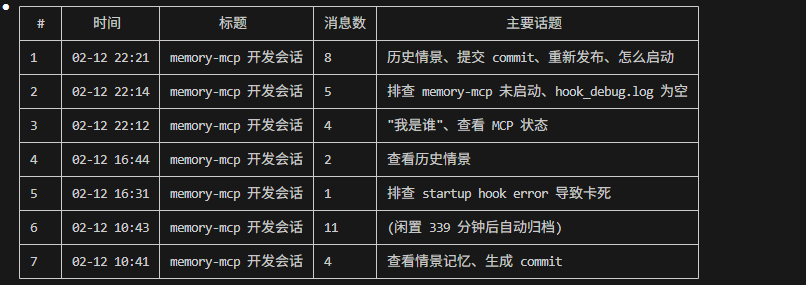
What it does: Every time you chat with Claude Code, your conversation context (decisions, preferences, key discussions) is saved and automatically recalled in future sessions — so Claude always has the background it needs.
Quick Start
Prerequisites
Install uv (Python package runner):
# Windows
powershell -c "irm https://astral.sh/uv/install.ps1 | iex"

# Mac/Linux
curl -LsSf https://astral.sh/uv/install.sh | sh
Requires Python 3.10 - 3.13 (chromadb is not compatible with Python 3.14+).
1. Initialize (First Time Only)
Download the vector model (~400MB, one-time):
uvx --from chenxiaofie-memory-mcp memory-mcp-init
2. Add MCP Server to Claude Code
claude mcp add memory-mcp -s user -- uvx --from chenxiaofie-memory-mcp memory-mcp
3. Configure Hooks (Recommended)
Hooks enable fully automatic message saving. Without hooks, you need to manually call memory tools.
Add the following to ~/.claude/settings.json:
{
  "hooks": {
    "SessionStart": [{
      "matcher": ".*",
      "hooks": [{ "type": "command", "command": "uvx --from chenxiaofie-memory-mcp memory-mcp-session-start" }]
    }],
    "UserPromptSubmit": [{
      "matcher": ".*",
      "hooks": [{ "type": "command", "command": "uvx --from chenxiaofie-memory-mcp memory-mcp-auto-save" }]
    }],
    "Stop": [{
      "matcher": ".*",
      "hooks": [{ "type": "command", "command": "uvx --from chenxiaofie-memory-mcp memory-mcp-save-response" }]
    }],
    "SessionEnd": [{
      "matcher": ".*",
      "hooks": [{ "type": "command", "command": "uvx --from chenxiaofie-memory-mcp memory-mcp-session-end" }]
    }]
  }
}
4. Verify
claude mcp list
You should see memory-mcp: ... - ✓ Connected.
That's it! Start a new Claude Code session and your conversations will be automatically saved and recalled.
How It Works
Session Start ──► Create Episode ──► Monitor Process (background)
                                          │
User Message  ──► Save Message ──► Recall Related Memories ──► Inject Context
                                          │
Claude Reply  ──► Save Response           │
                                          │
Session End   ──► Close Signal ──► Archive Episode + Generate Summary
- Episodes: Each conversation session is an "episode" with auto-generated summaries
- Entities: Key knowledge extracted from conversations (decisions, preferences, concepts)
- Dual-layer storage: User-level (shared across projects) + Project-level (isolated per project)
- Semantic search: Vector-based retrieval finds relevant past context
Usage
Automatic Mode (With Hooks)
Once hooks are configured, everything is automatic. Claude will see relevant history from past sessions as context.
Manual Mode
You can also call memory tools directly in Claude Code:
# Start a new episode
memory_start_episode("Login Feature Development", ["auth"])

# Record a decision
memory_add_entity("Decision", "Use JWT + Redis", "For distributed deployment")

# Search history
memory_recall("login implementation")

# Close episode
memory_close_episode("Completed JWT login feature")
Hooks Reference
| Hook | What it does | Timing |
|---|---|---|
| SessionStart | Creates a new episode | ~50ms |
| UserPromptSubmit | Saves user message + retrieves related memories | ~1-2s |
| Stop | Saves assistant response | ~1s |
| SessionEnd | Signals episode closure | ~50ms |
Tools Reference
| Tool | Description |
|---|---|
memory_start_episode | Start a new episode |
memory_close_episode | Close and archive current episode |
memory_get_current_episode | Get current active episode |
memory_add_entity | Add a knowledge entity |
memory_confirm_entity | Confirm a detected entity candidate |
memory_reject_candidate | Reject a false detection |
memory_deprecate_entity | Mark an entity as outdated |
memory_get_pending | List pending entity candidates |
memory_recall | Semantic search across episodes and entities |
memory_search_by_type | Search entities by type |
memory_get_episode_detail | Get full episode details |
memory_list_episodes | List all episodes chronologically |
memory_stats | Get system statistics |
memory_encoder_status | Check vector encoder status |
memory_cache_message | Manually cache a message |
memory_clear_cache | Clear message cache |
memory_cleanup_messages | Clean up old cached messages |
Entity Types
| Type | Level | Description |
|---|---|---|
Decision | Project | Technical decisions for this project |
Architecture | Project | Architecture designs |
File | Project | Important file descriptions |
Preference | User | Personal preferences (shared across projects) |
Concept | User | General concepts |
Habit | User | Work habits |
Storage Locations
- User-level:
~/.claude-memory/ - Project-level:
{project-root}/.claude/memory/
Alternative: Install from source
If you need to run from source (e.g., for development):
git clone https://github.com/chenxiaofie/memory-mcp.git
cd memory-mcp
# Windows:
install.bat
# Mac/Linux:
chmod +x install.sh && ./install.sh
Then configure MCP server with the venv Python:
# Windows:
claude mcp add memory-mcp -s user -- "C:\path\to\memory-mcp\venv310\Scripts\python.exe" -m memory_mcp.server

# Mac/Linux:
claude mcp add memory-mcp -s user -- /path/to/memory-mcp/venv310/bin/python -m memory_mcp.server
Author
陈佳俊 (Jiajun Chen) — front-end engineer based in Hangzhou, China. GitHub @chenxiaofie · feifeichen1999@gmail.com
本项目由陈佳俊(GitHub: chenxiaofie)开发并维护。
License
MIT License - see LICENSE file for details.
Installation
Source-derived launch command. Check the maintainer’s required arguments and credentials before running:
uvx chenxiaofie-memory-mcpSet up in your AI client
Merge this template into ~/Library/Application Support/Claude/claude_desktop_config.json. Keep existing servers. Add any arguments, credentials, and permissions required by the maintainer; this template has not been install-tested.
{
  "mcpServers": {
    "io-github-chenxiaofie-memory-mcp": {
      "command": "uvx",
      "args": [
        "chenxiaofie-memory-mcp"
      ]
    }
  }
}
Restart Claude Desktop completely for changes to take effect. Confirm the server appears connected in the client’s tool list, then try a read-only example from its documentation.
Claude Desktop setup referencePackage
chenxiaofie-memory-mcppypiCompatible MCP Clients
io.github.chenxiaofie/memory-mcp works with any MCP-compatible client. Copy the config snippet from the Configuration section above and add it to the file shown for your client, then restart the application.
- Claude Desktop
~/Library/Application Support/Claude/claude_desktop_config.jsonRestart Claude Desktop completely for changes to take effect. - Cursor
~/.cursor/mcp.jsonRestart Cursor for changes to take effect. - VS Code
.vscode/mcp.jsonReload VS Code window for changes to take effect. - Windsurf
~/.codeium/windsurf/mcp_config.jsonRestart Windsurf for changes to take effect. - Claude Code
.mcp.jsonSave at the project root, then start Claude Code in that project and review the MCP server approval prompt. Keep real credentials out of shared files.