io.github.clarenceh/expenselm-mcp-server
An MCP server that provides access to your expense data on ExpenseLM.
ExpenseLM MCP Server
Introduction
MCP server for ExpenseLM.
ExpenseLM is an easy to use, GenAI powered Expense Management application. From expense recording to expense insights and advice, ExpenseLM puts you in control of your money like never before. MCP server enables access to your expense data with your favorite AI Agent.
mcp-name: io.github.clarenceh/expenselm-mcp-server
Installation
Prerequisites
- uv
- Python 3.9+
- ExpenseLM API key (Instructions)
Setup MCP Client
Claude Desktop (Mac)
Add the following MCP server in your Claude Desktop configuration.
Config file (create if not exists): ~/Library/Application Support/Claude/claude_desktop_config.json
Add the following into your config file (replace the value of EXPENSELM_API_KEY with your own key).
{
  "mcpServers": {
    "expenselm": {
      "command": "uvx",
      "args": [
        "expenselm-mcp-server"
      ],
      "env": {
        "EXPENSELM_API_KEY": "Replace with your ExpenseLM API Key",
        "MCP_TIMEOUT": "200000"
      }
    }
  }
}
Claude Desktop (Windows)
Add the following MCP server in your Claude Desktop configuration.
Config file (create if not exists): %AppData%\Claude\claude_desktop_config.json (e.g. C:\Users[YourUsername]\AppData\Roaming\Claude\claude_desktop_config.json)
Add the following into your config file (replace the value of EXPENSELM_API_KEY with your own key).
{
  "mcpServers": {
    "expenselm": {
      "command": "uv",
      "args": [
        "tool",
        "run",
        "expenselm-mcp-server"
      ],
      "env": {
        "EXPENSELM_API_KEY": "Replace with your ExpenseLM API Key",
        "MCP_TIMEOUT": "200000"
      }
    }
  }
}
Perplexity Desktop (Mac)
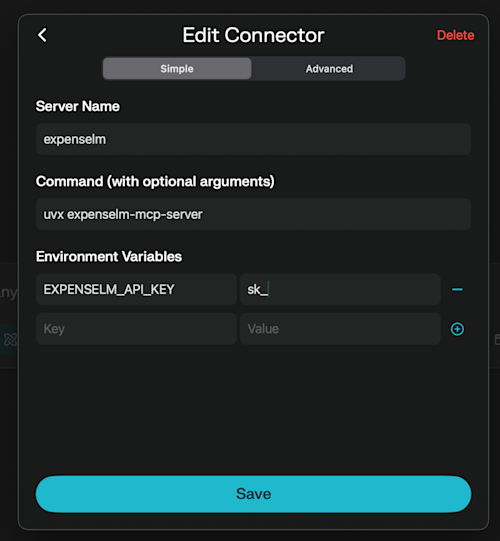
- In Perplexity Desktop for Mac, navigate to "Settings" -> "Connectors". Click "Add Connector".
- Enter ExpenseLM MCP Server configuration like the below screenshot. Replace the environment variable "EXPENSELM_API_KEY" with your own key.
Publish new version
Installation
Source-derived launch command. Check the maintainer’s required arguments and credentials before running:
uvx expenselm-mcp-serverSet up in your AI client
Merge this template into ~/Library/Application Support/Claude/claude_desktop_config.json. Keep existing servers. Add any arguments, credentials, and permissions required by the maintainer; this template has not been install-tested.
{
  "mcpServers": {
    "io-github-clarenceh-expenselm-mcp-server": {
      "command": "uvx",
      "args": [
        "expenselm-mcp-server"
      ]
    }
  }
}
Restart Claude Desktop completely for changes to take effect. Confirm the server appears connected in the client’s tool list, then try a read-only example from its documentation.
Claude Desktop setup referencePackage
expenselm-mcp-serverpypiCompatible MCP Clients
io.github.clarenceh/expenselm-mcp-server works with any MCP-compatible client. Copy the config snippet from the Configuration section above and add it to the file shown for your client, then restart the application.
- Claude Desktop
~/Library/Application Support/Claude/claude_desktop_config.jsonRestart Claude Desktop completely for changes to take effect. - Cursor
~/.cursor/mcp.jsonRestart Cursor for changes to take effect. - VS Code
.vscode/mcp.jsonReload VS Code window for changes to take effect. - Windsurf
~/.codeium/windsurf/mcp_config.jsonRestart Windsurf for changes to take effect. - Claude Code
.mcp.jsonSave at the project root, then start Claude Code in that project and review the MCP server approval prompt. Keep real credentials out of shared files.