io.github.den-indance/network-diagram-mcp
Network topology editor — Claude builds diagrams via MCP. nmap/CSV import, one-click SSH.
@den.dance/network-diagram-mcp

Visual network topology editor with AI agent integration via the Model Context Protocol. Open-source successor to netViz (netViz Inc., 1990 → CA Technologies → discontinued 2012).
Try it live → https://map.den.dance/
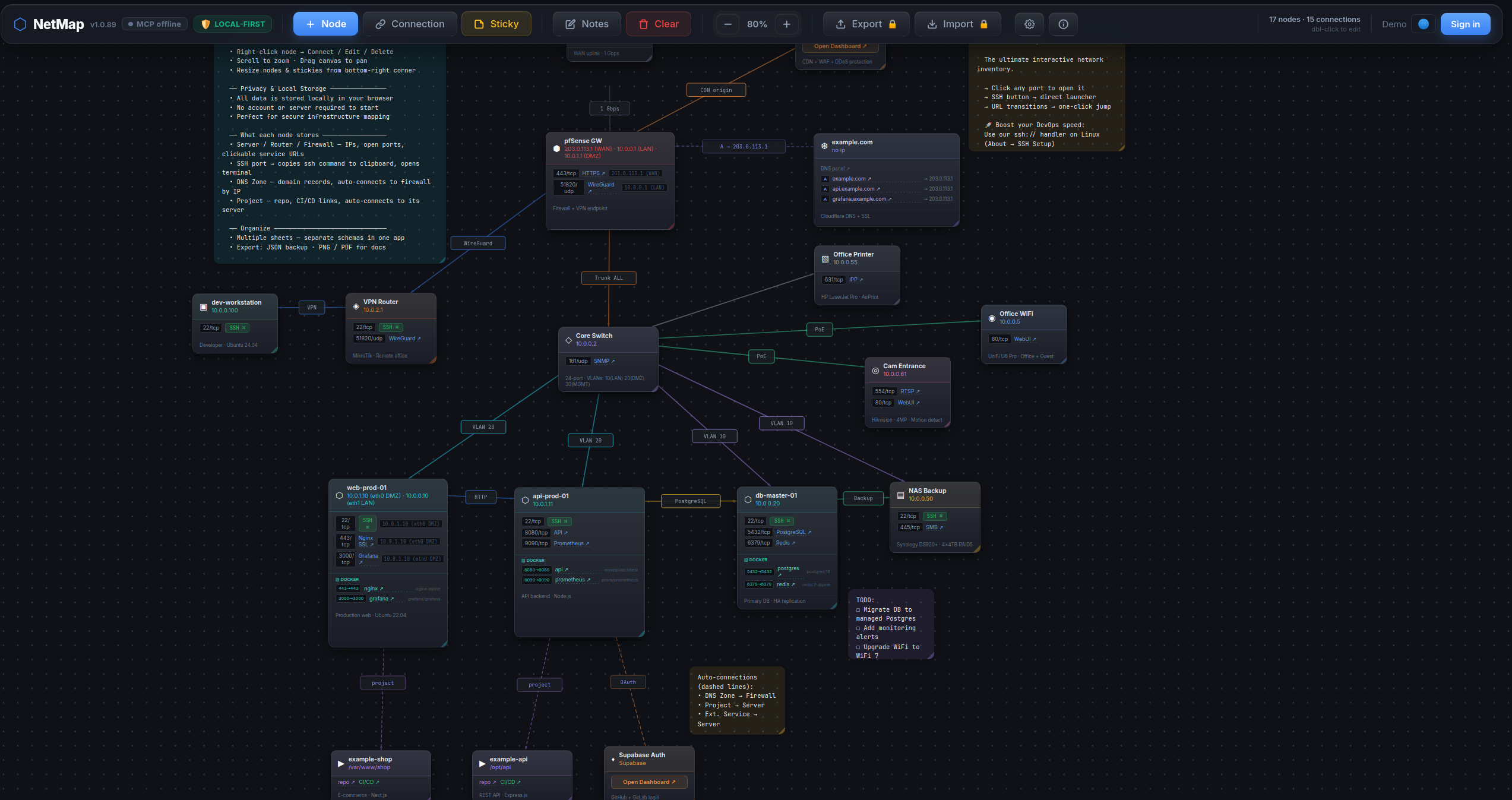
What makes it different
- One-click ops dashboard. Click any web port (80 / 443 / 8080 / …) on a node card to open the service in a new tab. Click an SSH / Postgres / Redis port → in-app picker offers your installed clients (iTerm / Windows Terminal / psql / DBeaver / redis-cli / RDM / …) and launches the one you choose. The picker re-detects every click — newly installed clients show up immediately, never a silent locked-in default.
- AI agents edit the map. 44 MCP tools — your Claude / Cursor / Claude Desktop session can build a diagram for you, search across nodes / ports / notes, run smart auto-layouts, export PNG / PDF — all by talking to the open browser tab.
nmap -oXimport. Run a network scan, hand the XML to the agent, get a map with nodes auto-typed from OS fingerprint + port profile (router / switch / firewall / server / printer / …).- CSV inventory import. Drop in your asset spreadsheet — auto-detects columns
(name / ip / type / ports / notes; aliases like
hostname/descriptionaccepted). - Operator-grade node cards. Per-node: open ports with service names, Docker services, DNS domains, free-form notes. All searchable cross-entity via the agent.
- Smart auto-layout. Force-directed (deterministic via seed), cluster-by-type, cluster-by-connection.
- Multi-sheet, local-first. Multiple maps in one workspace, everything in
localStorage. No login, no cloud. Export JSON / PNG / PDF.
How it works
This package is a stdio → WebSocket bridge. It runs locally as an MCP server; the live NetMap browser tab connects to it over WebSocket. The agent talks to the bridge over MCP; the bridge forwards calls to the browser, which updates React state in real time.
LLM agent (Claude Code / Claude Desktop / Cursor)
   │  MCP protocol (stdio)
   ▼
@den.dance/network-diagram-mcp  ←  this package, runs locally
   │  WebSocket ws://localhost:47821
   ▼
NetMap in browser (https://map.den.dance/)  ←  React state updates live
⚠️ Requires an open NetMap browser tab. Open https://map.den.dance/ — the MCP bridge is enabled by default (v1.2+), so the connection comes up as soon as the tab is open. Without an open tab the bridge has no peer and every tool call will time out. (To opt out:
Settings → ⚙ → Integrations → AI Agent (MCP) → Enable WebSocket connection.)
Install
Claude Desktop
Add to claude_desktop_config.json:
{
  "mcpServers": {
    "netmap": {
      "command": "npx",
      "args": ["@den.dance/network-diagram-mcp"]
    }
  }
}
Claude Code
claude mcp add netmap -- npx @den.dance/network-diagram-mcp
With a custom port:
claude mcp add netmap -e NETMAP_MCP_PORT=12345 -- npx @den.dance/network-diagram-mcp
Then open https://map.den.dance/ — the bridge is enabled by default (v1.2+). Settings → Integrations → AI Agent (MCP) if you need to inspect or toggle the connection. The toolbar will show a 🟢 MCP online badge when the browser and server are connected.
Verify the agent side:
claude mcp list
You should see netmap in the list.
Environment variables
| Var | Default | Description |
|---|---|---|
NETMAP_MCP_PORT | 47821 | Local WebSocket port the bridge listens on. Must match the URL configured in NetMap's Settings → Integrations → AI Agent (MCP). |
URL Protocol Handlers + in-app client picker (v1.1+, picker since v1.2)
This package also ships an OS-level agent that registers handlers for ssh://,
postgres://, and redis:// URLs. Click any such link in a browser or terminal
and the agent spawns your installed client (psql / redis-cli / iTerm /
Windows Terminal / kitty / DBeaver / TablePlus / RedisInsight / …).
Inside NetMap (v1.2+): when the serve daemon is running, clicking an
SSH / Postgres / Redis port button on a node card opens an in-app picker of
installed clients on your machine and launches the one you pick — every click
re-detects, so newly installed clients show up immediately. Without the daemon,
port-clicks fall back to the OS default URL handler.
Install once per machine:
# Linux:   ~/.local/share/applications/netmap-<scheme>-handler.desktop + xdg-mime
# macOS:   ~/Library/Application Support/NetMap/handlers/NetMap<Scheme>Handler.app + lsregister
# Windows: HKCU\Software\Classes\<scheme>  (per-user, no admin)
npx @den.dance/network-diagram-mcp install --all
Other CLI subcommands:
npx @den.dance/network-diagram-mcp install ssh        # single scheme
npx @den.dance/network-diagram-mcp uninstall postgres # remove registration
npx @den.dance/network-diagram-mcp list               # what's registered (JSON)
npx @den.dance/network-diagram-mcp detect ssh         # which clients are available
npx @den.dance/network-diagram-mcp serve              # daemon: WS + HTTP on :47821
Click handling is daemon-less — OS routes the link to a short-lived
bin/handler.js process which parses the URL, picks the first installed
client (priority order: CLI → popular GUI → cross-platform power), and spawns
it. The optional serve daemon adds HTTP endpoints (/status, /detect,
/exec) for browser-side integration with a Bearer-token-gated /exec.
npx @den.dance/network-diagram-mcp with no args still runs the original
stdio MCP server (back-compat — Smithery / Claude Desktop probes are
unaffected).
Top-5 clients per scheme (priority order, first-installed wins):
| Scheme | Clients |
|---|---|
ssh | iTerm2 → Windows Terminal → GNOME Terminal → Terminal.app → kitty |
postgres | psql → TablePlus → DBeaver → Beekeeper Studio → pgAdmin 4 |
redis | redis-cli → RedisInsight → Another Redis DM → Medis → RDM (legacy) |
postgresql:// aliases to postgres; rediss:// is preserved and triggers
redis-cli --tls.
Available tools
State & layout
| Tool | Description |
|---|---|
map_get_state | Return all nodes, connections, stickies, notes |
map_clear | Clear the entire map (requires confirm: true) |
map_arrange | Naive auto-arrange (grid or circle layout — ignores connections) |
map_suggest_layout | Smart auto-layout: force (force-directed, deterministic via seed), cluster-by-type (lanes per type), or cluster-by-connection (BFS components into zones) |
Nodes
| Tool | Description |
|---|---|
map_add_node | Add a node (type, name, ip, x, y) |
map_update_node | Update node fields by id |
map_delete_node | Delete a node and its connections |
map_move_node | Move node to new coordinates |
Connections
| Tool | Description |
|---|---|
map_add_connection | Add connection (from_id, to_id, label?, color?) |
map_update_connection | Update label or color of a connection |
map_delete_connection | Delete a connection by id |
Sticky notes
| Tool | Description |
|---|---|
map_add_sticky | Add a sticky note (text, x?, y?, color?) |
map_update_sticky | Update text, color, x, y, w, h |
map_delete_sticky | Delete a sticky note by id |
map_move_sticky | Move sticky to new coordinates |
Sheets (multi-sheet)
| Tool | Description |
|---|---|
map_list_sheets | List all sheets with metadata and active sheet id |
map_get_sheet_data | Get nodes / connections / stickies for a sheet (default: active) |
map_create_sheet | Create a new empty sheet and switch to it |
map_switch_sheet | Switch active sheet by id |
map_rename_sheet | Rename a sheet |
map_delete_sheet | Delete a sheet (requires confirm: true, can't delete last) |
View / canvas
| Tool | Description |
|---|---|
map_set_zoom | Set zoom level (0.1–3.0) |
map_set_canvas_offset | Pan canvas to absolute pixel position |
map_zoom_to_fit | Auto-fit all nodes into viewport |
Lock / protection
| Tool | Description |
|---|---|
map_lock_sheet | Lock (locked: true) or unlock (locked: false) a sheet. Locked sheets reject all MCP mutations and disable manual editing in the UI. |
Notes & settings
| Tool | Description |
|---|---|
map_get_notes | Get sheet-level notes text |
map_set_notes | Set sheet-level notes text |
map_get_settings | Get app settings (sshMode, showGrid, etc.) |
map_update_settings | Update app settings |
Search
| Tool | Description |
|---|---|
map_find_node | Structured node-only filter by name / ip / type / text. Returns stripped {id, name, type, ip, x, y}. |
map_search | Full-text cross-entity search. Looks across nodes (name / ip / notes), stickies (text), connection labels, and ports (port number + service name). Optional types: ["nodes","stickies","connections","ports"] narrows the scope. |
map_get_nodes_by_type | Return every node of a single type with FULL field data (ports, dockerServices, domains, ips, notes, parentServer, …). Use this when you need the complete objects, not the stripped projection from map_find_node. |
Example — find everything matching postgres anywhere in the map:
// → call
{ "q": "postgres" }

// → result
{
  "nodes":       [{ "id": "n1", "name": "db-primary", "type": "server", "ip": "10.0.0.5" }],
  "stickies":    [{ "id": "s2", "text": "TODO: upgrade postgres 15 → 16" }],
  "connections": [{ "id": "c4", "label": "postgres replication", "from": "n1", "to": "n2" }],
  "ports":       [{ "nodeId": "n1", "nodeName": "db-primary", "port": 5432, "protocol": "tcp", "service": "postgresql" }],
  "total": 4
}
map_search and map_get_nodes_by_type are read-only — they work on locked sheets.
Import
| Tool | Description |
|---|---|
map_import_sheet | Replace active-sheet content with a provided {nodes, connections, stickies?, notes?} JSON. |
map_import_nmap | Parse nmap -oX output (or a pre-parsed hosts[] array) and create nodes with their open ports. Auto-infers node type from OS fingerprint + port profile (router / switch / firewall / server / printer / …). Nodes auto-arranged in a square-root grid. |
map_import_csv | Import nodes from CSV. Auto-detects columns from the header row (name / ip / type / ports / notes — aliases like hostname / description accepted). Ports field accepts 22/tcp,80/tcp or bare numbers. Nodes laid out in a 6-column grid. |
Example — turn a 2-host nmap scan into a map in one call:
// → call
{
  "xml": "<?xml version=\"1.0\"?>\n<nmaprun>\n  <host>\n    <address addr=\"10.0.0.1\" addrtype=\"ipv4\"/>\n    <hostnames><hostname name=\"web.local\" type=\"user\"/></hostnames>\n    <ports>\n      <port protocol=\"tcp\" portid=\"22\"><state state=\"open\"/><service name=\"ssh\"/></port>\n      <port protocol=\"tcp\" portid=\"80\"><state state=\"open\"/><service name=\"http\"/></port>\n    </ports>\n  </host>\n  <host>\n    <address addr=\"10.0.0.2\" addrtype=\"ipv4\"/>\n    <os><osmatch name=\"Cisco IOS router\" accuracy=\"98\"/></os>\n  </host>\n</nmaprun>"
}

// → result
{ "count": 2, "ids": ["…", "…"] }
Provide {"hosts": [...]} instead of xml when you already have parsed host data — hosts takes priority when both are given.
Example — turn a CSV inventory snippet into a map:
// → call
{
  "csv": "name,ip,type,ports,notes\ndb-primary,10.0.0.5,server,\"22/tcp,5432/tcp\",Postgres 15\nrouter-main,10.0.0.1,router,22/tcp,Edge router"
}

// → result
{ "count": 2, "ids": ["…", "…"] }
For non-standard headers, pass an explicit columns mapping (-1 means "absent"):
{
  "csv":     "Host,Address\nfoo,10.0.0.99",
  "columns": { "name": 0, "ip": 1, "type": -1, "ports": -1, "notes": -1 }
}
map_import_nmap and map_import_csv are mutations — blocked on locked sheets.
Layout
map_suggest_layout repositions every node according to a chosen algorithm; result shape:
{ ok: true, algorithm, changed: <node count> }.
// Force-directed (organic; reproducible with seed)
{ "algorithm": "force", "iterations": 200, "seed": 42 }

// Group nodes into horizontal lanes by type
{ "algorithm": "cluster-by-type" }

// Place each connected component in its own x-zone
{ "algorithm": "cluster-by-connection" }
Force-directed is O(n²) per iteration — fine up to a few hundred nodes; bring iterations down
for larger scenes. map_suggest_layout is a mutation — blocked on locked sheets.
Export (JSON / PNG / PDF)
| Tool | Description |
|---|---|
map_export_sheet | Export a single sheet as a JSON object (auto-connections included). Legacy entry — still works. |
map_export | Multi-format export: json (object), png and pdf (base64-encoded blob + mimeType). |
// JSON
{ "format": "json" }
// → { format: "json", data: { nodes, connections, stickies, notes, auto_connections } }

// PNG (max 30 s; agent must persist the base64 to a file)
{ "format": "png" }
// → { format: "png", filename: "netmap-<sheetId>.png",
//      base64: "iVBORw0KGgoAAAANSUhEUg…",
//      mimeType: "image/png" }

// PDF
{ "format": "pdf" }
// → { format: "pdf", filename: "netmap-<sheetId>.pdf",
//      base64: "JVBERi0xLjQK…",
//      mimeType: "application/pdf" }
PNG / PDF capture renders the live workspace via html-to-image + jsPDF, so the MCP server raises
the per-command timeout to 30 s for this tool. map_export is read-only — works on locked sheets.
Connection status indicator
A badge appears next to the NetMap version in the toolbar (click it to open Settings):
| Badge | Meaning |
|---|---|
| 🟢 MCP online | Connected — agent can edit the map |
| 🟡 MCP | Connecting to server |
| 🟠 MCP retry N/10 | Retrying, up to 10 attempts × 30 sec |
| 🔴 MCP error | Gave up — start the server, then toggle off / on to retry |
| (no badge) | Disabled in settings |
Detailed status (with URL and hints) is shown inside Settings → Integrations → AI Agent (MCP).
Running from source (for contributors)
git clone https://github.com/den-indance/network-diagram-mcp.git
cd network-diagram-mcp
npm install
node index.js
Override port: NETMAP_MCP_PORT=12345 node index.js.
Register the local build in Claude Code instead of npm:
claude mcp add netmap-dev -- node /absolute/path/to/network-diagram-mcp/index.js
License
MIT — see LICENSE.
Installation
Source-derived launch command. Check the maintainer’s required arguments and credentials before running:
npx -y @den.dance/network-diagram-mcpSet up in your AI client
Merge this template into ~/Library/Application Support/Claude/claude_desktop_config.json. Keep existing servers. Add any arguments, credentials, and permissions required by the maintainer; this template has not been install-tested.
{
  "mcpServers": {
    "io-github-den-indance-network-diagram-mcp": {
      "command": "npx",
      "args": [
        "-y",
        "@den.dance/network-diagram-mcp"
      ]
    }
  }
}
Restart Claude Desktop completely for changes to take effect. Confirm the server appears connected in the client’s tool list, then try a read-only example from its documentation.
Claude Desktop setup referencePackage
@den.dance/network-diagram-mcpnpmCompatible MCP Clients
io.github.den-indance/network-diagram-mcp works with any MCP-compatible client. Copy the config snippet from the Configuration section above and add it to the file shown for your client, then restart the application.
- Claude Desktop
~/Library/Application Support/Claude/claude_desktop_config.jsonRestart Claude Desktop completely for changes to take effect. - Cursor
~/.cursor/mcp.jsonRestart Cursor for changes to take effect. - VS Code
.vscode/mcp.jsonReload VS Code window for changes to take effect. - Windsurf
~/.codeium/windsurf/mcp_config.jsonRestart Windsurf for changes to take effect. - Claude Code
.mcp.jsonSave at the project root, then start Claude Code in that project and review the MCP server approval prompt. Keep real credentials out of shared files.