io.github.dev-proxy-tools/mcp
MCP server for Dev Proxy that enables AI assistants to interact with Dev Proxy.
Dev Proxy MCP Server


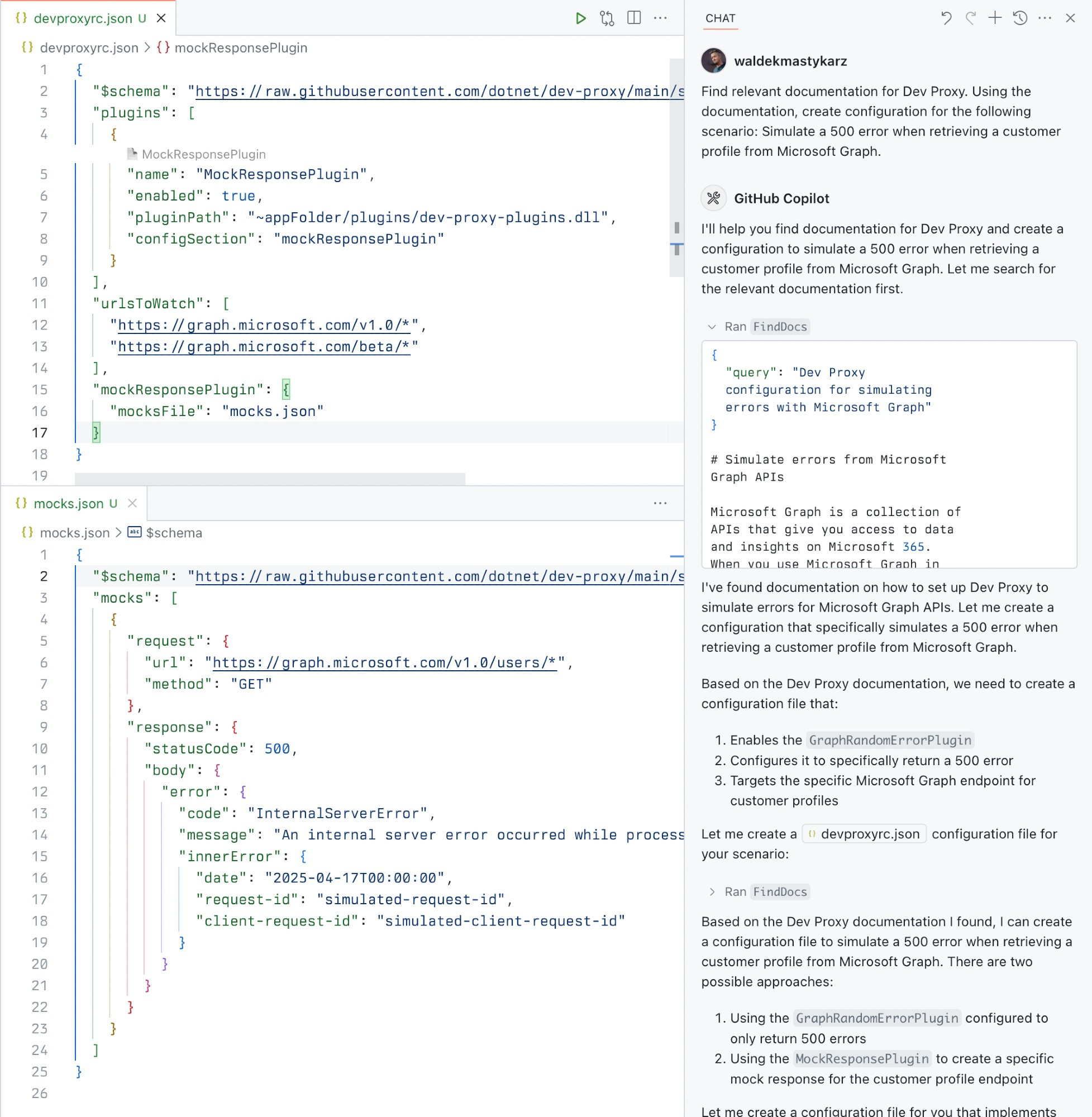
A Model Context Protocol (MCP) server for Dev Proxy that enables AI assistants to interact with Dev Proxy capabilities using the MCP standard. Use this server to:
- Create Dev Proxy configurations using natural language
- Get contextual help for working with Dev Proxy
- Discover Dev Proxy features and capabilities
What is Dev Proxy?
Dev Proxy is an API simulator that helps you effortlessly test your app beyond the happy path. It allows you to:
- Test API error handling: See how your app responds to API errors without changing your code
- Verify rate limit handling: Simulate API rate limits to improve user experience
- Test slow API responses: See how your app handles slow APIs to implement necessary affordances
- Create mock APIs: Quickly stand up mock APIs without writing code you won't ship
Dev Proxy works with any type of app and tech stack as it intercepts network requests at the proxy level.
What This Package Does
This package provides a Model Context Protocol (MCP) server interface to Dev Proxy. It allows AI assistants and other MCP-compatible clients to:
- Find Dev Proxy documentation using natural language queries
- Get the installed Dev Proxy version
Prerequisites
Usage
To set up and use the MCP server, refer to the instructions for your MCP host, such as Visual Studio Code. The Dev Proxy MCP server is published on npm under @devproxy/mcp.
Use the following values:
- Type:
stdio - Command:
npx - Arguments:
-y@devproxy/mcp
- Environment: none
[!TIP] If you want to test the preview version of the server using
@devproxy/mcp@next.
Connect with an MCP Client
This MCP server exposes the following tools:
GetBestPractices
Gets a list of best practices for configuring and using Dev Proxy. Call it for any code generation or operation involving Dev Proxy. These best practices do not change so once it has been called during the current session, you do not need to invoke it again.
_Best practices in markdown_
FindDocs
Finds relevant Dev Proxy documentation related to a specific query.
{
  "query": "How to simulate API errors"
}
GetVersion
Gets the currently installed Dev Proxy version. This is useful to ensure that the generated configuration is compatible with the installed version of Dev Proxy.
{}
Development
# Clone the repository
git clone https://github.com/waldekmastykarz/dev-proxy-mcp.git
cd dev-proxy-mcp

# Install dependencies
npm install

# Build the project
npm run build

# Run the server
npm start

# Run with MCP inspector for debugging
npm run inspect
Contributing
Contributions are welcome! Please feel free to submit a Pull Request.
- Fork the repository
- Create your feature branch (
git checkout -b feature/amazing-feature) - Commit your changes (
git commit -m 'Add some amazing feature') - Push to the branch (
git push origin feature/amazing-feature) - Open a Pull Request
License
This project is licensed under the MIT License - see the LICENSE file for details.
Related Projects
- Dev Proxy - The core Dev Proxy tool
- Model Context Protocol (MCP) - Protocol specification for AI assistant tools
Installation
Source-derived launch command. Check the maintainer’s required arguments and credentials before running:
npx -y @devproxy/mcpSet up in your AI client
Merge this template into ~/Library/Application Support/Claude/claude_desktop_config.json. Keep existing servers. Add any arguments, credentials, and permissions required by the maintainer; this template has not been install-tested.
{
  "mcpServers": {
    "io-github-dev-proxy-tools-mcp": {
      "command": "npx",
      "args": [
        "-y",
        "@devproxy/mcp"
      ]
    }
  }
}
Restart Claude Desktop completely for changes to take effect. Confirm the server appears connected in the client’s tool list, then try a read-only example from its documentation.
Claude Desktop setup referencePackage
@devproxy/mcpnpmCompatible MCP Clients
io.github.dev-proxy-tools/mcp works with any MCP-compatible client. Copy the config snippet from the Configuration section above and add it to the file shown for your client, then restart the application.
- Claude Desktop
~/Library/Application Support/Claude/claude_desktop_config.jsonRestart Claude Desktop completely for changes to take effect. - Cursor
~/.cursor/mcp.jsonRestart Cursor for changes to take effect. - VS Code
.vscode/mcp.jsonReload VS Code window for changes to take effect. - Windsurf
~/.codeium/windsurf/mcp_config.jsonRestart Windsurf for changes to take effect. - Claude Code
.mcp.jsonSave at the project root, then start Claude Code in that project and review the MCP server approval prompt. Keep real credentials out of shared files.