io.github.finfin/mermaid-mcp-app
MCP App that renders Mermaid diagrams as interactive UI in Claude, VS Code and other MCP clients
Mermaid MCP App
English | 繁體中文
An MCP App that renders Mermaid diagrams in an interactive viewer with pan, zoom, and a built-in source editor. Edit diagrams directly in the split-view editor and send the updated source back to the LLM to continue the conversation with your changes. Works in Claude Desktop, VS Code, and any MCP-App-compatible host.
Usage
Once configured, ask the LLM to draw a diagram:
"Draw a flowchart showing user authentication flow"

"Create a sequence diagram for an API request lifecycle"

"Render this mermaid diagram: `graph TD; A-->B; B-->C`"
You can also specify a theme explicitly:
"Draw a class diagram with light theme"
Features
Interaction with AI
Edit the diagram source directly in the split-view editor, then send it back to the LLM to continue the conversation with your changes.
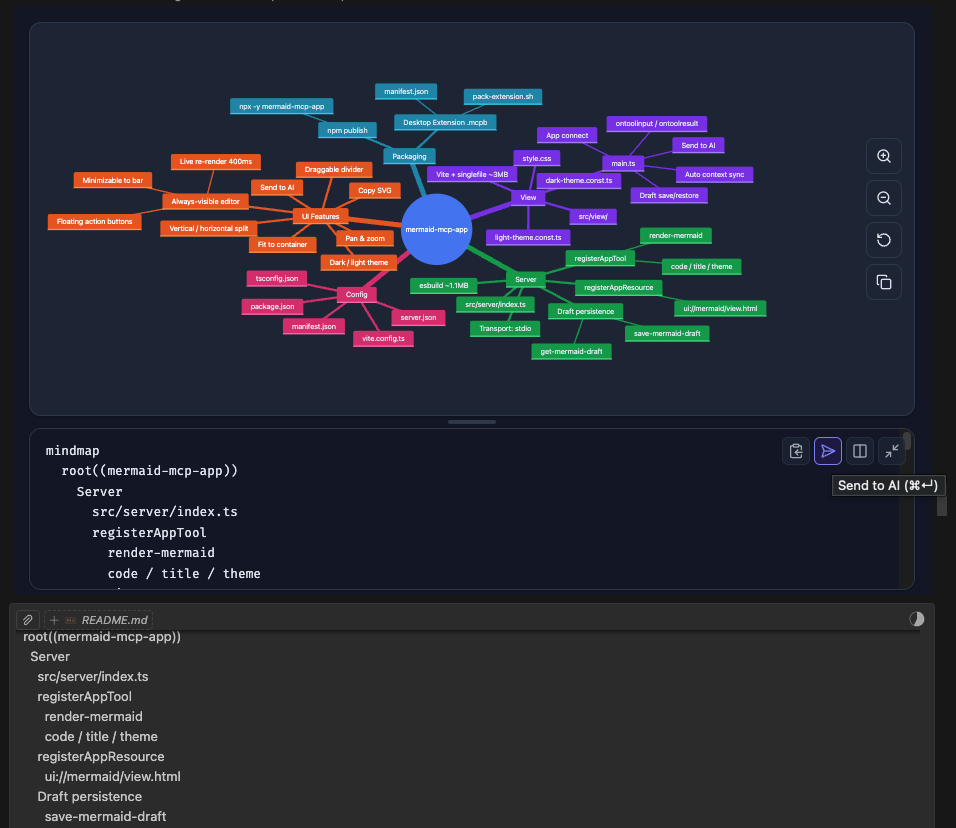
- Send to AI — sends the edited diagram source back to the LLM, triggering a response
- Auto context sync — LLM context is automatically updated as you type (debounced); the LLM always sees your latest source on the next message
Diagram Types (13 supported)
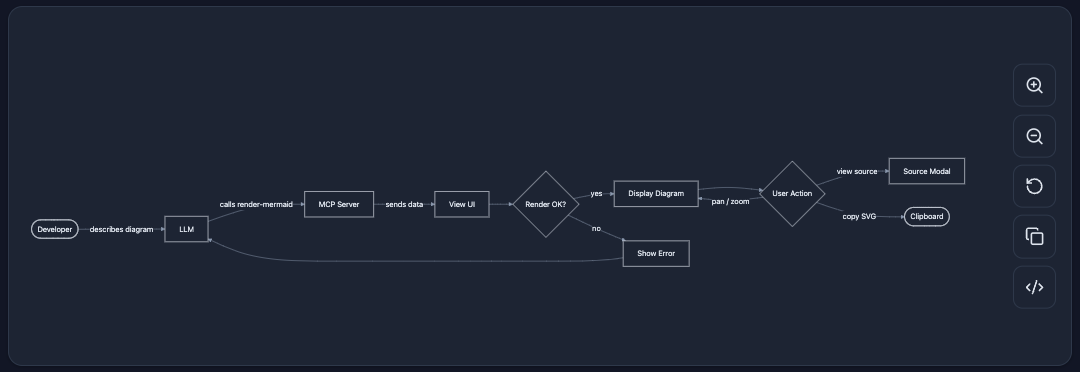
Flowchart
flowchart — General-purpose directed graphs. Supports top-down and left-right layouts, subgraphs, and various node shapes.
Sequence Diagram
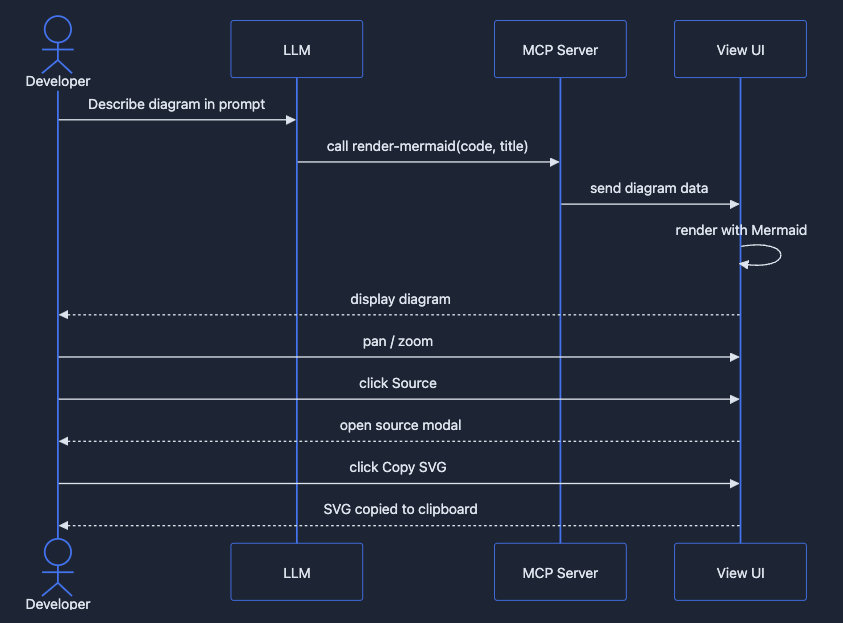
sequenceDiagram — Interaction between participants over time. Shows messages, loops, and alternative flows.
Class Diagram
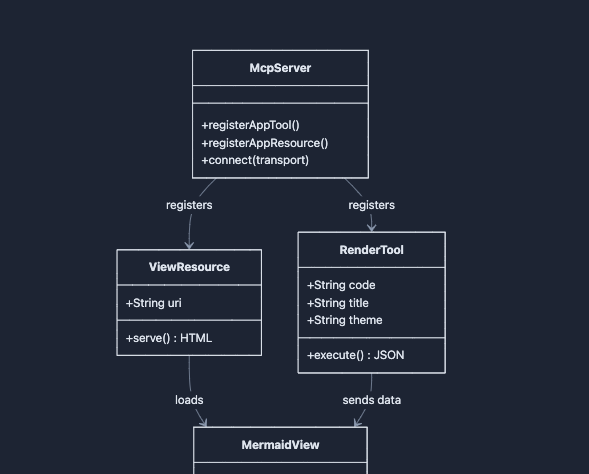
classDiagram — Object-oriented class structure with attributes, methods, and relationships (inheritance, composition, etc.).
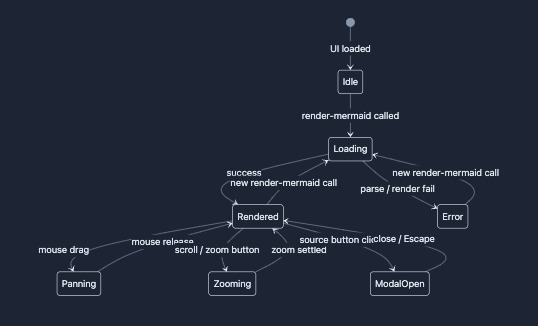
State Diagram
stateDiagram-v2 — Finite state machines with transitions, composite states, and concurrency.
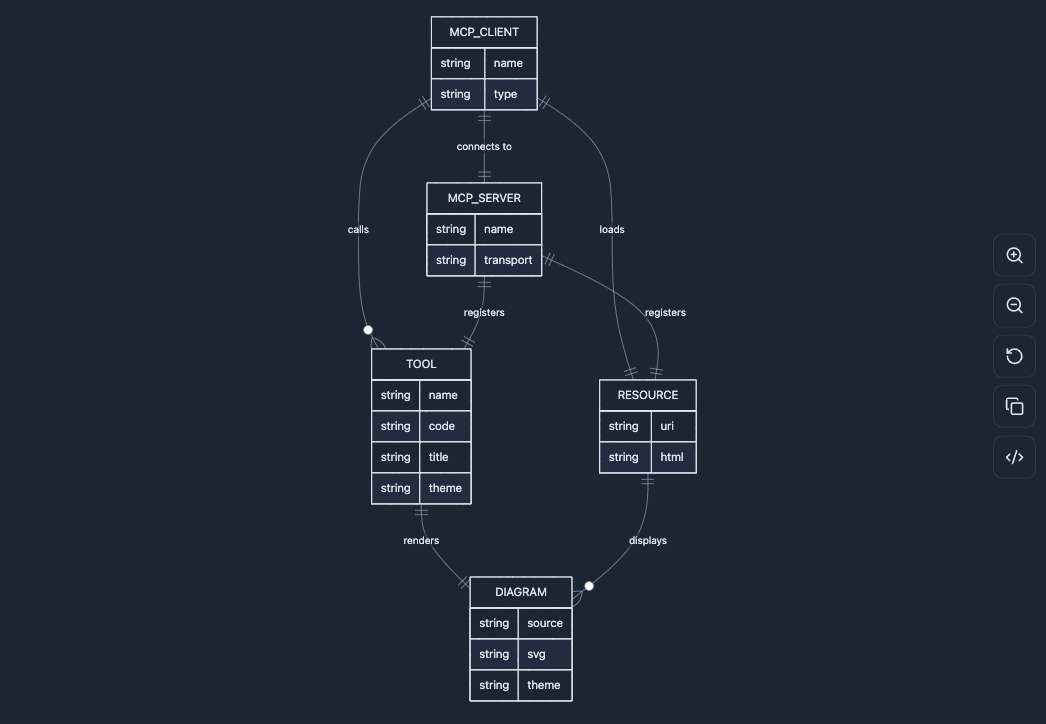
ER Diagram
erDiagram — Entity-relationship diagrams for data modeling with cardinality annotations.
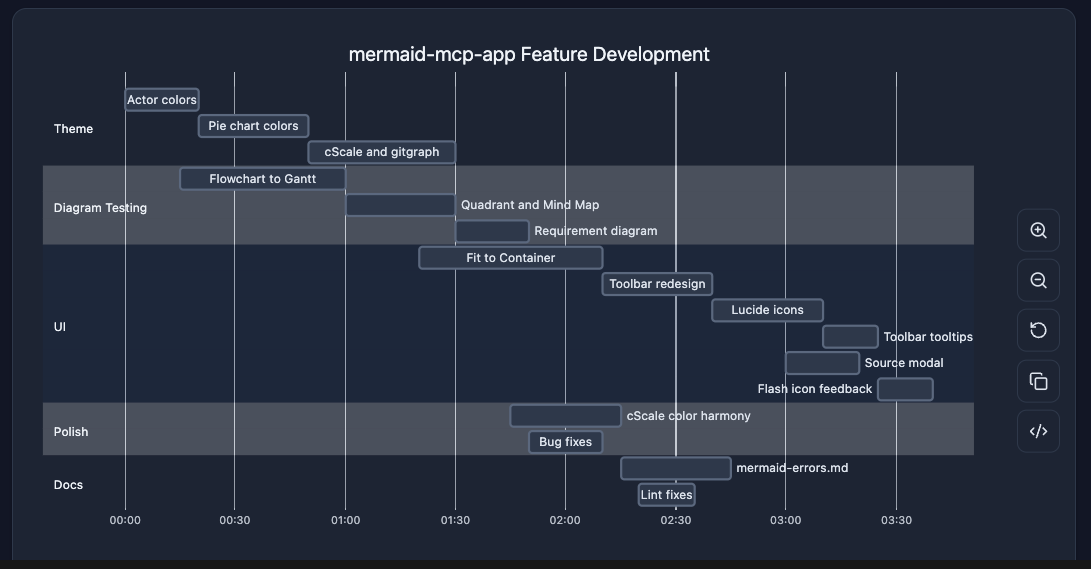
Gantt Chart
gantt — Project timelines with tasks, milestones, dependencies, and critical paths.
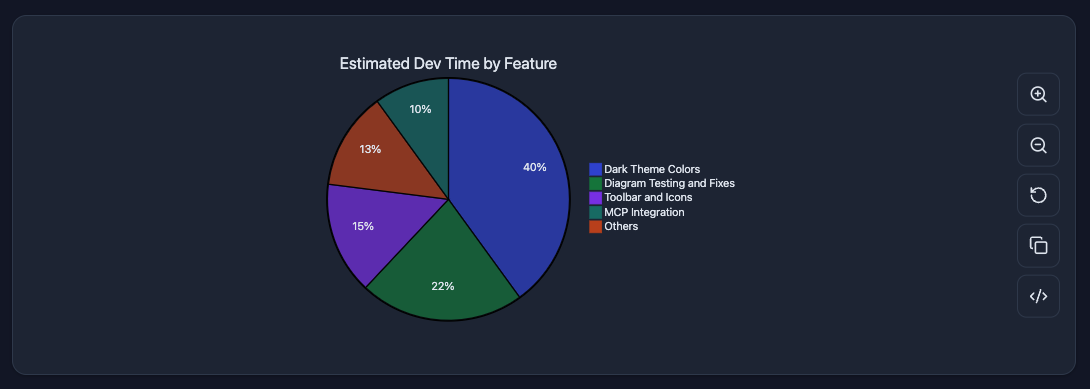
Pie Chart
pie — Proportional data as pie slices with percentage labels.
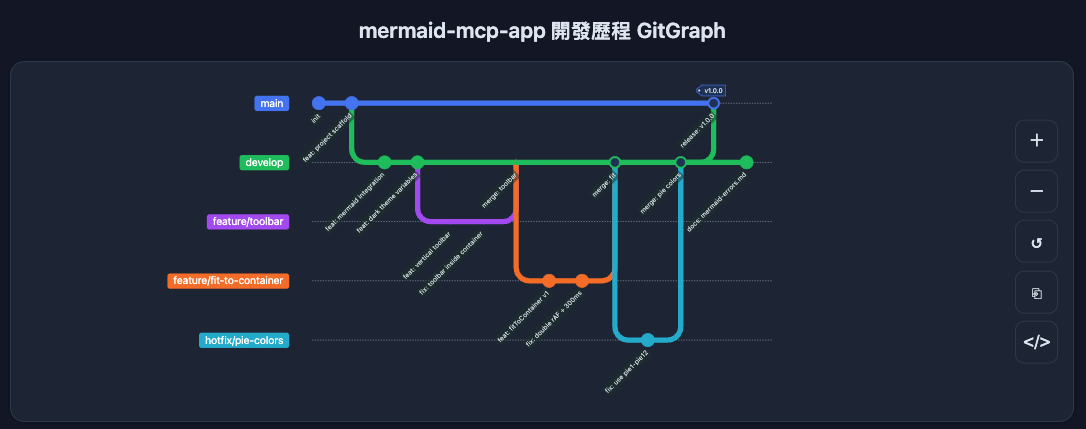
Git Graph
gitGraph — Git branch and commit history visualization with merge and cherry-pick flows.
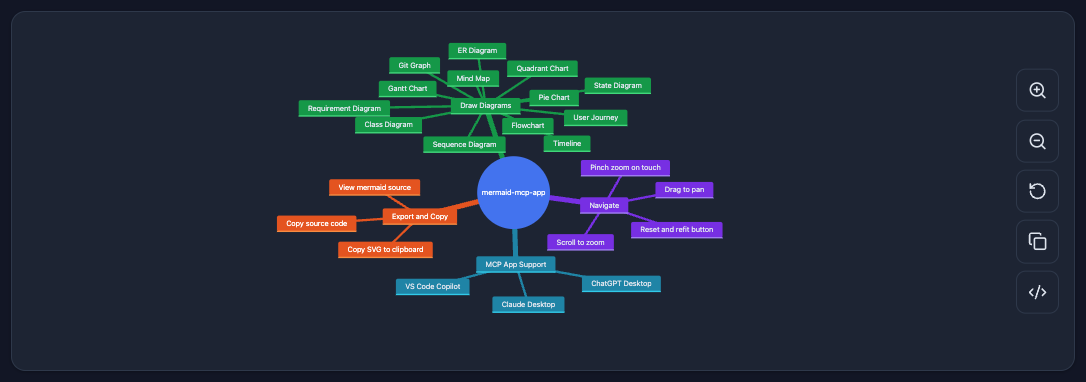
Mindmap
mindmap — Hierarchical tree of ideas radiating from a central root node.
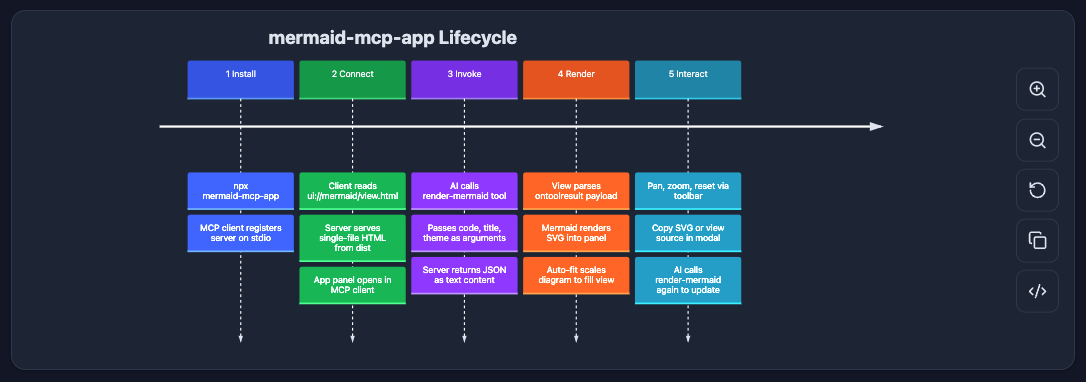
Timeline
timeline — Chronological events grouped by time period.
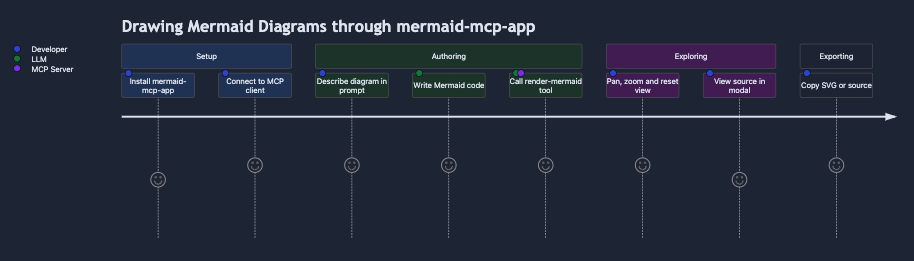
User Journey
journey — User experience flows scored by satisfaction level across sections and actors.
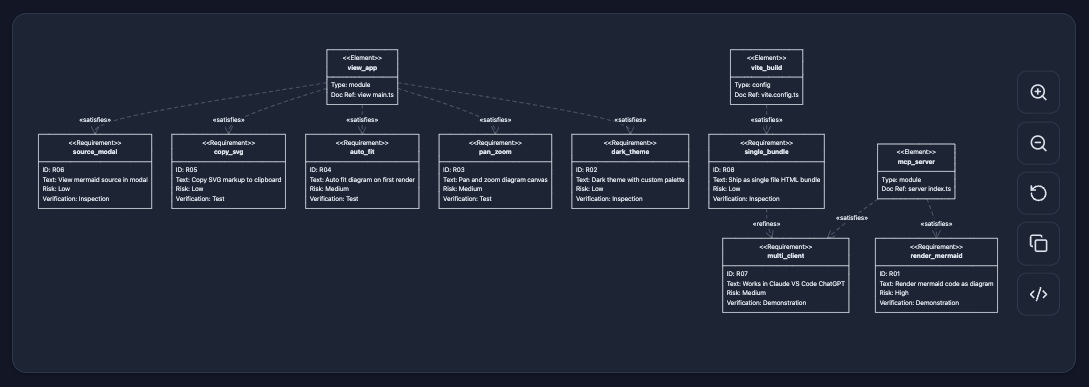
Requirement Diagram
requirementDiagram — System requirements with type, risk, and verification method, linked to design elements.
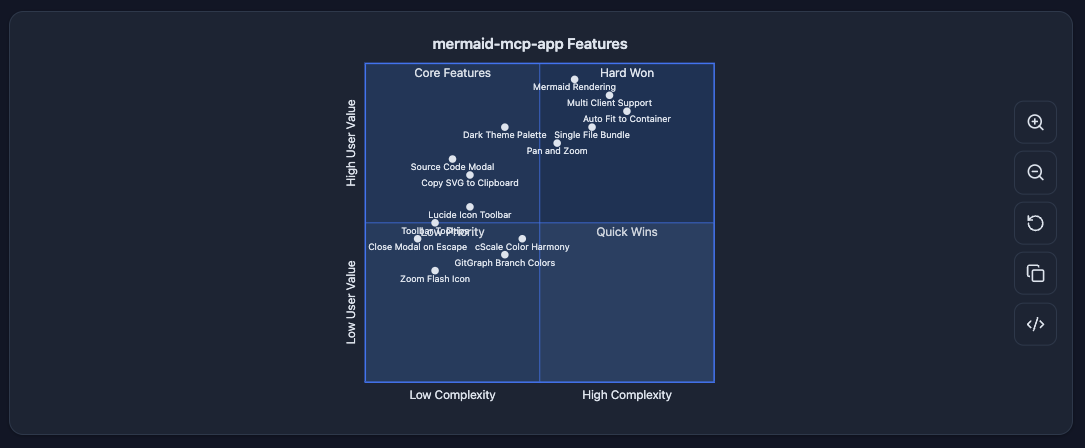
Quadrant Chart
quadrantChart — Four-quadrant scatter plot for prioritization and positioning analysis.
UI
- Pan & zoom — mouse drag to pan, scroll wheel to zoom, pinch-to-zoom on touch
- Fit to container — auto-fits diagram on render; reset button restores fit
- Copy SVG — copies the rendered SVG to clipboard
- Split-view source editor — always-visible editor panel with live re-render (400ms debounce)
- Minimizable editor — collapse to a compact bottom bar; expand with one click
- Vertical / horizontal layout toggle — source below (vertical) or to the right (horizontal); minimized state always snaps to the bottom
- Theme support —
dark(auto-detected from system preference) andlight
Installation
Claude Desktop — Extension (recommended)
Download the latest .mcpb from GitHub Releases and double-click to install. No terminal or configuration needed.
Claude Desktop — Manual
Add to ~/Library/Application Support/Claude/claude_desktop_config.json:
{
  "mcpServers": {
    "mermaid": {
      "command": "npx",
      "args": ["-y", "mermaid-mcp-app", "--stdio"]
    }
  }
}
VS Code
Add to .vscode/mcp.json or user settings:
{
  "mcpServers": {
    "mermaid": {
      "command": "npx",
      "args": ["-y", "mermaid-mcp-app", "--stdio"]
    }
  }
}
Development
# Install dependencies
npm install

# Build (view + server)
npm run build

# Watch mode (view only)
npm run dev

# Start server
npm start
Installation
Source-derived launch command. Check the maintainer’s required arguments and credentials before running:
npx -y mermaid-mcp-appSet up in your AI client
Merge this template into ~/Library/Application Support/Claude/claude_desktop_config.json. Keep existing servers. Add any arguments, credentials, and permissions required by the maintainer; this template has not been install-tested.
{
  "mcpServers": {
    "io-github-finfin-mermaid-mcp-app": {
      "command": "npx",
      "args": [
        "-y",
        "mermaid-mcp-app"
      ]
    }
  }
}
Restart Claude Desktop completely for changes to take effect. Confirm the server appears connected in the client’s tool list, then try a read-only example from its documentation.
Claude Desktop setup referencePackage
mermaid-mcp-appnpmCompatible MCP Clients
io.github.finfin/mermaid-mcp-app works with any MCP-compatible client. Copy the config snippet from the Configuration section above and add it to the file shown for your client, then restart the application.
- Claude Desktop
~/Library/Application Support/Claude/claude_desktop_config.jsonRestart Claude Desktop completely for changes to take effect. - Cursor
~/.cursor/mcp.jsonRestart Cursor for changes to take effect. - VS Code
.vscode/mcp.jsonReload VS Code window for changes to take effect. - Windsurf
~/.codeium/windsurf/mcp_config.jsonRestart Windsurf for changes to take effect. - Claude Code
.mcp.jsonSave at the project root, then start Claude Code in that project and review the MCP server approval prompt. Keep real credentials out of shared files.