NetsCLI
Network scanner for AI agents: discover hosts, scan TCP and UDP ports, query DNS and mDNS.

A network scanner written in Rust. CLI, terminal UI, desktop app, and MCP server. One library behind all four.





Why this exists
The terminal UI came first. I wanted to understand how the newer TUIs work, the ones coding agents like Claude Code have put real effort into. Autocomplete, command history, in-place progress, and a UI that does not take over the terminal, so scrollback and copying text keep working. Building one seemed like the way to learn it, and a network scanner gave it something to do.
The MCP server came next. I thought it would be interesting to let an agent work with a network that way. Ask which device just joined, or whether port 22 is open on some host, instead of shelling out to another tool and parsing output that was written for a person to read.
Then the CLI, for programmatic use. A script or a cron job wants one command and JSON back, not an interactive session.
The desktop app came last. Some people would rather have a GUI than a terminal, and honestly I sometimes prefer it myself over running the commands locally.
Three of them are the same binary. netscli <command> is the CLI, netscli
on its own opens the terminal UI, and netscli serve starts the MCP server.
The desktop app is a separate download over the same core.
Screenshots
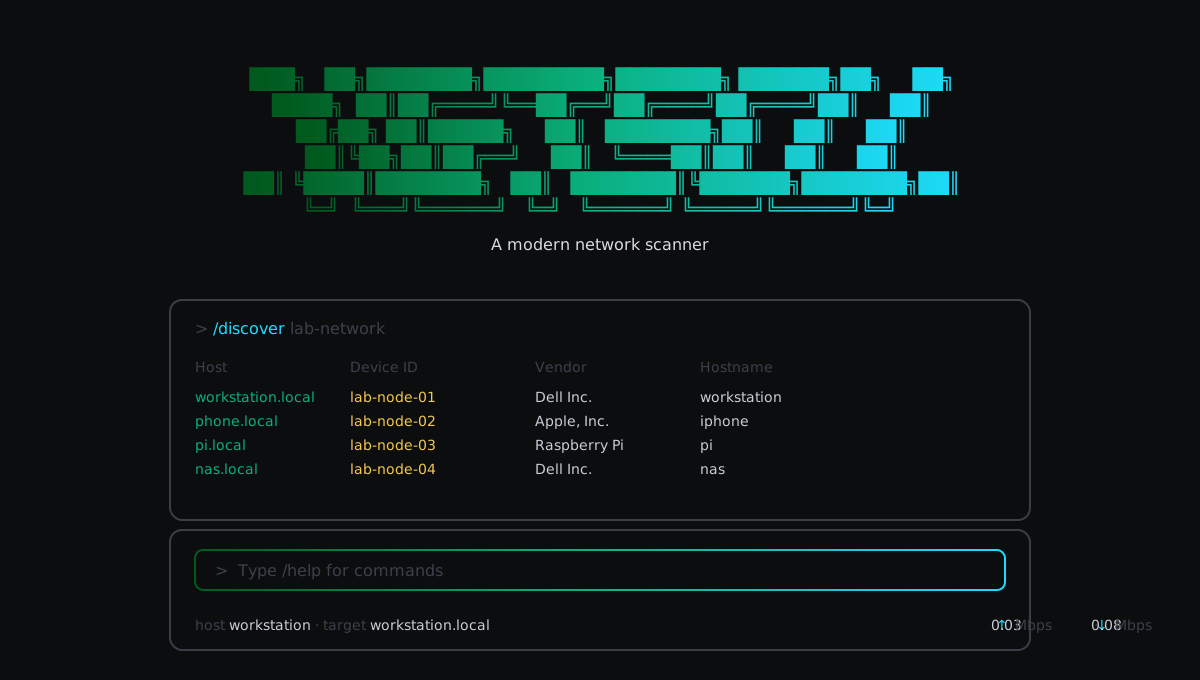
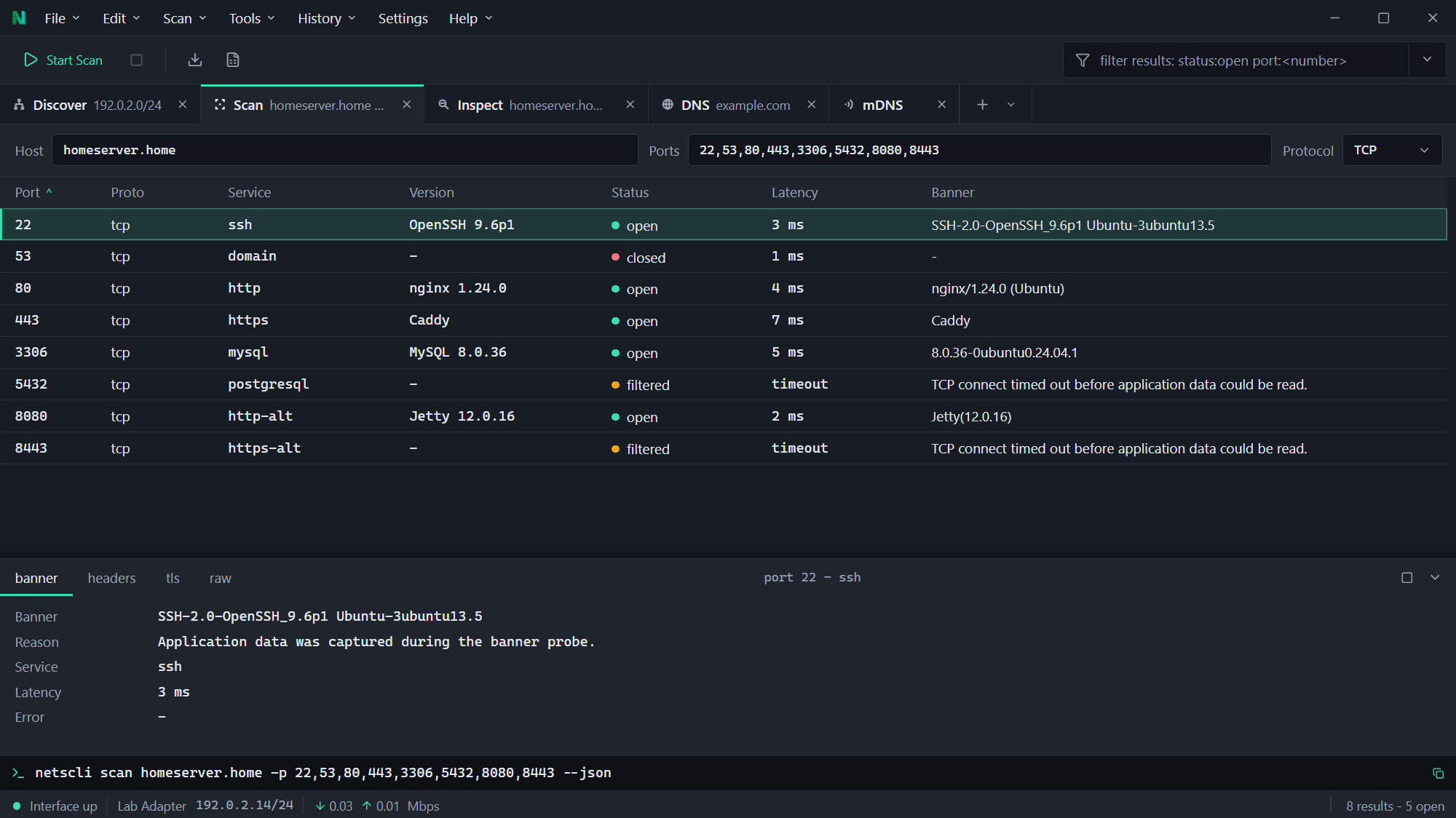
Install
# macOS / Linux
brew tap fstubner/tap && brew install netscli

# Windows
winget install netscli        # CLI, TUI and MCP server
winget install netscli-gui    # desktop app

# Any platform, via cargo
cargo install netscli
Desktop installers for Windows, macOS and Linux are attached to every release.
Scoop, the AUR, the one-line install scripts, packet-capture builds and signature verification are all covered in the install guide.
Usage
netscli discover                     # find hosts on the local subnet
netscli scan 192.168.1.10 -p 22,80,443
netscli inspect example.com          # ping + scan + resolve
netscli dns example.com              # all record types
netscli arp                          # ARP table with vendor lookup
netscli interfaces
Every non-interactive command takes --json or --yaml, so results pipe
straight into jq, and the ones that return a list also take --csv and
--md.
Run netscli with no arguments for the terminal UI: slash commands with
autocomplete, command history, scrollback and /export.
Full command reference: CLI · TUI · desktop app
MCP server
{
  "mcpServers": {
    "netscli": {
      "command": "netscli",
      "args": ["serve"]
    }
  }
}
Nine tools by default: discover, scan, ping, DNS, ARP, inspect, sweep, interfaces and mDNS. Packet-capture builds add four more. Details and the full schemas are in the MCP guide.
Documentation
| Page | Covers |
|---|---|
| Overview | What it does, the interface model, safety limits |
| Installation | Every install route, per platform |
| CLI | Commands, flags, structured output |
| Terminal UI | Slash commands and session behaviour |
| Desktop app | Tabs, filters, exports |
| MCP server | Tools, schemas, agent setup |
| Operations | What each scan actually does |
| Result model | Shape of the JSON and YAML output |
| Packet capture | Requirements and the pcap builds |
| Core library | Using netscli-core directly |
Contributing
Issues and pull requests are welcome. Building from source, the desktop app dev loop, packet-capture builds and the repository layout are all in CONTRIBUTING.md.
License
MIT
Installation
Source-derived launch command. Check the maintainer’s required arguments and credentials before running:
npx -y netscliSet up in your AI client
Merge this template into ~/Library/Application Support/Claude/claude_desktop_config.json. Keep existing servers. Add any arguments, credentials, and permissions required by the maintainer; this template has not been install-tested.
{
  "mcpServers": {
    "io-github-fstubner-netscli": {
      "command": "npx",
      "args": [
        "-y",
        "netscli"
      ]
    }
  }
}
Restart Claude Desktop completely for changes to take effect. Confirm the server appears connected in the client’s tool list, then try a read-only example from its documentation.
Claude Desktop setup referencePackage
netsclinpmCompatible MCP Clients
NetsCLI works with any MCP-compatible client. Copy the config snippet from the Configuration section above and add it to the file shown for your client, then restart the application.
- Claude Desktop
~/Library/Application Support/Claude/claude_desktop_config.jsonRestart Claude Desktop completely for changes to take effect. - Cursor
~/.cursor/mcp.jsonRestart Cursor for changes to take effect. - VS Code
.vscode/mcp.jsonReload VS Code window for changes to take effect. - Windsurf
~/.codeium/windsurf/mcp_config.jsonRestart Windsurf for changes to take effect. - Claude Code
.mcp.jsonSave at the project root, then start Claude Code in that project and review the MCP server approval prompt. Keep real credentials out of shared files.