io.github.hostsmith/mcp-server
Deploy static sites on Hostsmith - give it a file, get a live HTTPS URL. EU/US residency.
@hostsmith/mcp-server



Official Model Context Protocol server for the Hostsmith hosting platform.
Static hosting for agents - give it a file, get a live URL. Claude Code shipping an HTML report. Cursor previewing a generated demo. Claude Desktop publishing a one-pager. One MCP call → public HTTPS URL in seconds. No repo, no CI, no build step. Custom domains, private sites, EU or US data residency.
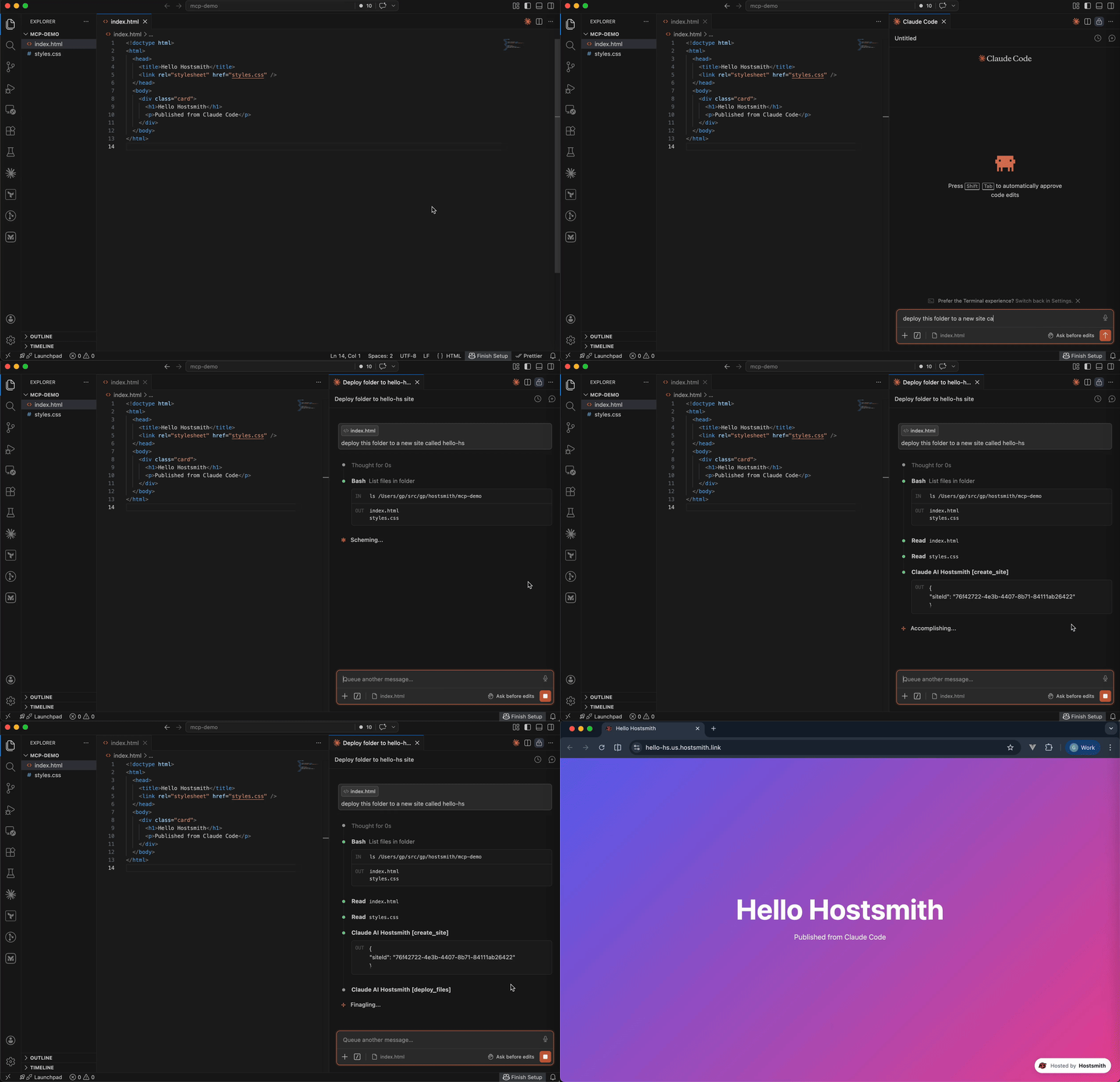
Why Hostsmith
- Artifact-first. No repo, no build config - drop a file (or have the agent generate one), get a URL.
- Built for agents. MCP-native, OAuth-scoped, structured tool descriptions agents can chain.
- EU or US data residency. Pick where the user's data lives, architecturally - not via a checkbox.
Tools
| Tool | Description |
|---|---|
list_sites | List all sites in your account for a given data partition |
get_site | Get details of a specific site |
create_site | Create a new site |
delete_site | Delete a site |
list_domains | List available domains (shared and custom) |
get_account | Get account info, subscription plan, and usage |
deploy_files | Deploy inline file contents to a site |
deploy_create_upload | Start a direct upload for binaries / large files |
deploy_finalize | Commit a deploy started with deploy_create_upload |
Usage
Authentication is via OAuth 2.0. Static access tokens are not supported.
Claude Desktop
Open Settings → Connectors → Add custom connector and enter:
https://mcp.hostsmith.net/mcp
Claude Desktop runs the OAuth flow in your browser to authorize the connector against your Hostsmith account.
Stdio (Claude Code, Cursor, Cline, Windsurf, Zed)
Add this entry to your MCP client's config:
{
  "mcpServers": {
    "hostsmith": {
      "command": "npx",
      "args": ["-y", "@hostsmith/mcp-server"]
    }
  }
}
The first tool call triggers an OAuth flow in your browser to authorize the server against your Hostsmith account.
Remote URL (other clients)
Any MCP client that supports remote Streamable HTTP transport can point directly at the hosted server:
{
  "mcpServers": {
    "hostsmith": {
      "url": "https://mcp.hostsmith.net/mcp"
    }
  }
}
The client handles the OAuth flow automatically - you'll be redirected to Hostsmith to authorize access.
Cursor (one-click install)

Click the badge to add the remote Hostsmith server (https://mcp.hostsmith.net/mcp) to Cursor. The first tool call triggers OAuth in your browser.
Local HTTP (self-hosted)
Run the server in HTTP mode and have your MCP client perform OAuth against it:
npx @hostsmith/mcp-server http
{
  "mcpServers": {
    "hostsmith": {
      "url": "http://localhost:3100/mcp"
    }
  }
}
Environment variables
| Variable | Default | Description |
|---|---|---|
HOSTSMITH_URL | https://hostsmith.net | Hostsmith app URL (OAuth endpoints). |
HOSTSMITH_API_DOMAIN | - | Override the upstream API domain across both partitions. The server prepends us.api. and eu.api. to the value you set. Example: HOSTSMITH_API_DOMAIN=staging.example.com routes calls to https://us.api.staging.example.com and https://eu.api.staging.example.com. Use this to point at a staging or proxied API host. |
HOSTSMITH_BASE_URL | - | Override the API base URL with a single fixed value, bypassing partition selection entirely. |
PORT | 3100 | HTTP server port. |
MCP_BASE_URL | http://localhost:$PORT | Public URL of the MCP server, used in OAuth metadata. |
Network access
The MCP transport and OAuth flow run in your client's app process and need no agent-sandbox configuration - if your MCP client connected, those paths are working.
The one place sandboxed agents commonly fail is the upload PUT during deploy_create_upload + deploy_finalize: the bytes go from the agent's shell to the partition API host. From the agent terminal, allow outbound HTTPS (port 443) to:
us.api.hostsmith.net(for sites in theuspartition)eu.api.hostsmith.net(for sites in theeupartition)
Sandbox-specific snippets (Cursor sandbox.json, Claude Code settings.json, Codex config.toml, generic firewall guidance) live in the Network access docs.
Troubleshooting
- Tool calls return 401: the OAuth session expired. Reconnect from your MCP client to re-authorize.
- OAuth redirect loops: confirm
MCP_BASE_URLmatches the URL your MCP client uses to reach the server. - Wrong partition: tool calls accept an explicit
partitionarg; if you omit it, the partition is inferred from your access token. - Upload PUT fails (DNS, refused, proxy, timeout): the agent's shell can't reach the partition API host. See Network access.
- Inspect the install:
npx @modelcontextprotocol/inspector npx -y @hostsmith/mcp-server httpto browse tools interactively.
Documentation
Deeper material lives at hostsmith.net/docs/mcp.
Contributing
See CONTRIBUTING.md (including the Releases section for the version-stamping flow). Security issues: see SECURITY.md.
License
Installation
Source-derived launch command. Check the maintainer’s required arguments and credentials before running:
npx -y @hostsmith/mcp-serverSet up in your AI client
Merge this template into ~/Library/Application Support/Claude/claude_desktop_config.json. Keep existing servers. Add any arguments, credentials, and permissions required by the maintainer; this template has not been install-tested.
{
  "mcpServers": {
    "io-github-hostsmith-mcp-server": {
      "command": "npx",
      "args": [
        "-y",
        "@hostsmith/mcp-server"
      ]
    }
  }
}
Restart Claude Desktop completely for changes to take effect. Confirm the server appears connected in the client’s tool list, then try a read-only example from its documentation.
Claude Desktop setup referencePackage
Compatible MCP Clients
io.github.hostsmith/mcp-server works with any MCP-compatible client. Copy the config snippet from the Configuration section above and add it to the file shown for your client, then restart the application.
- Claude Desktop
~/Library/Application Support/Claude/claude_desktop_config.jsonRestart Claude Desktop completely for changes to take effect. - Cursor
~/.cursor/mcp.jsonRestart Cursor for changes to take effect. - VS Code
.vscode/mcp.jsonReload VS Code window for changes to take effect. - Windsurf
~/.codeium/windsurf/mcp_config.jsonRestart Windsurf for changes to take effect. - Claude Code
.mcp.jsonSave at the project root, then start Claude Code in that project and review the MCP server approval prompt. Keep real credentials out of shared files.