Browsentic
Hands your real, logged-in browser to your agent: an AI side panel extension, also over MCP.
https://github.com/user-attachments/assets/e9f146d3-cb14-416e-b8d7-68c4e81cbd0d
Browsentic - a completely integrated agentic browser harness
No account · No auth · No API key · No cloud · No telemetry · Local first
Your real, logged-in browser, driven from an AI side panel by the agent CLI you already have.
Also an optional MCP server, so any MCP client can drive the same browser.
Works in







Quick Start
Browsentic is your browser's superpower, free and open source. One install sets up everything, the extension included.
macOS — one line installs the app, which brings Node and everything else:
curl -fsSL https://browsentic.com/install.sh | sh
Windows — one line in PowerShell installs the Windows app (experimental):
irm https://browsentic.com/install.ps1 | iex
Any platform — with Node.js 20 or newer:
npx browsentic@latest setup
Setup asks which browser you use and opens Browsentic's store page in it. Press Add to Chrome (or Add in Firefox), then click Browsentic in the toolbar and enter the code setup shows. That's the whole install, and the extension updates itself from its store from then on. The apps do the same from their Overview tab.
The extension is on the Chrome Web Store, for Chrome, Edge, Brave, Arc, Vivaldi and Opera, and Firefox gets an add-on signed by Mozilla:
Added it from the store already? Run the same line and enter the code it shows.
The side panel runs on an agent CLI you're signed in to: Claude Code, Codex or another supported one. You probably have one already. No API key, no account, no subscription.
Full guide, Firefox and unpacked installs included: browsentic.com/docs/guide/install
Key Capabilities
How It Works
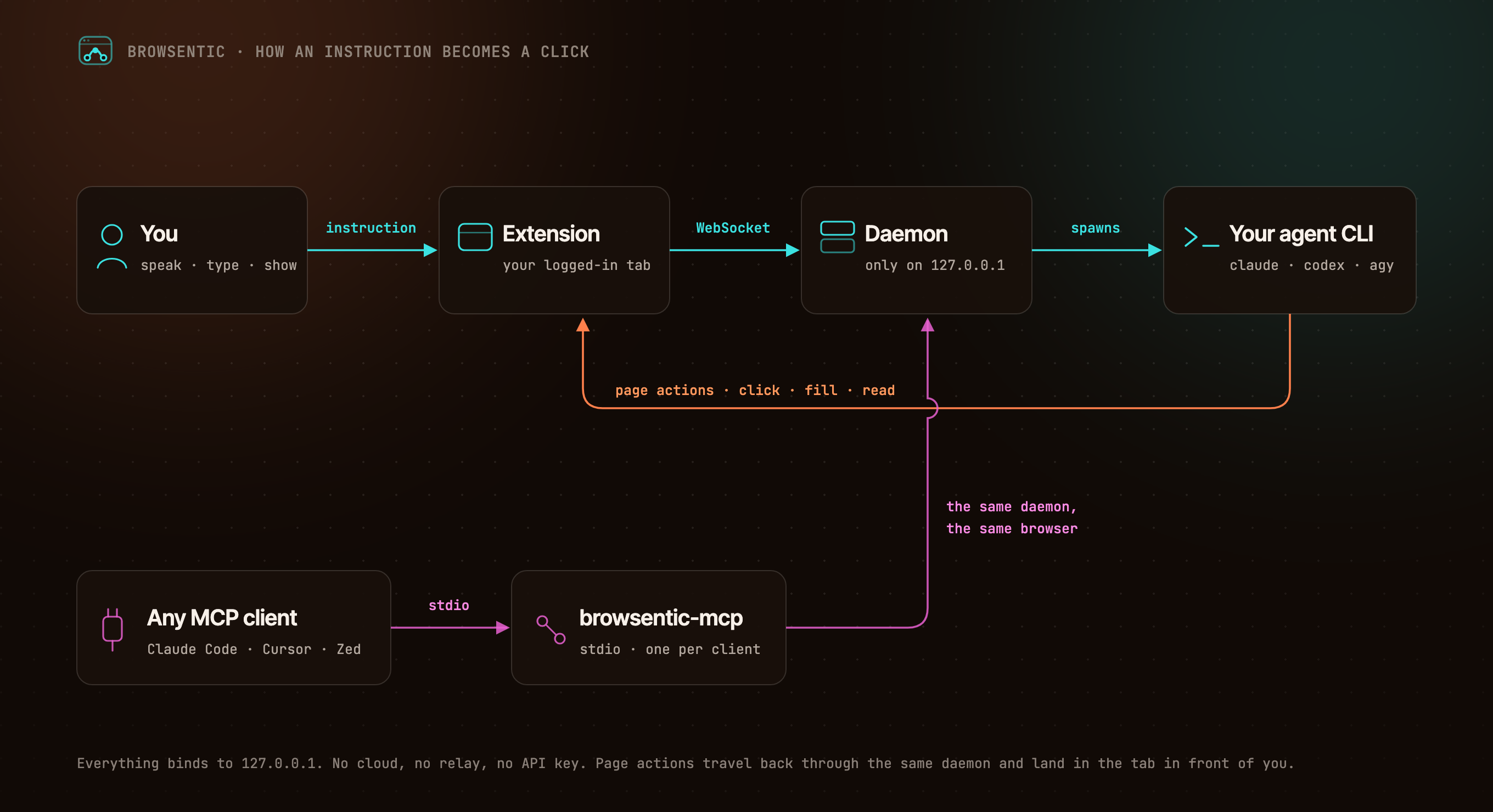
The same flow, as text
You ──speak or type──> Extension ──local WebSocket──> Browsentic Bridge ──spawns──> your agent CLI
                            ▲                                        (claude │ codex │ agy │ …)
                            └──────────────────── page actions ──────────────────────┘

Any MCP client ──stdio──> browsentic mcp ──> the same Bridge ──> the same browser
The extension dials out to Browsentic Bridge, because a Manifest V3 service worker cannot listen for connections. One Bridge owns the browser link, so several MCP clients can share one browser. Everything binds to 127.0.0.1.
Resources
- 📚 Documentation
- 🚀 Install and Pair
- ✨ Features
- 🧰 All 52 Page Tools
- 🔌 Optional: Drive It From Claude Code, Cursor or Zed Over MCP
- 🛡️ Approvals and Guardrails
- 🏗️ Architecture
- 🩺 Troubleshooting
Privacy and Security
Nothing connects until you pair, both ends prove themselves, consequential actions ask first, credentials on a page are sealed before the agent sees them, and the sites you block are off-limits to every agent — enforced in the browser, where none of them can reach the list. The full model is in SECURITY.md, and what it does not cover is in Limits.
Contributing
Bugs and ideas are welcome — start at CONTRIBUTING.md.
License
Browsentic is licensed under the Apache License 2.0. Versions up to 0.7.15 were released under the MIT License.
- Source Available: Always visible source code
- Local First: No cloud component, no telemetry, no account
- Extensible: Add your own page capabilities, skills and agent runners
What does Browsentic mean?
Short answer: "Browse" + "agentic".
Long answer: Most browser automation asks you to hand the work to a different browser — a headless one, in a container, logged in to nothing. Browsentic is the other way round: the agentic part happens in the browser you are already looking at, with the sessions you are already signed in to. The name is the thesis — browsing, made agentic, where you already browse.
Installation
Source-derived launch command. Check the maintainer’s required arguments and credentials before running:
npx -y browsenticSet up in your AI client
Merge this template into ~/Library/Application Support/Claude/claude_desktop_config.json. Keep existing servers. Add any arguments, credentials, and permissions required by the maintainer; this template has not been install-tested.
{
  "mcpServers": {
    "io-github-imshaikot-browsentic": {
      "command": "npx",
      "args": [
        "-y",
        "browsentic"
      ]
    }
  }
}
Restart Claude Desktop completely for changes to take effect. Confirm the server appears connected in the client’s tool list, then try a read-only example from its documentation.
Claude Desktop setup referencePackage
browsenticnpmCompatible MCP Clients
Browsentic works with any MCP-compatible client. Copy the config snippet from the Configuration section above and add it to the file shown for your client, then restart the application.
- Claude Desktop
~/Library/Application Support/Claude/claude_desktop_config.jsonRestart Claude Desktop completely for changes to take effect. - Cursor
~/.cursor/mcp.jsonRestart Cursor for changes to take effect. - VS Code
.vscode/mcp.jsonReload VS Code window for changes to take effect. - Windsurf
~/.codeium/windsurf/mcp_config.jsonRestart Windsurf for changes to take effect. - Claude Code
.mcp.jsonSave at the project root, then start Claude Code in that project and review the MCP server approval prompt. Keep real credentials out of shared files.