io.github.Intina47/context-sync
Universal AI Memory - Sync context across Claude, VsCode, Cursor, Continue, Windsurf, Zed & more
Context Sync
Local-first project memory for AI coding tools over MCP.
Context Sync gives an agent a persistent memory layer for a codebase:
- project identity and tech stack
- active work, decisions, constraints, and caveats
- structured file exploration
- git-aware context
- optional read-only Notion lookup
What It Does
Context Sync is built for session continuity. Instead of relying on a model to remember earlier conversations, it stores the project context that matters and makes it retrievable through a small MCP tool surface.
The current core tools are:
set_projectrememberrecallread_filesearchstructuregitnotion
Install
Install globally:
npm install -g @context-sync/server
Auto-configuration runs during global install. After install, restart your AI tool.
If you install locally instead of globally, auto-config does not run. Use the manual config guide in docs/CONFIG.md.
Verify
Check that context-sync appears in your MCP tool list:
- Claude Desktop: open the tools list
- Cursor: open the tools list
- VS Code / Copilot Chat Agent mode: check tools
- Continue.dev: open the Continue panel
- Codex CLI:
codex mcp list - Claude Code:
claude mcp list
If auto-config fails, use docs/TROUBLESHOOTING.md and docs/CONFIG.md.
Optional Notion Setup
Run the setup wizard if you want Notion integration:
context-sync-setup
or:
npx context-sync-setup
Notion support is intentionally read-only at the tool surface:
notion({ action: "search", query: "..." })notion({ action: "read", pageId: "..." })
First-Time Workflow
Start every new session by setting the project first:
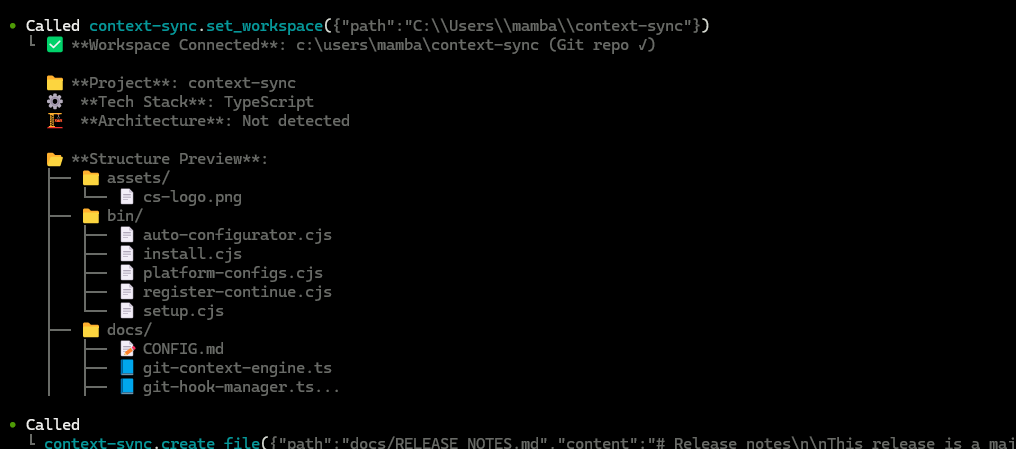
1. set_project({ path: "/absolute/path/to/project" })
2. recall()
3. structure({ depth: 2 })
4. read_file({ path: "src/index.ts" })
5. remember({ type: "decision", content: "Use SQLite for local storage" })
Recommended pattern:
set_projectonce per project/session startrecallto recover contextstructureandsearchto exploreread_filefor focused inspectionrememberwhen something should survive the current session
Git Integration
When you run set_project inside a git repository, Context Sync can install hooks for automatic context capture.
Installed hooks:
post-commitpre-pushpost-mergepost-checkout
Hooks are marked with Context Sync Auto-Hook, and existing hooks are backed up first.
The git tool supports:
statuscontexthotspotscouplingblameanalysis
Data And Config
Default locations:
- Database:
~/.context-sync/data.db - Config:
~/.context-sync/config.json - Install status:
~/.context-sync/install-status.json
Custom database options:
- CLI:
context-sync --db-path /absolute/path/to/db - Env var:
CONTEXT_SYNC_DB_PATH
See docs/DATA.md for storage details.
Supported Platforms
- Claude Desktop
- Cursor
- VS Code + GitHub Copilot
- Continue.dev
- Zed
- Windsurf
- Codeium
- TabNine
- Codex CLI
- Claude Code
- Antigravity
Docs
Installation
Source-derived launch command. Check the maintainer’s required arguments and credentials before running:
npx -y @context-sync/serverSet up in your AI client
Merge this template into ~/Library/Application Support/Claude/claude_desktop_config.json. Keep existing servers. Add any arguments, credentials, and permissions required by the maintainer; this template has not been install-tested.
{
  "mcpServers": {
    "io-github-intina47-context-sync": {
      "command": "npx",
      "args": [
        "-y",
        "@context-sync/server"
      ]
    }
  }
}
Restart Claude Desktop completely for changes to take effect. Confirm the server appears connected in the client’s tool list, then try a read-only example from its documentation.
Claude Desktop setup referencePackage
@context-sync/servernpmCompatible MCP Clients
io.github.Intina47/context-sync works with any MCP-compatible client. Copy the config snippet from the Configuration section above and add it to the file shown for your client, then restart the application.
- Claude Desktop
~/Library/Application Support/Claude/claude_desktop_config.jsonRestart Claude Desktop completely for changes to take effect. - Cursor
~/.cursor/mcp.jsonRestart Cursor for changes to take effect. - VS Code
.vscode/mcp.jsonReload VS Code window for changes to take effect. - Windsurf
~/.codeium/windsurf/mcp_config.jsonRestart Windsurf for changes to take effect. - Claude Code
.mcp.jsonSave at the project root, then start Claude Code in that project and review the MCP server approval prompt. Keep real credentials out of shared files.