io.github.introfini/mcp-server-zotero-dev
MCP server enabling AI assistants to build, test, and debug Zotero plugins
MCP Server Zotero Dev
Give your AI assistant superpowers for Zotero plugin development


Architecture · Getting Started · Available Tools
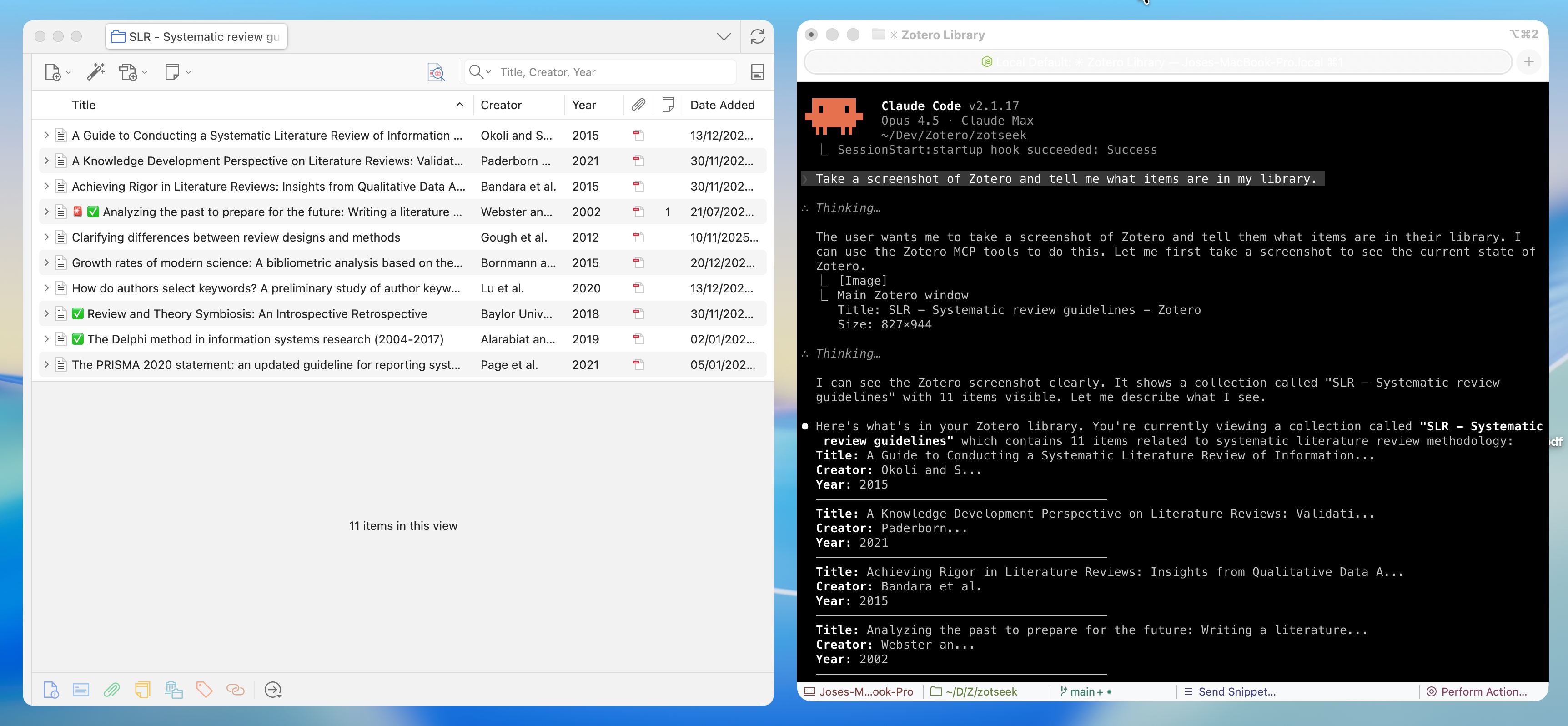
A Model Context Protocol (MCP) server that enables AI assistants like Claude, Cursor, and Windsurf to build, test, and debug Zotero 7, 8, 9, and 10 plugins. Screenshots, DOM state, debug logs, and JavaScript execution give the AI rich context to understand what's happening—and tools to help you fix it.
✨ Features
| Category | Capabilities |
|---|---|
| 🎯 UI Inspection | Screenshots, DOM tree, element finding, computed styles |
| 🖱️ UI Interaction | Click elements and type text (shadow-DOM aware) |
| 💻 JS Execution | Run code in Zotero context, inspect APIs, test snippets |
| 🔧 Build Tools | Scaffold integration for build, serve, hot reload |
| 📋 Logs & Errors | Stream debug output, error console, watch for issues |
| 🗃️ Database | Read-only access to zotero.sqlite for debugging |
| 🔌 Plugin Management | Install, reload, list plugins |
🚀 Quick Start
Prerequisites
- Node.js 20+ and npm
- Zotero 7+ — Works on all Zotero 7, 8, 9, and 10 builds (release, beta, dev)
- For plugin development: zotero-plugin-scaffold
1. Install MCP Server
Use install-mcp to add the server to your AI assistant:
npx -y install-mcp @introfini/mcp-server-zotero-dev --client claude-code
Supported clients: claude-code, cursor, windsurf, vscode, cline, roo-cline, claude, zed, goose, warp, codex
Claude Code
npx -y install-mcp @introfini/mcp-server-zotero-dev --client claude-code
Cursor
npx -y install-mcp @introfini/mcp-server-zotero-dev --client cursor
VS Code / Copilot
npx -y install-mcp @introfini/mcp-server-zotero-dev --client vscode
Windsurf
npx -y install-mcp @introfini/mcp-server-zotero-dev --client windsurf
Manual Configuration
Add to your MCP client config:
{
  "mcpServers": {
    "zotero-dev": {
      "command": "npx",
      "args": ["-y", "@introfini/mcp-server-zotero-dev@1.1.1"],
      "env": {
        "ZOTERO_RDP_PORT": "6100"
      }
    }
  }
}
Version & updates: pin an exact version as shown above. A bare
npx <pkg>(no version) keeps running whatevernpxcached and won't pick up new releases, so always include a version and-y(without-y,npxhangs waiting for an install prompt). Bump the pinned version to upgrade, or use@latestto always fetch the newest at launch (auto-updates, but a bad release would run automatically and it adds a registry check on every start). Note thatinstall-mcpmay write a config without-yor a version, so the manual configuration above is the most robust path.
Restart your AI assistant after adding the configuration.
2. Install MCP Bridge Plugin in Zotero
Download zotero-mcp-bridge.xpi and install:
- In Zotero: Tools → Plugins
- Click ⚙️ → Install Plugin From File
- Select the downloaded
.xpifile - Restart Zotero
This lightweight plugin enables the Remote Debugging Protocol when Zotero starts. It only needs to be installed once and works on all Zotero 7+ builds (release, beta, and dev).
3. Start Developing!
Just open Zotero normally and ask your AI assistant:
"Take a screenshot of Zotero and list installed plugins"
That's it! No special launch flags, no configuration. 🎉
🧰 Available Tools (28 total)
UI Inspection — Screenshots, DOM, styles
| Tool | Description |
|---|---|
zotero_screenshot | Capture window, element, or region screenshots |
zotero_inspect_element | Find elements by CSS selector |
zotero_get_dom_tree | Get DOM structure of a window/panel |
zotero_get_styles | Get computed CSS styles for element |
zotero_list_windows | List all open Zotero windows |
Screenshot Targets: Main window, preferences, PDF reader, dialogs, or any element by selector. Use
highlightSelectorto add a red border before capture.
UI Interaction — Click and type in the Zotero UI
| Tool | Description |
|---|---|
zotero_click_element | Click an element by CSS selector (toolbar/menu button, preference control, list row). Pierces shadow DOM; index picks among multiple matches; mouseEvents synthesizes a full mouse sequence. |
zotero_send_keys | Type text into an input/textarea/contenteditable (focuses it first, fires input/change). Optional clear and pressEnter. |
Resolution tries light DOM first, then pierces open shadow roots (Zotero's XUL custom elements keep internals in shadow DOM). Limitation: cannot dismiss a blocking native modal dialog (
Services.prompt.confirmEx) — its nested modal loop blocks the eval thread these tools run on.
JavaScript Execution — Run code in Zotero context
| Tool | Description |
|---|---|
zotero_execute_js | Execute JavaScript in Zotero's privileged context. Auto-wraps code with top-level return statements in IIFE. |
zotero_inspect_object | Explore Zotero APIs - list methods and properties of any object (e.g., Zotero.Items) |
zotero_open_preferences | Open Zotero's settings window, optionally to a specific pane (built-in or plugin) |
zotero_search_prefs | Search/discover preferences by pattern (e.g., find all prefs containing "debug") |
zotero_get_pref | Get a preference value |
zotero_set_pref | Set a preference value |
Examples:
Zotero.Items.getAll(1),Zotero.Prefs.get('export.quickCopy.setting'),ZoteroPane.getSelectedItems()Tip: Use
zotero_inspect_objectto explore APIs before writing code. Usezotero_search_prefsto discover preference keys.
Build & Scaffold — Integration with zotero-plugin-scaffold
| Tool | Description |
|---|---|
zotero_scaffold_build | Build plugin (dev or production mode) |
zotero_scaffold_serve | Start dev server with hot reload |
zotero_scaffold_lint | Run ESLint on plugin source |
zotero_scaffold_typecheck | Run TypeScript type checking |
Logs & Debugging — Error console and debug output
| Tool | Description |
|---|---|
zotero_read_logs | Read debug output (Zotero.debug) |
zotero_read_errors | Read error console entries |
zotero_watch_logs | Stream logs in real-time |
zotero_clear_logs | Clear log buffer |
Plugin Management — Install, reload, inspect
| Tool | Description |
|---|---|
zotero_plugin_reload | Hot reload your dev plugin |
zotero_plugin_install | Install plugin from XPI path |
zotero_plugin_list | List installed plugins with version/status |
Database Access — Read-only SQLite access
| Tool | Description |
|---|---|
zotero_db_query | Execute SELECT query on zotero.sqlite |
zotero_db_schema | Get table schema information |
zotero_db_stats | Get database statistics (items, attachments, collections, size) |
Note: Database access is read-only and requires Zotero to be closed, or uses a copy of the database.
🏗️ Architecture
┌─────────────────────────────────────────────────────────────────┐
│                        AI Assistant                             │
│                  (Claude, Cursor, Windsurf)                     │
└─────────────────────────┬───────────────────────────────────────┘
                          │ MCP Protocol (stdio)
                          ▼
┌─────────────────────────────────────────────────────────────────┐
│                  MCP Server (Node.js/TypeScript)                │
│  ┌──────────────┐  ┌──────────────┐  ┌──────────────────────┐   │
│  │   Scaffold   │  │     RDP      │  │      Database        │   │
│  │  Integration │  │    Client    │  │      Reader          │   │
│  └──────────────┘  └──────┬───────┘  └──────────────────────┘   │
└─────────────────────────────┼───────────────────────────────────┘
                              │ Firefox RDP (port 6100)
                              ▼
┌─────────────────────────────────────────────────────────────────┐
│                      Zotero Application                         │
│  ┌──────────────────────────────────────────────────────────┐   │
│  │            MCP Bridge for Zotero                         │   │
│  │         Starts DevToolsServer on launch                  │   │
│  └──────────────────────────────────────────────────────────┘   │
│  ┌──────────────────────────────────────────────────────────┐   │
│  │              Firefox DevTools Server (built-in)          │   │
│  │           JS Execution • DOM • Console • Screenshots     │   │
│  └──────────────────────────────────────────────────────────┘   │
│  ┌──────────────────────────────────────────────────────────┐   │
│  │                   Your Plugin (dev)                      │   │
│  └──────────────────────────────────────────────────────────┘   │
└─────────────────────────────────────────────────────────────────┘
Why this approach?
- ✅ Lightweight plugin — Just enables RDP, Firefox DevTools does the rest
- ✅ Zero-config after install — Just open Zotero normally, no special flags
- ✅ Rich AI context — Screenshots, DOM, and logs help the AI understand your plugin's state
- ✅ Hot reload — Integrates with zotero-plugin-scaffold for instant feedback
- ✅ Full Zotero access — Execute any Zotero API in the privileged context
- ✅ Cross-platform — Works on Linux, Windows, macOS
🔧 Environment Variables
| Variable | Description | Default |
|---|---|---|
ZOTERO_RDP_PORT | Remote debugging port | 6100 |
ZOTERO_RDP_HOST | Debugging host | 127.0.0.1 |
ZOTERO_DATA_DIR | Path to Zotero data directory | Auto-detect |
ZOTERO_PROFILE_PATH | Path to Zotero profile | Auto-detect |
🔌 Changing the RDP Port
The bridge listens on port 6100 by default. You only need to change it if you run two Zotero instances at the same time (a normal profile and a development one, say), or if another process already holds 6100.
The port lives on both sides of the bridge, and both have to agree on it.
1. Zotero side — set the plugin preference:
- Settings → Advanced → Config Editor, and accept the warning
- Search for
extensions.mcp-rdp.port - If it doesn't exist, create it: select Number, name it
extensions.mcp-rdp.port, and enter your port - Restart Zotero — the listener only opens at startup
Watch the type. The Config Editor pre-selects Boolean. Creating the preference without switching to Number stores
trueinstead of a port, and Zotero then opens the bridge on a local pipe rather than a TCP port — the debug log reports success while no MCP client can connect.
2. Client side — set ZOTERO_RDP_PORT to the same value in your MCP client config:
{
  "mcpServers": {
    "zotero-dev": {
      "command": "npx",
      "args": ["-y", "@introfini/mcp-server-zotero-dev@1.1.2"],
      "env": {
        "ZOTERO_RDP_PORT": "6101"
      }
    }
  }
}
Change both or neither. Moving only one side disconnects the bridge: Zotero listens on one port while the client keeps dialing the other.
Actually running two instances
Launching Zotero a second time hands you the window you already have — like Firefox, it forwards to the running instance instead of starting another. A second instance needs its own profile and -no-remote:
# macOS; adjust the binary path on Windows/Linux
MOZ_NO_REMOTE=1 "/Applications/Zotero.app/Contents/MacOS/zotero" -P <profile-name> -no-remote
Give that profile its own extensions.mcp-rdp.port and the two bridges stay out of each other's way. Verified with 9.0.6 on 6100 and 10.0-beta.22 on 6101 at the same time.
Requires MCP Bridge plugin 1.0.5 or later. In 1.0.4 and earlier,
extensions.mcp-rdp.portwas read under the wrong preference branch and silently ignored, so the bridge stayed on 6100 no matter what you set. If you configured a custom port against an older build, it is stored asextensions.zotero.extensions.mcp-rdp.port— that name still works, but prefer the one above.
Disabling the bridge
Set extensions.mcp-rdp.enabled to false (Boolean) in the Config Editor and restart Zotero. The plugin stays installed but opens no listener, and no MCP client can reach Zotero until you set it back to true.
Checking what the bridge did
The plugin appends one line per lifecycle transition to mcp-rdp-events.log in your Zotero profile directory: startup, listener open, listener down, listener recovered, listener flapping, shutdown. It survives restarts and is readable without Zotero running, which makes it the first place to look when an MCP client reports Cannot connect to Zotero RDP:
2026-09-17T07:52:36.201Z startup v1.0.5 reason=1
2026-09-17T07:52:37.914Z listener DOWN on port 6177 - failed to open at startup: port 6177 does not answer (held by another process?)
2026-09-17T07:53:46.552Z listener RECOVERED on port 6177 after 6 failed checks, 69s down
2026-09-17T08:01:12.083Z shutdown v1.0.5 reason=2
What to read from it:
listener DOWN … failed to open at startup— something else holds the port: another Zotero instance, a previous one that has not released it, or a process that answers on the port without speaking RDP. The reason after the colon says which of the last two it is.listener DOWN … stopped answering— the listener was up and then died. The health check reopens it; the next line tells you when that worked and how long the gap was.listener RECOVERED … after N failed checks— the bridge came back on its own. A large N means the port was held for a long time; nothing is logged per attempt, so the file stays short no matter how long the outage.listener FLAPPING, later closed bylistener STEADY … after N flaps— the listener keeps dying and coming straight back on the first reopen. That is a different fault from an outage: the port is yours, something is tearing the listener down. The whole run costs these two lines however long it goes on, so N is the number to report if you open an issue.- A
startupwith noshutdownbefore it — Zotero was killed or crashed rather than exiting cleanly. Usually the answer to "the bridge stopped working" is simply that Zotero is not running. - No new lines at all — the plugin never started: disabled by preference, or not installed in the profile you are actually running.
log() output goes to dump() (lost unless Zotero was started from a console) and Zotero.debug() (a no-op unless debug output is enabled), so this file is the only durable record of a boot-time failure. A healthy session adds three lines (startup, open, shutdown); an outage adds two more, and a run of flaps two more, whatever their length. No failure mode writes per tick.
📸 Screenshot Examples
// Capture main Zotero window
await zotero_screenshot({ target: 'main-window' });

// Capture your plugin's panel with highlight
await zotero_screenshot({
  target: 'element',
  selector: '#my-plugin-panel',
  highlightSelector: '#my-plugin-button'
});

// Capture a specific window by ID (use zotero_list_windows to find IDs)
await zotero_screenshot({
  target: 'window',
  windowId: 12345
});

// Capture element after triggering UI action
await zotero_execute_js({ code: 'document.querySelector("#menu").click()' });
await zotero_screenshot({ target: 'element', selector: 'menupopup[state="open"]' });
🧑💻 Development
# Clone and install
git clone https://github.com/introfini/mcp-server-zotero-dev.git
cd mcp-server-zotero-dev
npm install

# Build everything
npm run build

# Build individual packages
npm run build:server
npm run build:plugin

# Run tests
npm test

# Development mode (watch)
npm run dev
Project Structure
mcp-server-zotero-dev/
├── packages/
│   ├── mcp-server/               # MCP server (npm package)
│   │   ├── src/
│   │   │   ├── index.ts          # MCP server entry
│   │   │   ├── rdp/              # RDP client
│   │   │   ├── tools/            # Tool implementations
│   │   │   └── prompts/          # Slash commands
│   │   └── package.json
│   │
│   └── zotero-plugin-mcp-rdp/    # Tiny Zotero plugin (.xpi)
│       ├── src/
│       │   └── bootstrap.js      # Starts RDP server (shipped verbatim)
│       ├── addon/
│       │   └── manifest.json
│       └── package.json
│
├── docs/                         # Documentation
└── package.json                  # Monorepo root
📚 Resources
- Architecture & Technical Learnings — Deep dive into RDP protocol, actor hierarchy, and common pitfalls
- Zotero Plugin Development — Official docs
- Zotero 10 for Developers — Migration guide for the latest major
- Zotero 7 for Developers — Migration guide
- zotero-plugin-scaffold — Build tooling
- zotero-plugin-template — Starter template
- zotero-plugin-toolkit — API helpers
- Firefox RDP Protocol — Protocol docs
🤝 Contributing
Contributions are welcome. See CONTRIBUTING.md for setup, test conventions and the codebase-specific rules worth knowing before you start.
The short version:
- Follow existing code patterns
- Add tests for new features, and skip rather than fail when Zotero is not running
- Update documentation
- There is no CI, so run
npm run build,npm run typecheck,npm run lintandnpm testyourself, and say in the PR which Zotero version you verified against
📄 License
MIT © introfini
Acknowledgments
- Built for the Zotero plugin developer community
- Integrates with zotero-plugin-scaffold by @windingwind
- Leverages Firefox DevTools RDP for reliable communication
Installation
Source-derived launch command. Check the maintainer’s required arguments and credentials before running:
npx -y @introfini/mcp-server-zotero-devSet up in your AI client
Merge this template into ~/Library/Application Support/Claude/claude_desktop_config.json. Keep existing servers. Add any arguments, credentials, and permissions required by the maintainer; this template has not been install-tested.
{
  "mcpServers": {
    "io-github-introfini-mcp-server-zotero-dev": {
      "command": "npx",
      "args": [
        "-y",
        "@introfini/mcp-server-zotero-dev"
      ]
    }
  }
}
Restart Claude Desktop completely for changes to take effect. Confirm the server appears connected in the client’s tool list, then try a read-only example from its documentation.
Claude Desktop setup referencePackage
@introfini/mcp-server-zotero-devnpmCompatible MCP Clients
io.github.introfini/mcp-server-zotero-dev works with any MCP-compatible client. Copy the config snippet from the Configuration section above and add it to the file shown for your client, then restart the application.
- Claude Desktop
~/Library/Application Support/Claude/claude_desktop_config.jsonRestart Claude Desktop completely for changes to take effect. - Cursor
~/.cursor/mcp.jsonRestart Cursor for changes to take effect. - VS Code
.vscode/mcp.jsonReload VS Code window for changes to take effect. - Windsurf
~/.codeium/windsurf/mcp_config.jsonRestart Windsurf for changes to take effect. - Claude Code
.mcp.jsonSave at the project root, then start Claude Code in that project and review the MCP server approval prompt. Keep real credentials out of shared files.